![ITONICS-Logo-Night-Blue-2021.svg]](https://www.itonics-innovation.com/hubfs/ITONICS-Logo-Night-Blue-2021.svg)
The Insights tab gives you an AI-generated, cited summary of what is happening around an element — a trend, technology, startup, or opportunity. Instead of reading through long lists of patents, publications, and news, you open the element and see the key takeaways, each traceable back to its source.
The tab is powered by insights agents that you set up per element type. Each agent produces a set of perspectives — the specific questions your team wants answered, such as "What is changing?" or "What does it mean for us?".
In this article
- Insights tab
- Reading a perspective
- Setting up your insights agents
- Verifying on an element
- Adding a chart or diagram to a perspective
- How insights refresh
- Where insights come from
Insights tab
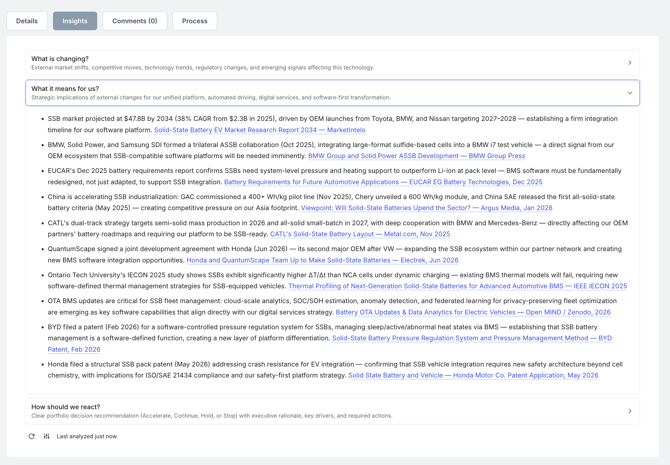
The Insights tab sits on an element's detail page, next to Details and Comments. Open any element and select Insights to see its perspectives. Each perspective is a collapsible section — click its title to expand or collapse it.
Reading a perspective
Each perspective answers one question about the element. When you expand it, you see:
- A short, structured answer — the key findings, stated as concrete points rather than headlines.
- Citations on the findings. Click a citation to open the underlying patent, paper, or article in a new tab.
- An optional chart at the top, if the perspective is set up to include one.
Setting up your insights agents
If you have edit rights on an element type, you decide which perspectives its insights agent produces. You configure this in Prism:
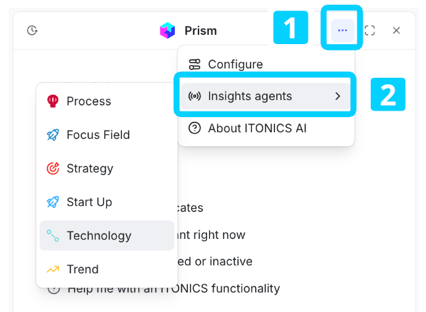
- Open Prism, click the ⋯ (1) menu at the top of the panel, choose Insights agents (2), and select the element type you want to configure (for example Trend).
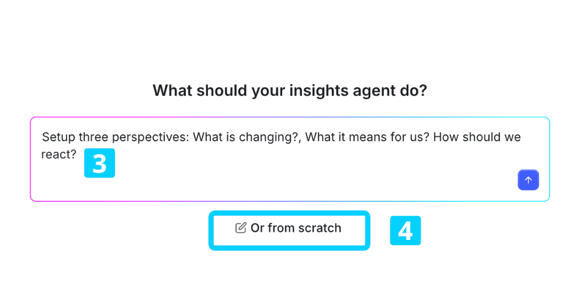
- Describe what the agent should do in a short prompt — for example: "Create three perspectives: What is changing?, What does it mean for us?, How should we react?" Prism drafts the perspectives and fills in the detail for you. (3) Prefer to build them yourself? Choose Or from scratch.(4)
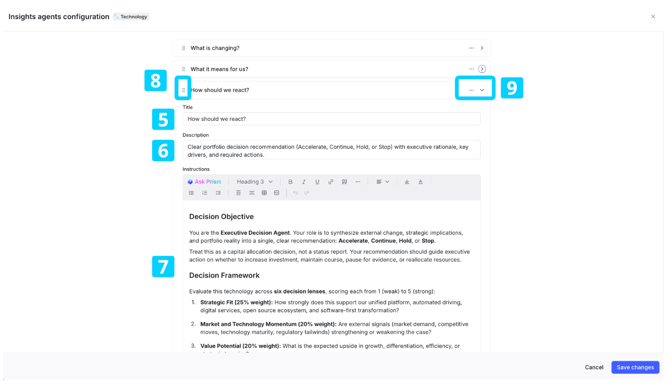
- Refine each perspective. A perspective has a Title (5), a Description (6), and Instructions (7) — the prompt Prism follows. In the Instructions you set out the research steps, which sources to use (news, patents, publications, web), how to structure the answer, and any chart to include. Reorder perspectives by dragging the handle (8) on the left of each one, and use a perspective’s ··· menu to toggle Expand by default or to delete it. (9)
- Click Save changes. Your configuration applies to every element of that type.
Adding a chart or diagram to a perspective
To include a chart, describe it in the perspective's Instructions — the type of chart, the data series, and any styling such as colours and axis labels. Prism renders it with Vega at the top of the perspective. You can also request charts directly in the Prism chat. The more precisely you describe the chart, the better the result. Take some inspiration here: https://vega.github.io/vega/examples/.
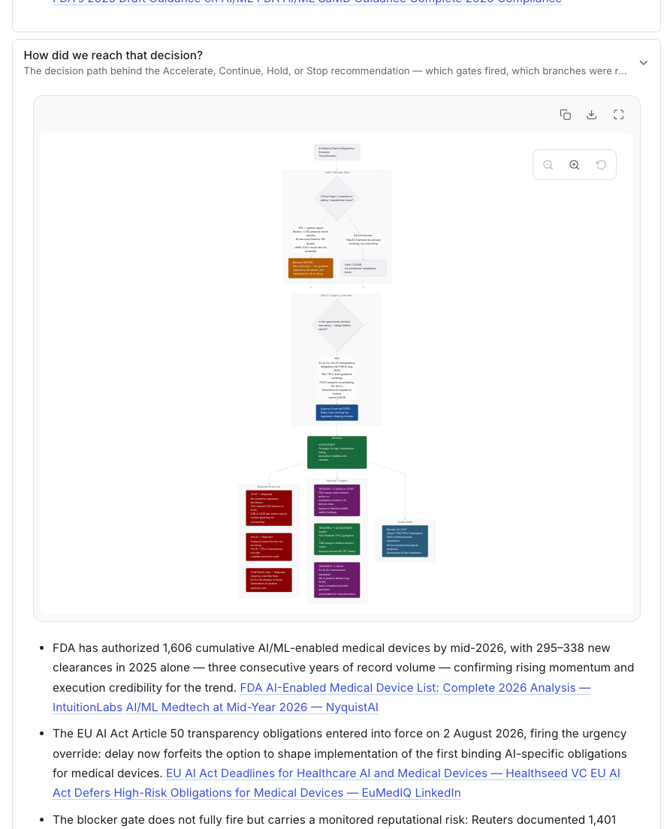
Perspectives are not limited to data charts. Ask for a process flow, a decision tree, a state model, or a dependency map, and Prism draws a structural diagram instead — flowcharts, sequence flows, state diagrams, and entity-relationship diagrams are all available. Describe it the same way, in the Instructions. Take some inspiration here: https://mermaid.js.org/intro/. Prism decides which of the two to render from what you asked for, so there is no engine for you to select. Structural diagrams work in the Prism chat as well.
Verifying on an element
After saving, open any element of that type and go to the Insights tab to check the result. The perspectives show Analyzing… while Prism works, then display their answers. If something isn't right, return to the insights agent configuration, adjust the Instructions, and save again.
How insights refresh
To keep things fast, Prism doesn't re-run on every visit. It regenerates a perspective only when its configuration changes - the next person to open the tab triggers the new analysis, and everyone after sees that result - or when someone with edit rights re-runs it. Until then, the tab shows the last generated answer. Insights tabs do not refresh automatically over time. To update the results, for example after two weeks, someone with edit rights re-runs the perspective.
Where insights come from
Prism draws on external sources and cites everything it uses:
- Lens.org — patents from more than 100 patent offices worldwide, and scholarly research. You can open the original patent or article behind any citation.
- Perplexity — the open web beyond structured sources: news, funding announcements, mergers and acquisitions, government publications, press releases, and market reports.
Because these sources are searched live, Prism always shows where each point came from. To prefer or exclude particular sources, name them in a perspective's Instructions, or set preferred sources in your workspace's Master Context.