![ITONICS-Logo-Night-Blue-2021.svg]](https://www.itonics-innovation.com/hubfs/ITONICS-Logo-Night-Blue-2021.svg)
Configurable Pages allow creating custom pages using HTML and use them as entry points within a workspace. Pages behave like standard views and can be placed anywhere in the workspace navigation. When positioned at the top of the navigation, a Page automatically becomes the workspace landing page, providing users with immediate orientation and guidance upon login.
To access the ITONICS Pages, navigate to the main navigation menu on the left side. Here, you will find all the already existing Page views that you have created or that are publicly available. Click on any Page view to access it. You can also create a new Page view from here.
Create a Page
Set up a new page view:
-
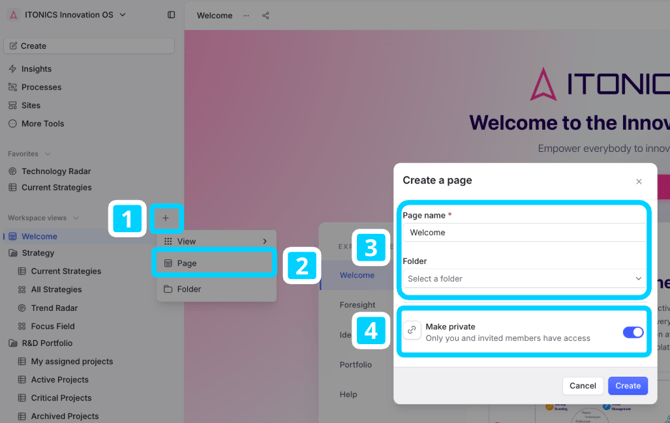
Click on the + icon next to workspace views in the side navigation [1]
-
Choose "Page" [2]
-
Enter a Page name and allocate a Folder (optional) [3]
-
Make the page public or private [4]
- Press Create
Edit a Page
When you want to change a page view, find the “Edit” Option at the top right of the page . Clicking on it opens a code editor with preview option.
Code Tab
Use HTML to build your full customized landing page. Use your own coding skills or any vibe coding tool of your choice.
To generate HTML code that can be copy-pasted into the Page editor, follow these steps.
- Use case: Think of the exact scenario that you want to cover with this page.
- LLMs will consider every part of your prompt, therefore be as accurate as possible.
- Personalize — include the company's name, the goal of its innovation endeavours and if you have access to your company’s style-guide, and you are allowed to upload it to an LLM, upload that pdf too (this will ensure exceptional design results).
- Required buttons — Include whether the page should have a button to submit information (a link to a form page) and other UI elements.
- [Optional] If you have technical knowledge, feel free to include detailed information.
- Required keywords, keyphrases and best-practices: Include these keywords in your prompt, otherwise it will not work.
- Use HTML
To ensure the result will be HTML code. - Use only Tailwind styling, any other styling will be removed by the code editor
To ensure the result will be of high quality and will be able to be displayed properly.
Tailwind CSS is a utility-first CSS framework, it is responsible for making the pages appear pretty, without this, all Pages will look dull and lame. - Attach your company-specific style guide
Most LLMs nowadays allow you to upload attachments. Use this to attach your company-specific style guide (Warning: check first if your company’s regulations allow for this, as some companies might prohibit this), this will greatly improve design and align it with the rest of your online presence. - Template to paste into every prompt
-
Create HTML code to paste into an online code editor, this code editor has strict guidelines that you have to follow, these are: only ever use regular html with inline tailwind, if state management is needed, use CSS-only Tailwind group variants, do not include a <head>, replace <body> tags with <div>, do not ever use <style>, <link>, or <script> tags as these will be removed by the code editor and will break the code otherwise.
-
- Use HTML
- Create the prompt
Combine all the above into a single prompt, this can look something like this:-
Create HTML code to paste into an online code editor, this code editor has strict guidelines that you have to follow, these are: only ever use regular html with inline tailwind, if state management is needed, use CSS-only Tailwind group variants, do not include a <head>, replace <body> tags with <div>, do not ever use <style>, <link>, or <script> tags as these will be removed by the code editor and will break the code otherwise.
Now, create a landing page for an innovation workspace at [company_name]. Add a short introductory paragraph describing the organization’s innovation ambition and focus areas. Structure the page into clearly separated sections using headings. Include a section that explains how innovation is managed end to end, for example foresight, ideation, and portfolio Add a section that explains what users should do next, for example explore trends, submit ideas, or review initiatives Include a section with quick links or call to action placeholders that can later point to specific views or elements. Use concise, neutral language suitable for internal enterprise users Style the html in a way to make it look professional, modern and most important, consider the uploaded style guide to align with the online presence of the company.
-
Important details, otherwise it won’t work.
The code editor already has a feature built-in that will do these steps, explained below, automatically, but if you paste your code and it doesn't work for whatever reason, make sure it aligns with the format, explained below, first.
Having a basic understanding of HTML greatly helps with understanding the process of creating a layout page in the ITONICS code editor.
HTML files are always structured the same, in containers.
- DOCTYPE tag
- HTML beginning tag
- HEAD beginning tag
- HEAD section
- HEAD ending tag
- BODY beginning tag
- BODY section
- BODY ending tag
- HTML ending tag
To avoid unnecessary complications, before doing these steps, check whether the code editor already removed the <head> section and renamed the body-tags to div.
Check as well, if the code contains any disallowed tags. These should be removed, if not they will cause complications later on:
<style>, <link>, <script>
We only need the BODY container, and we have to rename the tag-name to div, that means we have to do a couple of changes to our code before it will display properly.
The steps are in order of where you will find the elements in the code, starting from the very top:
- Remove
<!DOCTYPE html>tag - Remove
<html …>tag - Remove
<head> … </head>section including the tags
Note: don’t get it confused with<header> … </header>, this one is fine. - Replace
<body …>with<div …> - Replace
</body>with</div> - Remove
</html>
Now the first word in the editor should be <div> or <div …> and the last word should be </div> or </div …>.
Preview Tab
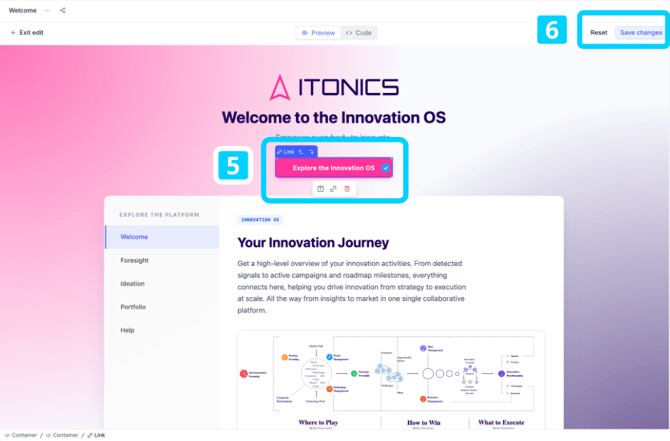
Editing in the preview is sometimes easier than going through the code and finding the exact container to edit. Simply click on an HTML artifact of the page and change its properties via the pop over [5]. You can:
-
Edit or Delete Text
-
Edit, Delete or Link Buttons
- Upload Images
Saving Changes
Changes made in this configuration are applied explicitly via the Save action. Once you make at least one change, a Save button [6] appears at the top of the screen. This indicates that there are unsaved changes.
When you click Save, all changes are persisted immediately and take effect right away across the system. No additional confirmation or exiting the edit mode is required.
If you want to discard your current changes, you can use the Reset button. Reset restores the configuration to the last saved version and removes all unsaved modifications.