![ITONICS-Logo-Night-Blue-2021.svg]](https://www.itonics-innovation.com/hubfs/ITONICS-Logo-Night-Blue-2021.svg)
1. Updating your profile information
2. Passwordless authentication
3. Adjusting your email notification settings
Updating your profile information
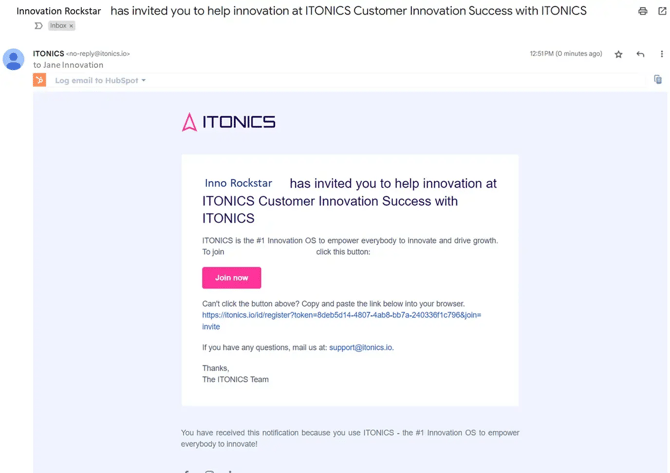
After you have been invited to join the InnovationOS, you should check your personal system settings. The invitation process looks like you receive an email notification to join the system. You have seven days to accept the invite and log in for the first time.
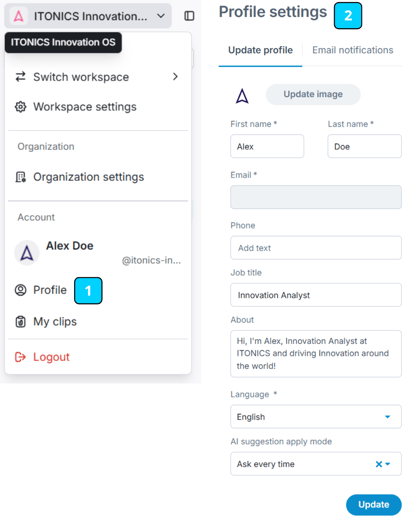
Once you have entered the system, you will find your name at the bottom left of the application. Click on it and find the different setting options that you have as a user.
Navigate to my profile [1]. Once clicked, you will enter the page where you can setup your profile, i.e., your image (which is displayed around the system — if you leave this empty, only your credentials will be shown), first name, last name. Also, you can select your preferred language from English, German, or French. We will detect the language automatically on first login, but this setting takes priority.
Passwordless authentication
Using passwords is insecure, and frequently forgotten by users. To address these challenges, passwords have been replaced with email-based login confirmation links and your login will then be stored as a session cookie on your PC.
Note: If your organization uses SSO only — that is, Local Login (Non-SSO) is disabled and a single identity provider is configured — you are redirected straight to your company login and the passwordless email login described here does not apply. This applies to every role, including organization admins.
How it works
First, enter your system's URL into your browser or if you do not know the URL, navigate to
https://itonics.io/id/login
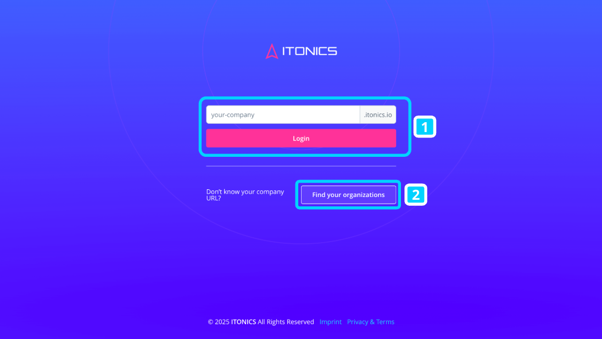
When you don't know the URL of your system, click "Find Your Organization" (2). Once clicked, you will be asked to enter your email address to retrieve your organization details. A list of all systems you are subscribed to will be sent via email. Select the desired organization from the email to start the login process.
If you know the URL already, enter it and hit login (1).
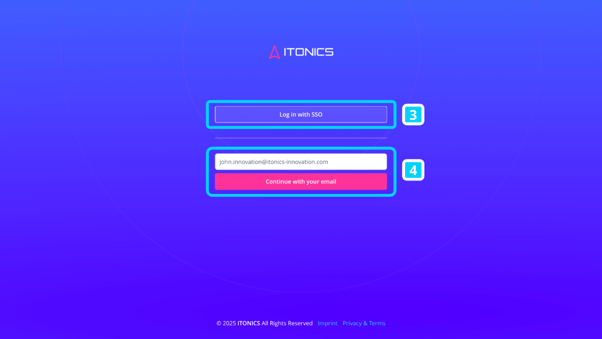
Second, enter your email or sign in via SSO. For the SSO Login (3), follow the authentication instructions of your respective Identity Provider. For the email Login (4), retrieve the one-time login code (5) from your inbox OR click the Login Link (6) for instant access in your inbox without entering a code.
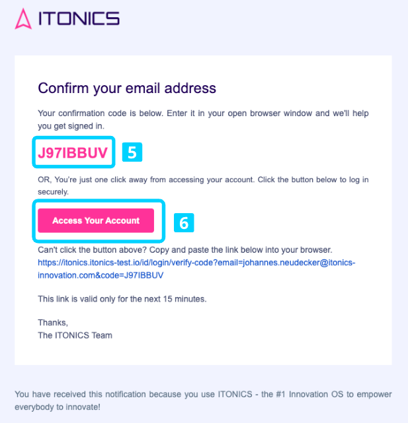
Once verified, you’re securely logged in.
Login issues? Check out Common Issues and Support.
Session Timeout
User sessions in the ITONICS platform automatically expire after 30 days of inactivity. After this period, users will be required to log in again. This applies to all authentication methods, including Single Sign-On (SSO) and passwordless authentication.
Adjusting your email notification settings
In the Email Notifications tab of your user profile, you can control which notifications you receive. A master toggle turns all email notifications on or off at once, and below it you can subscribe or unsubscribe from individual categories and notification types, so you only get the notifications relevant to you.
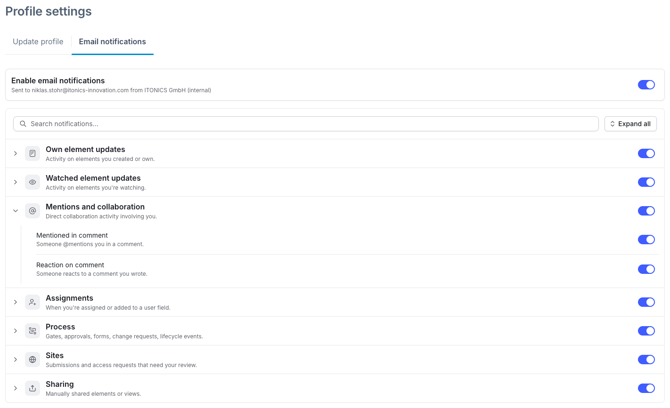
Each category below lists the individual notifications you can enable or disable. You can turn on or off a whole category at once, or fine-tune the individual notification types within it.
Email notifications
When email notifications are enabled, users can receive notifications for the following events.
Own element updates
- Own element published — Sent when one of your elements is published.
- Own element archived — Sent when one of your elements is archived.
- Own element rated — Sent when someone rates your element.
- Own element relations — Sent when a relation is added to your element or it's referenced from another.
- Own element liked — Sent when someone likes your element.
- Own element commented — Sent when someone comments on your element.
- Own element property updated — Sent when a property on one of your elements is updated.
Watched element updates
- Watched element published — A watched element is published.
- Watched element archived — A watched element is archived.
- Watched element rated — A watched element receives a rating.
- Watched element relations — A relation is added to a watched element or it's referenced from another.
- Watched element liked — A watched element receives a like.
- Watched element commented — A new comment is posted on a watched element.
- Watched element property updated — A property on a watched element is updated.
Mentions and collaboration
- Mentioned in comment — Someone @mentions you in a comment.
- Reaction on comment — Someone reacts to a comment you wrote.
Assignments
-
Added to user search field — You're added to a user-typed field on an element.
Process (workflow)
- Gate ready for review — A gate is ready for your review.
- Form submission — A form has been submitted.
- Gate change requested — A reviewer has requested changes on a gate.
- Gate approved — A gate has been approved.
- Gate change request resolved — A change request on a gate is resolved.
- Gate paused — A gate has been paused.
- Gate archived — A gate has been archived.
- Gate converted — A gate has been converted.
- Gate validated — A gate has been validated.
Sites
- New site submission assigned — A new submission is assigned to you for review.
- Site access request — A user requests access to a site you own.
Sharing
- Share Link — Someone shares an element or view with you.
Access and administration
Some system emails are sent independently of personal notification preferences, including:
-
Workspace invitations
-
Password reset emails
-
Email verification emails
-
Organization invitations
-
Organization membership required emails
-
Organization access overview emails
-
SSO login required emails
- Excel export ready for download
Note: Notification preferences are set per on organization level.
Learn more about the notifications here.