![ITONICS-Logo-Night-Blue-2021.svg]](https://www.itonics-innovation.com/hubfs/ITONICS-Logo-Night-Blue-2021.svg)
The Rollup property shows the numbers behind an element without opening a single related one: the total budget of all projects in a program, how many startups sit behind a trend, the latest milestone across a portfolio. It aggregates a property of all elements linked through a relation field and displays the result on the current element.
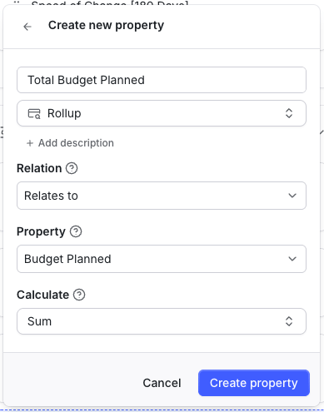
You configure it once, on the element type: pick a relation, pick a property of the related elements, pick how the values should be aggregated. Every element of that element type then carries its own result.
Rollup values are calculated by ITONICS and are read-only everywhere they appear. They behave like any other property of their output type. You can sort, filter, group and chart them like a regular number, date or dropdown.
In this article:
- Overview
- Create a Rollup property
- Which relation you can use
- Which properties you can roll up
- Calculation options
- When the value updates
- Working with Rollup values
- Empty values
- Changing or deleting a Rollup
- Current limitations
Overview
A Rollup property is made of three settings:
- Relation: the relation field whose related elements are evaluated.
- Property: the property of those related elements whose values are read.
- Calculation: how the values are aggregated or displayed.
All three are mandatory. Once configured, the Rollup evaluates every element connected through the relation, reads the selected property, applies the calculation and shows the result on the element. The result is system-calculated and read-only for end users.
The output type of a Rollup follows from the calculation: the count options always return a number, Sum, Average, Median, Min and Max return numbers, the date options return a date, and Show original / Show unique values return the type of the source property — possibly several values at once.
Create a Rollup property
Rollup properties are created in the element configuration, like any other property. You need to be able to configure element types in the workspace.
- Go to Workspace settings > Element types, open the element type and click Configure.
- Click Add block > Property > Create property > Rollup.
- Enter a name for the property.
- Select the relation field the Rollup should follow.
- Select the property of the related elements to roll up.
- Select the calculation.
- Click Create property, then Save changes.
If you change the relation or switch to a source property of a different type, the calculation resets to Show original, so that calculation and property always fit together.
Which relation you can use
A Rollup can only use relation fields that exist on the element type you are configuring. That makes the direction of a relation easy to predict:
| Relation | Can it be used in a Rollup? |
|---|---|
| One-way | Only on the side where the relation field was added. |
| Two-way, separate fields | On both sides — each side has its own relation field. |
| Two-way, same field | On both sides — the same field exists on both. |
Example: if a one-way relation Costs was added to the element type Project, a Project can roll up its costs, but a Cost cannot roll up its projects. Make the relation two-way if you need the Rollup on both sides.
Deprecated inverse relation fields are not offered for selection, and a Rollup that uses one is deprecated with it.
Which properties you can roll up
The property list shows all properties across the element types the relation points to, so a relation that links several element types offers the union of their properties. A related element whose element type does not carry the selected property simply contributes nothing.
| Property | Can be rolled up |
|---|---|
| Number (including currency and percentage) | Yes |
| Date / Date & time | Yes |
| Dropdown (single select) | Yes |
| Dropdown (multi select) | Yes |
| Formula | Yes |
A Rollup can read a Formula property, and a Rollup of a Rollup is possible, so values can be aggregated across several levels, for example cost → project → portfolio. Configurations that would create a circular reference are rejected.
Calculation options
The options offered depend on the type of the selected source property.
Always available
| Option | Description |
|---|---|
| Show original | Show all values of the selected property across related elements, including duplicates. |
| Show unique values | Shows each unique value of the selected property across all related elements. |
| Count all | Counts all values of the selected property across related elements. For multi-select, each selected option counts. |
| Count not empty | Counts related elements that have a value for the selected property. |
| Count empty | Counts related elements that have no value for the selected property. |
Numbers only
| Option | Description |
|---|---|
| Sum | Adds up the values of the selected numeric property across related elements. |
| Average | Averages the values of the selected property across related elements. Empty values are ignored. |
| Median | Shows the median value of the selected property across related elements. |
| Min | Shows the lowest value of the selected property across related elements. |
| Max | Shows the highest value of the selected property across related elements. |
Dates only
| Option | Description |
|---|---|
| Earliest date | Shows the earliest date of the selected property across related elements. |
| Latest date | Shows the latest date of the selected property across related elements. |
How empty values are treated:
Average divides by the number of related elements that actually have a value. Blank fields count neither in the sum nor in the divisor, while an explicit 0 does (example: values 0, 4 and blank therefore average to 2, not 1.33). Count empty and Count not empty only consider related elements whose element type carries the property; elements without that property are left out of both.
When the value updates
The Rollup recalculates automatically when:
- an element is added to the relation,
- an element is removed from the relation,
- the source property changes on a related element,
- a Formula or Rollup feeding this Rollup changes.
There is nothing to refresh or maintain by hand.
Working with Rollup values
On the element detail page, in the table view and in forms, a Rollup is displayed with the standard renderer of its output type and marked as read-only. Clicking into the cell in the table view shows a note that the value cannot be edited.
Because a Rollup behaves like a regular property of its output type, you can sort and filter on it, use it in saved views and in charts, and number Rollups also support column aggregation in the table view footer.
Empty values
- If no element is related through the selected relation, the Rollup is empty.
- If related elements exist but none has a value for the property, the count options return 0 and the other calculations stay empty.
- If a Rollup is copied to an element type that does not have the required relation or property, it stays empty rather than blocking the configuration, and the property shows that it no longer exists.
- After a bulk import, a Rollup can be empty for a moment while the relations are still being resolved. It fills as soon as they are.
Changing or deleting a Rollup
The configuration is fixed once the property is saved. Relation, property and calculation cannot be changed afterwards. Switching the calculation would change the result format of the Rollup and break the filters, views and workflows already built on it. Thus, to aggregate something else, create a new Rollup property.
A property used as the source of a Rollup is a critical dependency: deleting it is blocked, and the delete dialog names the Rollup configurations that depend on it (the same behaviour as for Formula and Smart Excel properties).
Changing a relation afterwards is not blocked. If a relation is switched from two-way to one-way, or an element type is removed from it, the Rollup simply stops pulling data from the part that is gone.
Current limitations
- User, Rating and Rich Text properties cannot be rolled up yet.
- Title, Status, Tags and Element type are not supported as sources.
- Rollups are not available in side forms.
For an overview of all property types, see Discover the Property Types and Their Use Cases.