![ITONICS-Logo-Night-Blue-2021.svg]](https://www.itonics-innovation.com/hubfs/ITONICS-Logo-Night-Blue-2021.svg)
🧪 This is a BETA feature. The ITONICS MCP is available as an early-access preview. Behaviour, available tools, and setup steps may change while it is in beta, and we welcome your feedback. Availability may be limited to selected plans and tenants during the beta phase — contact your account manager at account_manager@itonics-innovation.com if you would like to take part.
The ITONICS MCP is a remote Model Context Protocol (MCP) connector that lets AI tools work directly with your ITONICS Innovation workspace. It is built on top of the ITONICS API (V2), so anything the API can do — retrieving, creating, updating, and deleting elements and more — becomes available.
The connector puts OAuth 2.1 in front of ITONICS' API-key authentication, and every user connects with their own ITONICS API key. Nothing is shared between users.
Table of contents
- What you can do with the ITONICS MCP
- Before you start
- The connector endpoint
- Set up with Claude (worked example)
- Working with multiple tenants (profiles)
- Connect other AI tools (ChatGPT, Gemini, and any MCP client)
- Tools at a glance
- Common jobs
- Security & privacy
- Good to know
- Troubleshooting
What you can do with the ITONICS MCP
Once connected, you can ask your AI assistant to work with your workspace in natural language. Because the connector is built on the ITONICS API (V2), it can:
- List, filter, and read elements (ideas, trends, technologies, projects, and any custom element type)
- Create, update, and delete elements — individually or in bulk
- Retrieve and create element types (the schema behind your content)
- Add and manage comments, including @mentions and element references
- Upload files and manage attachments on elements
- Manage watches (subscriptions) and likes (endorsements)
- Build and manage custom page views
This enables you to review and triage ideas, generate digests and reports, run bulk intake of new content, and collaborate with your team — all through a conversational interface, without leaving your AI assistant.
Before you start
You'll need three pieces of information from your ITONICS tenant. These are the same credentials used for the ITONICS API (V2):
- Domain: The identifier of your ITONICS Innovation OS, e.g.
https://your-tenant.itonics.io - Space URI: The identifier of the workspace (space) you want to connect
- API key: Generated in your ITONICS tenant
Generating an API key
As an Application Admin, open Organization settings from the menu in the top-left corner, then go to the Embed & External Access tab and click Create. Give the key a name that represents this connection (e.g. "AI Assistant" or "Claude MCP"), and choose the External integration type. This lets you retrieve, create, update, and delete elements and manage element types, with granular permissions for exactly which actions the key is allowed to perform (view, create, edit, delete, rate, and more).
For full details on generating and scoping API keys, see Authentication in the ITONICS API (V2) documentation.
⚠️ Never paste your ITONICS API key into the AI chat. You only ever enter it on the connector's own secure sign-in form (or via the connector's profiles_add link). Keys are encrypted at rest and scoped to your personal, grant-bound vault.
Note on data visibility. Anyone with access to a valid API key can access all information in the connected workspace through the API — including content in properties that have been hidden in the element configuration. Treat API keys as sensitive credentials and rotate them if they may have been exposed.
The connector endpoint
Use this URL when adding the connector in any AI tool. The connector advertises its capabilities automatically:
https://itonics-mcp.com/mcpSet up with Claude (worked example)
We use Claude here as a concrete, step-by-step example. The same connector URL works with any MCP-capable AI tool. See Connect other AI tools below.
In a Claude organization
- Org admin: open Settings → Connectors (Organization / External Access) and add a custom connector.
- Paste the connector URL
https://itonics-mcp.com/mcp(no path suffix) and save. - Members can now enable the connector under their own connector settings.
- Each member authorizes for themselves. Enter your work email, then either:
- Add a tenant: Provide a name, your ITONICS domain, the space, and your own API key. Credentials are validated against ITONICS and saved to your private vault; or
- Skip: Connect now and add a tenant later using the
profiles_addtool.
In Claude Desktop
Claude Desktop also speaks remote MCP. Open Settings → Connectors, and search for the ITONICS connector. Click on Connect complete the OAuth sign-in flow once per device.
The authorization flow, step by step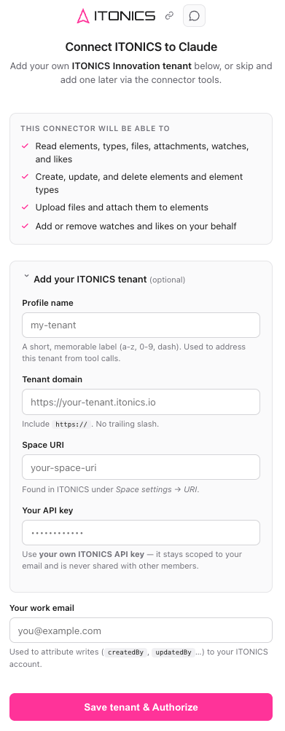
The first time you enable the connector (and any time you add a tenant), Claude opens the connector's secure "Connect ITONICS to Claude" sign-in page in your browser. This page is served by the connector itself — not by Claude — which is why your API key never passes through the chat. Here is what happens:
- Claude hands off to the connector. When you enable the connector, Claude redirects you to the connector's OAuth 2.1 authorization page in your browser.
- Review the requested permissions. The page shows a "This connector will be able to" summary so you know exactly what you're granting:
- Add your ITONICS tenant (optional at this step — you can skip and add it later). Fill in the form fields described in the table below.
- Enter your work email. This is used to attribute your writes (
createdBy,updatedBy, …) to your ITONICS account. - Click Save tenant & Authorize. The connector validates your credentials against ITONICS, encrypts and stores them in your personal vault, and completes the OAuth grant. You're then redirected back to
claude.ai(or your Claude app), now connected. - Or click Skip — I'll add my tenant later to authorize now and add a tenant afterwards with the
profiles_addtool
The sign-in form, field by field:
| Field | What to enter | Notes |
|---|---|---|
| Profile name | A short, memorable label, e.g. ignite |
Lowercase letters, digits, and dashes only (a–z, 0–9, -). Used to address this tenant from tool calls (the profile argument). |
| Tenant domain | Your ITONICS domain, e.g. https://your-tenant.itonics.io |
Include https://. No trailing slash. |
| Space URI | Your workspace/space identifier, e.g. UrHicSHR8EnYDHA |
Found in ITONICS under Organization settings→ Embed & External Access --> Copy Space URI from the coloum IN WORKSPACES. |
| Your API key | The API key you generated in ITONICS | Use your own ITONICS API key. It stays scoped to your email and is never shared with other members. Entered only here, never in chat. |
| Your work email | Your ITONICS account email, e.g. you@example.com |
Used to attribute writes (createdBy, updatedBy, …) to your ITONICS account. |
First check after connecting
Ask your assistant to run itonics_whoami. It validates your credentials and returns the connected domain and space plus the email used for write attribution. A quick confirmation that everything works.
Working with multiple tenants (profiles)
Each authorization holds one or more named profiles (tenants) in a private vault. Every non-management tool takes an optional profile argument. Omit it to use your default, or set it to address a specific tenant within the same chat.
profiles_list: List the tenants you've connected (name, domain, space, and which is the default).profiles_add: Add another tenant. Returns a short-lived browser link where you enter domain + space + API key; credentials never travel through the chat.profiles_set_default: Choose the tenant used when a call doesn't name one.profiles_remove: Disconnect one of your tenants.
Connect other AI tools (ChatGPT, Gemini, and any MCP client)
The ITONICS MCP is a standard remote MCP connector. It is not tied to Claude. Any AI tool or client that supports remote MCP servers with OAuth can connect using the same endpoint and the same personal-API-key model. The concepts are identical across tools; only the menu names differ.
To connect any MCP-capable client, you generally:
- Open the tool's connector / integration settings (often labelled Connectors, MCP servers, Integrations, or Tools).
- Add a custom / remote MCP connector and paste the URL
https://itonics-mcp.com/mcp(no path suffix). - Complete the OAuth 2.1 sign-in flow in your browser and add your tenant (domain + space + your own API key) on the connector's secure form.
- Confirm the connection by asking the assistant to run
itonics_whoami.
A few tool-specific pointers:
- ChatGPT: Remote MCP connectors are configured under Settings → Connectors (availability depends on your ChatGPT plan and whether custom/developer connectors are enabled for your account or workspace).
- Google Gemini: Connect via a client or environment that supports the Model Context Protocol; add the connector URL where remote MCP servers are configured.
- Other MCP clients: Any client that supports remote MCP servers over OAuth (desktop assistants, IDE extensions, agent frameworks) works the same way: add
https://itonics-mcp.com/mcpand authorize.
Tools at a glance
The connector exposes 40 tools plus 3 prompt templates. Every tool carries read-only / destructive hints, so your assistant confirms before doing anything irreversible (such as deletes).
| Group | Tools |
|---|---|
| Profiles | profiles_list, profiles_add, profiles_set_default, profiles_remove |
| Connection | itonics_whoami |
| Elements | elements_list, elements_get, element_context, elements_create, elements_update, elements_delete |
| Element types | types_list, types_create |
| Users & roles (new) | users_list, users_get, users_create, users_update, users_delete, users_remove_from_space, roles_list |
| Files | files_upload, files_get |
| Attachments | attachments_list, attachments_attach, attachments_detach |
| Watches | watches_list, watches_add, watches_remove |
| Likes | likes_list, likes_add, likes_remove |
| Comments | comments_list, comments_create, comments_update, comments_delete |
| Views | views_list, views_get, views_create, views_update, views_delete |
| Prompts | summarize_element, triage_ideas, build_page_view |
Tool reference
Profiles: Manage which ITONICS tenants/workspaces you can address (see Working with multiple tenants above).
Connection:
itonics_whoami: Validate a profile's credentials; returns the connected domain and space, plus the email used for write attribution. A good first check that the connection works.
Elements:
elements_list: list/filter elements. Filter byelementType(e.g. "Idea"),status,tags, custom properties, or a raw$filter(e.g.contains(label,'budget'),createdBy eq 'jane@acme.com', date ranges); auto-paginates; useresponseFormat: concisefor large lists.- Filtering by custom properties covers select, multi-select, and hierarchical-select fields (by their option label), date and number fields (by value), user fields (by email or user), relation fields (by related element), and rating fields (by average value). Text and title fields also support “starts with” prefix matching. Just describe the field and value in plain language.
elements_get: Fetch one element by URI, in full detail.element_context: One call returns the element plus its comments, attachments, and likes.elements_create: Create one or many elements (label, type, summary, status, tags, custom properties, header image).elements_update: Patch elements; only the fields you set change.elements_delete: Delete by URI (destructive — the assistant confirms first).
Element types:
types_list: List the element-type definitions in the space.types_create: Create a new element type with its property schema.
Users & roles — manage people in the space (new)
users_list— browse users; filter by name, email, status, or dates.users_get— fetch a single user by URI.users_create— provision new users and assign their workspace roles.users_update— edit users and their role assignments.users_delete— remove a user tenant-wide (destructive — the assistant confirms first).users_remove_from_space— detach a user from a single space without deleting them from the tenant.roles_list— list the roles available in a space; use these when assigning users.
Files & attachments
files_upload: Upload a file (inline base64 or a source URL); returns afileUrifor use as a header image, a file property, or an attachment.files_get: File metadata plus a short-lived download URL.attachments_list/attachments_attach/attachments_detach: List, link, or unlink files on an element
Engagement — watches & likes
watches_list/watches_add/watches_remove: See and manage who is subscribed to an element (watchers get notified on changes).likes_list/likes_add/likes_remove: See and manage likes (endorsements) on an element.
Comments
comments_list: List an element's comments (filter by author email or date).comments_create: Add comments in plain text or HTML; mention a user with@email@domain.comand reference an element with#{Element label}inline in the text.comments_update: Edit a comment by URI.comments_delete: Delete comments (destructive).
Views (Pages ONLY for now):
views_list/views_get: Browse saved views.views_create: Create apage_view: a custom page built from plain HTML + stock Tailwind (no JavaScript, no theme customization). Embed uploaded files and link to other views.views_update/views_delete: Edit or remove views.
Prompt Tempaltes: Guided multi-step workflows
summarize_element: Pulls an element and its discussion and writes a concise digest.triage_ideas: Lists draft elements and recommends publish / keep / archive for each (read-only; you approve any changes).build_page_view: Walks you through designing a Tailwind page, uploading any images, and creating the view.
Common jobs
You don't need to know the tool names. Just describe what you want in plain language and the assistant picks the right tools. Here are some things people ask for most often, with example prompts.
- Review and triage new ideas: Have the assistant pull up your draft elements, read each one (comments and attachments included), and suggest what to publish, keep, or archive.
- Try: "Show me all draft ideas, summarize each, and tell me which look ready to publish."
- Get a digest or report: Ask for a summary of recent activity, written up as a digest or turned into a shareable page inside ITONICS.
- Try: "Give me a one-page overview of all trends created this month and save it as a view."
- Add a batch of new content: Hand over one or more files and have the assistant create the matching elements, with a header image and the file attached.
- Try: "Create an idea for each of these documents and attach the file to each."
- Loop your team in: Have the assistant comment on an element, @mention the right people, and subscribe them to changes.
- Try: "Comment on this idea, mention @jane@acme.com to review the budget, and add her as a watcher."
Security & privacy
- Personal keys only: Every user connects with their own ITONICS API key. There are no shared credentials, and one user's setup is never visible to another.
- Grant-bound vault: Each user's tenants live in their own encrypted, grant-bound vault. Keys are encrypted at rest.
- OAuth 2.1: The connector uses OAuth 2.1 in front of ITONICS' API-key authentication; you sign in through your browser, not the chat.
- Keys never enter the chat: You only ever enter an API key on the connector's own secure form or via the
profiles_addlink. - Confirmations on destructive actions: Deletes and other irreversible operations are flagged, so the assistant confirms with you first.
Good to know
A few things that help you get better results — most of this the assistant handles for you, but it's useful to understand what's going on.
- Finding the right elements: Narrow by type (e.g. only "Ideas"), by status (draft, published, archived), or by searching fields like the title ("ideas with 'budget' in the title," "everything Jane created," "trends added since January"). Search matches words contained in a field rather than doing a broad full-text search, so it helps to be specific. For long lists, the assistant can pull a shorter, faster overview.
- Seeing everything about one element at once: The assistant can fetch an element together with its comments, attachments, and likes in a single step, handy for reviews and summaries.
- Mentioning people and linking elements in comments: When writing a comment, the assistant can @mention a colleague by email so they're notified, and reference another element by its title so it links inline — just like commenting in ITONICS yourself.
- What custom pages (views) can and can't do: Views are simple custom pages built from standard HTML with clean, built-in styling. Great for digests and overviews, but intentionally lightweight: no interactive scripts and no custom theming. You can add uploaded images and link to other views.
- Labels vs. raw values — by default you'll see human-readable labels (like a category name) rather than internal IDs. If you ever need the underlying raw values, just ask.
Troubleshooting
- Connection fails or "unauthorized": Run
itonics_whoami. If it fails, re-check your domain, space URI, and that the API key is valid and hasn't been rotated/removed in Embed & External Access. - Can't add the connector: Confirm you pasted
https://itonics-mcp.com/mcpwith no path suffix, and that your AI tool and subscription tier support remote MCP connectors. - Wrong workspace / missing content: You may be pointed at the wrong tenant — check
profiles_listand set the right default withprofiles_set_default, or pass theprofileargument explicitly. - Missing permissions: If create/edit/delete actions are refused, verify the API key's granted permissions in ITONICS (Embed & External Access). You can also list a key’s permissions directly via
GET /v2/api-key/permissions— see ITONICS API (V2).