![ITONICS-Logo-Night-Blue-2021.svg]](https://www.itonics-innovation.com/hubfs/ITONICS-Logo-Night-Blue-2021.svg)
It is recommended to use V2 for all new integrations and to migrate existing setups accordingly. The full developer documentation and testing can be found HERE.
The documentation for the ITONICS API (V1) is available here. V1 remains operational for now but will be deprecated in the future.
Table of contents
- Authentication
- Endpoints
- Writing rich text (RTE) values
- Uploading files and images
- GET data into PowerBI
- Embed a PowerBI report into ITONICS
- GET data into Looker Studio
- Embed a Looker Studio report into ITONICS
The ITONICS API and external integration feature are available only in the Professional Plan and the ITONICS Connect product package. To try the feature for free, contact us at account_manager@itonics-innovation.com.
The ITONCS API V2 allows you to:
- List, create, update and delete elements
- List and create element types
- List, add, and remove likes
- List, create, update, and delete user ratings of an element
- List, add, and remove files/attachments
- List, create, update, and delete users, and remove users from a space
- List the permissions attached to an API key
This enables you to:
- Sync data between ITONICS and external systems
- Automatically create or update elements from external sources
- Process and analyze data outside of ITONICS
- Integrate ITONICS into automated workflows
Using the API ensures consistent data across systems and supports bidirectional data exchange.
Authentication
To use the ITONICS API, you must authenticate every request with an API Key.
Include the token in the Authorization header of your requests.
Generate an API Key
As an Application Admin, go to Organization settings from the menu in the top left corner. Then open Embed & External Access to generate an API key.
By clicking on it, you land on the organization settings page. In the Embed & External Access tab (1), click on the Create button (2) in the bottom right corner. Add an API Key Name (3) that best represents the connection you want to build, e.g., "Power BI".
Now, select the one of the following two types (5):
- Embed: With embed, you will be able to embed reports into the ITONICS Innovation OS.
- External integration: Allows you to retrieve, create, update, and delete elements as well as manage element types via the API. You can define permissions at a very granular level, specifying exactly which actions an API key is allowed to perform.
- View all elements
- View all draft elements
- View all archived elements
- Create element
- Create draft elements
- Edit all elements
- Delete all elements
- Update element type
- Create element type
- Create view
- Edit all views
- Delete all views
- Create comment
- View all comments
- Manage all comments
- Create user
- View workspace user list
- Manage all users
- Rate
- View all ratings
- Manage all ratings
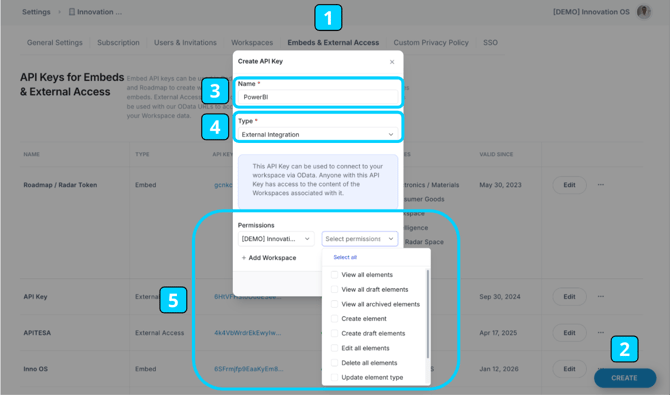
Once you hit “create”, you will see a table, consisting of the names of all external access token(s), types, API keys, status, workspace allocation(s), and the validity.
To verify your setup and start working with the API, you can now test authentication and available endpoints in the API documentation.
Open the ITONICS API (V2) Documentation, enter your domain (6), and authenticate using your API key (7) in the following format: ApiKey <your-api-key>
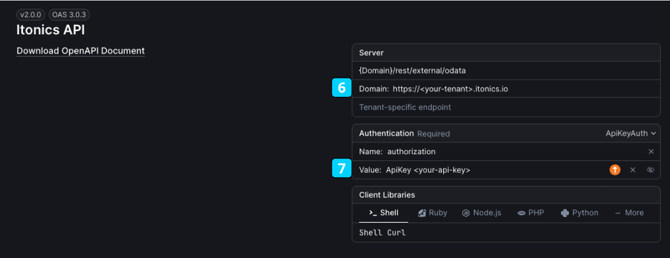
Note the following, regarding data visibility and access:
- All information within a workspace that has a valid API key can be accessed through the API by any person who has access to the API key. The API key is valid right after being generated and is only invalid, once the External Access entry in the settings are removed/rotated.
- Content in properties that have been hidden in the element configuration for the workspace can still be requested through the API.
Endpoints
All endpoints can be tested here. The following information is needed:
- the API key (column 3 in the list of the external access tokens as specified above)
- the spaceURI (column 5 in the list of the external access tokens as specified above)
- the filter query (optional) (defines the information that you want to extract)
Please note
- The current version of the OData API allows you to query element data from one specified workspace. When you select multiple workspaces in the External Access Token creation, you will find multiple OData API URLs in the row of the external access token — one for each workspace
The typical structure of an API query will have a form as follows:
https://{systemUrl}.io/rest/external/odata/v2/{spaceUri}/{endpoint}?$filter={Query}
- systemUrl: this is the identifier of your ITONICS Innovation OS
- spaceUri: this is the identifier of your workspace
- endpoints:
- "/elements": Represents the core content objects in the system. Elements act as the primary information carriers:
-
- "/elementtypes": Returns all element types defined in the workspace and allows you to create new element types:
- "/likes": Returns likes per element and allows you to create and delete likes:
- "/files": Returns files per element and allows you to create and update files:
- "/attachments": Returns attachments per element and allows you to attach and detach files:
- GET: List attachments per element
- POST: Attach file(s) to an element
- DELETE: Detach file(s) from an element
- "/watches": Returns watches per element and allows you to add and remove watchers:
- GET: List watches per element
- POST: Add watch(es) per element
- DELETE: Remove watches per element
- "/comments": Returns comments per element and allows you to add and remove comments:
- GET: List comments per element
- POST: Add comments per element
- PATCH: Update comments per element
- DELETE: Remove comments per element
- "/ratings": Read and manage all users' ratings of a single element:
- GET: List every user's ratings for the element, including the rating value, who gave it, an optional note, and when it was given. You can filter by user, rating field, or date, and sort and page through the results. Archived ratings are left out unless you ask for them.
- POST: Create ratings on behalf of one or more users, identified by user URI or e-mail address, covering several rating fields in one request.
- PATCH: Update existing ratings — the value, the note, or both.
- DELETE: Remove ratings for the specified users and rating fields.
- "/views"
- GET: List views (only pages for now)
- GET: LIst a specific view via URI (only pages for now)
- POST: Add views (only pages for now)
- PATCH: Update views (only pages for now)
- DELETE: Remove views (only pages for now)
- "/api-key"
- GET: Returns the permissions assigned to the calling API key, grouped by space (URI and label). Supports
$format. Requires only a valid API key.
- GET: Returns the permissions assigned to the calling API key, grouped by space (URI and label). Supports
-
- "/roles": Lists roles available for a workspace/space:
- GET: List roles available for a space
- "/users": Manage users of a space:
- GET: List users
- GET by URI: Get a single user
- POST: Create users
- PATCH: Update users
- DELETE: Delete users
- DELETE: Remove users from a space
- "/roles": Lists roles available for a workspace/space:
- Query: the syntax of your filter query (optional, see below)
Writing rich text (RTE) values
Rich text properties accept either plain HTML or Base64-encoded HTML. Every request is inspected by a security filter in front of the platform before it reaches the API. If a plain-HTML value contains an element that can execute or embed external content — for example <iframe> or <script> — the request is rejected with a 403 Forbidden response generated by that security layer rather than by the API. Because the response does not come from the API, it carries no error detail and can be mistaken for an authentication or permission problem.
To write such content, Base64-encode the HTML and prefix the value with base64:. For example, this HTML:
<iframe src="https://example.com/panel" frameborder="0" allowfullscreen width="50%" height="auto"></iframe>is sent as the property value:
"value": "base64:PGlmcmFtZSBzcmM9Imh0dHBzOi8vZXhhbXBsZS5jb20vcGFuZWwiIGZyYW1lYm9yZGVyPSIwIiBhbGxvd2Z1bGxzY3JlZW4gd2lkdGg9IjUwJSIgaGVpZ2h0PSJhdXRvIj48L2lmcmFtZT4="Plain HTML that contains no such elements can be sent as-is. To read RTE values back in their raw form, see rawFieldValues in the list of operators above.
Uploading files and images
Files are uploaded in two steps. First, POST to /v2/{spaceUri}/files with the file name and content type. The response returns a fileUri for the new file record and an upload block containing a pre-signed URL. Second, send the file bytes with a PUT to that URL. The pre-signed URL expires, so upload promptly after requesting it.
Do not send the x-amz-acl header. The upload.headers block currently lists it, but the storage layer does not accept access control lists and the upload will be rejected with 400 AccessControlListNotSupported. Send Content-Type only. Do not send your ITONICS Authorization header or any cookies to the pre-signed URL — it carries its own credentials.
The bytes must match what you declared. The file you send must correspond to the fileName and contentType used in the POST payload. If they disagree, or if the file type is not permitted, the file is discarded and never becomes available. See supported formats and sizes.
A 200 response from the pre-signed URL does not confirm that the file was stored. That response comes from the storage layer rather than the platform, so it cannot be used as proof of success. Uploaded files are validated asynchronously — including virus and file type checks — before they become readable. Until validation completes, GET /v2/{spaceUri}/files/{fileUri} returns 400 FileUploadNotCompletedOrRejected. The supported readiness check is to poll that endpoint until it returns successfully; there is no separate finalisation or commit call.
Images are converted to WebP. Whatever image format you upload, the stored file is served as WebP, so the fileName and mimeType on the file record will differ from the values you sent. This is expected and does not indicate a failed upload.
Once a file is readable, reference its fileUri when creating or updating an element — for example as the headerImage value — or attach it via the /attachments endpoint. There is currently no endpoint for deleting a file: detaching an attachment or clearing a header image removes the reference but does not delete the underlying file.
Examples of filter queries
A filter query typically consists of three parts:
- the ITONICS property you want to filter for (this is defined individually by the Workspace Administrator),
- the operator how the results should match, and
- the values
For instance, if you want to extract all "Ideas" from a workspace, your query would look like this:
https://{systemurl}.io/rest/external/odata/v2/{spaceUri}
/Elements$filter=elementType eq 'Idea'
elementType explains that the attribute we are looking for is the element type.
eq expresses the property should equal to the value 'Idea'.
Therefore: we are searching for all Elements whose elementType is Idea.
List of operators, meaning, and an example:
- eq, equals, $filter=elementType eq 'Idea' (gets all content of type idea)
- ne, not equals, $filter=elementType ne 'Risk' (gets all content that is not of type risk)
- contains, $filter=contains(elementType,'tech'), gets all content that is of any type containing 'tech' in their titles
- gt, greater than, $filter=createdOn gt '2023-06-25 16:00' (all content created after '2023-06-25 16:00)
- ge, greater than or equal, $filter=createdOn lt '2023-06-25 16:00' and createdOn ge '2023-06-03 12:00' (all content created before 2023-06-25 16:00 and at or after 2023-06-03 12:00)
- lt, less than, $filter=createdOn lt '2023-06-25 16:00' (all content created before '2023-06-25 16:00)
- le, less than or equal, $filter=createdOn lt '2023-06-25 16:00' (all content created at or before '2023-06-25 16:00)
- startsWith, $filter=startsWith(label,'Technology') (all content whose title starts with 'Technology') — an anchored, case-insensitive prefix match, supported for label, summary, and text fields.
- rawFieldValues, setting this query parameter to 1 will output the raw field values, this might be important for RTE fields.
"&rawFieldValues=1"
A list of more operators can be found here.
You will see that you can also combine multiple filter criteria by using logical operators, such as, and, or, not
List of properties, meaning, and an example:
- elementType: type of the element, $filter=elementType eq 'Idea' (gets all content of type idea)
- createdBy: the content creator, $filter=createdBy eq 'jane.innovation@itonics-innovation.com' (all content from the user jane.innovation@itonics-innovation.com)
- updatedBy: the person last updated the content, $filter=updatedBy ne 'jane.innovation@itonics-innovation.com' (all content that was not updated by the user jane.innovation@itonics-innovation.com)
- createdOn: the time content was created, $filter=createdOn gt '2023-06-25 16:00' (all content created after '2023-06-25 16:00)
- updatedOn: the time content was last updated, $filter=updatedOn gt '2023-04-05 16:12' (all content last updated after '2023-06-25 16:00)
- status: the publication status (archived/draft/published), $filter=status eq 'draft' (all content with the publication status draft)
- label: the title of content, $filter=contains(label,'Technology') (all content that has 'Technology' in its title)
Custom properties are filtered by field URI using the properties/<uri> key. This is supported for select, multi-select, hierarchical select, date, number, user, relation, rating, and text fields.
- select / multi-select / hierarchical select: matched by option label; for multi-valued fields, a match occurs when the value is present. e.g. $filter=properties/fEVHVi163zAaKHV eq 'Article'
- date: use the format 'YYYY-MM-DD HH:MM'. E.g. $filter=properties/<uri> gt '2024-06-01 00:00'
- number: filter on the numeric value directly. E.g. $filter=properties/<uri> ge 100
- user: matched by user email or user URI; for multi-valued fields, a match occurs when the user is present. E.g. $filter=properties/<uri> eq 'jane.innovation@itonics-innovation.com'
- relation: matched by the URI of the related element. E.g. $filter=properties/<uri> eq 'RZ8kq2mF7sGhT0a'
- rating: filter on the average rating value. E.g. $filter=properties/<uri> ge 3
- text: anchored prefix match with startsWith. E.g. $filter=startsWith(properties/<uri>, 'New')
Note:
- For combining multiple filter requests, you can combine those using 'and', e.g., $filter=createdOn gt '2024-06-01 00:00' and elementType eq 'Ideas' (will return all ideas created after June 01, 2024.
Curation options
Further, you have the option to manipulate the data extraction by sorting, pagination, and result limitation.
-
Sorting Results
You can sort the results of your filter queries using the $orderby parameter. By default, sorting is in ascending order, but you can specify the order explicitly: $filter=elementType eq 'Technology'&$orderby=label asc -
Pagination
Results are returned in batches of 100 by default. To navigate through paginated results, use the $skiptoken provided in the response. This token will direct you to the next batch of results:{"nextLink": "https://{systemurl}.io/rest/external/odata/v2/{spaceUri}/Elements?$skiptoken=abc123"} -
Result Limits: If you need more than the default 100 results, use the $top parameter to specify the number of records to retrieve: $filter=elementType eq 'Idea' and createdOn gt '2023-06-15 12:00' and status eq 'archived'&$top=100
View the permissions attached to an API key
To check what an API key is allowed to do, you can retrieve the permissions assigned to it. Send a GET request to the following endpoint, authenticated with the key you want to inspect. The endpoint always reports on the calling key, so it takes no {spaceUri} and no further parameters:
https://{systemUrl}.io/rest/external/odata/v2/api-key/permissions
The response is grouped by workspace: for every workspace the key can reach, you get that workspace’s URI and label together with the permissions the key holds there. Add $format=xml if you need XML instead of the default JSON.
Use this to audit what an integration can access before you share a key, or to confirm that a key carries exactly the permissions a workflow needs. For the full reference, open the ITONICS API (V2) Documentation and go to API Key → GET /v2/api-key/permissions.
GET data into PowerBI
After following all steps in this section, you will have one table in PowerBI containing all requested elements with all properties.
Important: follow the parameter and query setup below rather than pointing PowerBI at the OData URL as a plain Web data source. The Elements query does two things a direct connection does not: it determines the column list by scanning every retrieved element rather than a sample, and it follows pagination so that all records are returned. A direct Web connection derives its columns from a 1000-row sample only — so any field absent from those rows is silently missing — and stops at the first 100 records.
Setting up the API credentials as PowerBI parameters
To GET the data to Power BI, open the PowerBI desktop app. Start creating a new blank report. To further process the data, you need to connect PowerBI with your ITONICS Innovation OS.
To connect ITONICS to PowerBI, you must have access to the desktop version of PowerBI. The web-based interface does not allow for defining web (API) calls, which is required as described below.
In this step, you will need:
- API key (authorization key), see here
- URL of the OData API
- [Optional custom] Filter query — this defines the information that is to be requested
Now in PowerBI, in the report that you want to use, follow these steps:
- Go to Home tab > Transform data > Transform data
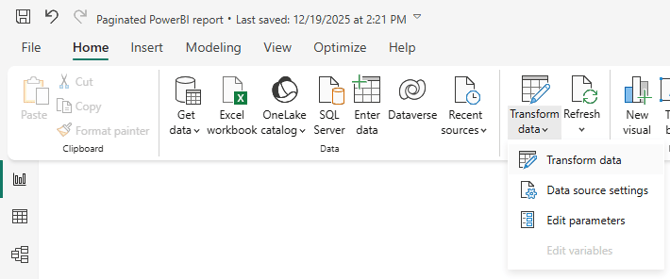
- In the new modal, go to Home tab > Manage Parameters > New Parameter
Now we will set up the API authorization and the filter query, which defines what data will be requested.
Set up the following parameters:- URL
Enter your URL in the following format in the Current value field:https://{systemUrl}.io/rest/external/odata/v2/{spaceUri}
The spaceURI can be copied and pasted in Embeds & External Access page in the Organization settings. Simply go to the In Workspace column.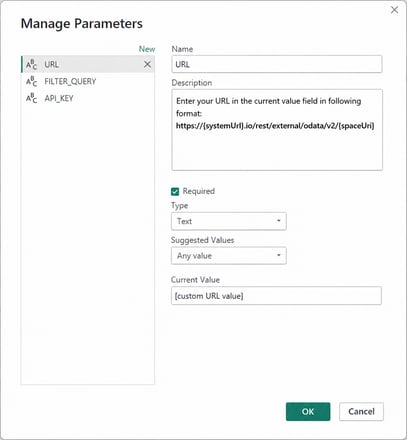
- FILTER_QUERY
Set the filter query to define what data will be requested, to just GET every element in the workspace, copy paste the text below and paste it in the respective field.
Current value-field:/Elements?$top=100
- API_KEY
URL and api key represent your authorization the ITONICS system, you will need to replace the [custom_api_key] token in the screenshot below, with your API key that you created and that is stored in the External Access settings.
The final text in the Current Value field in PowerBI could be something like this:ApiKey A7fQ9mX2ZkR4sB8NwC0EJt6DVaL1H3uP5YgKcM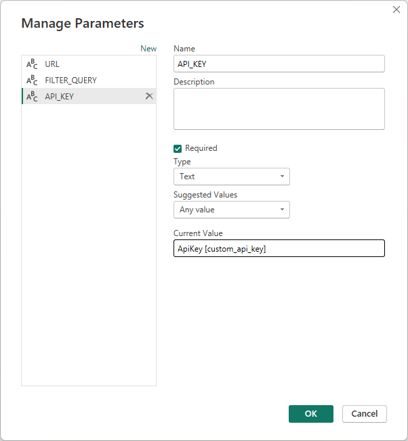
- URL
- fnGetElementsPage
Now all custom parameters are set and your setup should look something like this (see image below) with only the three parameters set.
To finish the setup we now need to create the function which creates, executes and receives the API GET request.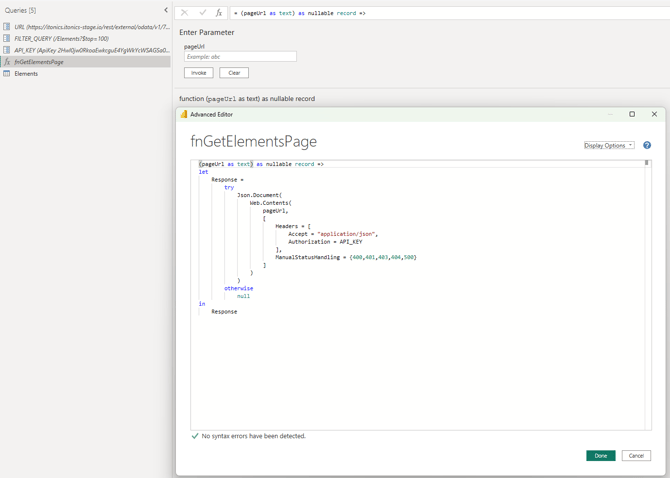
- In PowerBI: Navigate to the same window where you created the parameters.
- On the left side query navigation, press right-click > New Query > Blank Query, this will create a new M Power Query
- Change its name to: fnGetElementsPage
- Press right-click > Advanced Editor, an empty window, like shown in the image above, will be displayed, paste the following code in this editor window.
-
(pageUrl as text) as nullable record =>
let
    // 1. Identify the static Base URL.
    BaseUrl = URL,

    // 2. Break down the incoming dynamic URL (nextLink) and the Base URL
    UrlParts = Uri.Parts(pageUrl),
    BaseParts = Uri.Parts(BaseUrl),

    // 3. Calculate the Relative Path (The difference between the full path and base path)
    // We remove the Base Path from the Full Path to get the segment relative to the root
    RelativePath = Text.TrimStart(Text.Replace(UrlParts[Path], BaseParts[Path], ""), "/"),

    Response = try
        Json.Document(
            Web.Contents(
                BaseUrl, // <--- This is now STATIC (assuming 'URL' is a constant/parameter)
                [
                    RelativePath = RelativePath,
                    Query = UrlParts[Query], // <--- The dynamic parameters go here
                    Headers = [
                        Accept = "application/json",
                        Authorization = ApiKey (customApiKey)
                    ],
                    ManualStatusHandling = {400,401,403,404,500}
                ]
            )
        )
    otherwise
        null
in
    Response
- Elements
Now we need to setup the code that iteratively executes this function up until every paginated element data page is in PowerBI. And to then transform this data into a single table.- In PowerBI: Navigate to the same window where you created the parameters and the function fnGetElementsPage.
- On the left side query navigation, press right-click > New Query > Blank Query, this will create a new M Power Query
- Change its name to: Elements
- Press right-click > Advanced Editor, an empty window, like shown in the image above, will be displayed, paste the following code in this editor window.
-
let
    // 1. Define URL and Query
    FirstPageUrl = URL & FILTER_QUERY,

    // 2. Run Pagination
    Pages = List.Generate(
        () =>
            let
                First = fnGetElementsPage(FirstPageUrl),
                HasElements = First <> null and Record.HasFields(First, "elements")
            in
                [
                    Elements = if HasElements then First[elements] else null,
                    NextLink = if HasElements and Record.HasFields(First, "nextLink") then First[nextLink] else null,
                    ErrorOccurred = not HasElements
                ],
        each [Elements] <> null,
        each
            let
                NextPage = if [NextLink] <> null then fnGetElementsPage([NextLink]) else null,
                HasElements = NextPage <> null and Record.HasFields(NextPage, "elements")
            in
                [
                    Elements = if HasElements then NextPage[elements] else null,
                    NextLink = if HasElements and Record.HasFields(NextPage, "nextLink") then NextPage[nextLink] else null,
                    ErrorOccurred = not HasElements
                ],
        each _
    ),

    // 3. Extract and Combine Data
    PagesTable = Table.FromRecords(Pages),

    // Combine all list items from all pages into one big list
    AllElementsList = List.Combine(List.RemoveNulls(PagesTable[Elements])),

    // 4. Convert to Table
    ElementsTable = Table.FromList(AllElementsList, Splitter.SplitByNothing(), null, null, ExtraValues.Error),

    // 5. ROBUST Expansion (Scans all rows for all potential columns)
    // Get a list of all unique field names across all rows, not just the first one
    AllColumnNames = List.Distinct(List.Combine(List.Transform(ElementsTable[Column1], Record.FieldNames))),

    ExpandedElements = Table.ExpandRecordColumn(
        ElementsTable,
        "Column1",
        AllColumnNames
    )
in
    ExpandedElements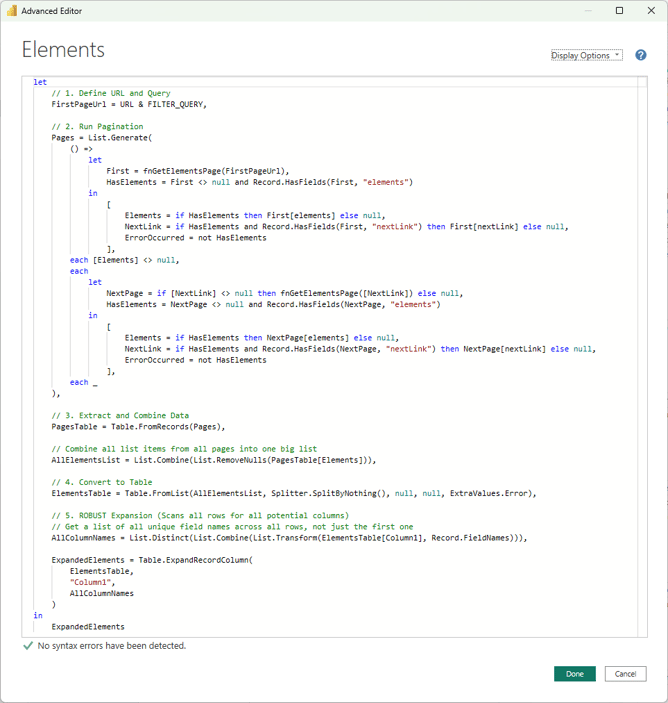
- Press right-click on this newly created Elements Query, make sure that the following two options are checked/enabled:
- Enable load
- Include in report refresh
- Now you should be able to see a preview of the full dataset
- Close & Apply
The last step is to press Close & Apply, now the dataset should load into the regular PowerBI report editor.
If no data is loading, go to Home tab > Refresh > Schema and data, this should reload all queries with the updated dataset.
Learn in the next section, how to embed this report into ITONICS, how to set up daily data refreshes and more.
Note: The resulting table will have all properties across all requested element types as unique columns, where each row represents an element. Be aware that, depending on the size of your workspace, this could be a lot.
It is also possible to split this table by element type if needed (prompt your favorite LLM if this is necessary).
Resolving field URI columns to labels
After expanding the properties column, custom property columns are named by their field URI (e.g. 16VexcnEw64W08yl) rather than by their display label, and built-in workflow columns are named workflowProcess_<spaceUri>, workflowNode_<spaceUri>, and workflowPhase_<spaceUri>. This is expected — field labels are not exposed in the Element Configuration UI, so the API is the supported way to resolve them.
In most cases no lookup is needed: unless rawFieldValues=true is set on the request, each property value in the /elements response is already a record containing type, label, and value, for example:
"properties": [
  {
    "28vEO3v0TQGGaKMS": {
      "type": "user",
      "label": "Owner",
      "value": "jane.doe@example.com"
    }
  }
]
Expanding the property record one level deeper in Power Query surfaces this label directly, without any extra lookup.
If a full URI → label mapping table is preferred instead (for example, to rename columns in bulk), query GET https://{systemUrl}.io/rest/external/odata/v2/{spaceUri}/elementtypes with the same ApiKey authentication. Each element type is returned with a properties array where every field has a uri, label, type, and description (select fields also list their options with uri and label). Add this endpoint as a second Power Query source and merge it in as a lookup. Field URIs are stable, so the mapping only needs rebuilding when fields are added or removed.
Note: Built-in workflow columns (workflowProcess_…, workflowNode_…, workflowPhase_…) do not appear in /elementtypes — they are not custom properties — but they carry their label inline the same way, so the one-level-deeper expansion above resolves them too.
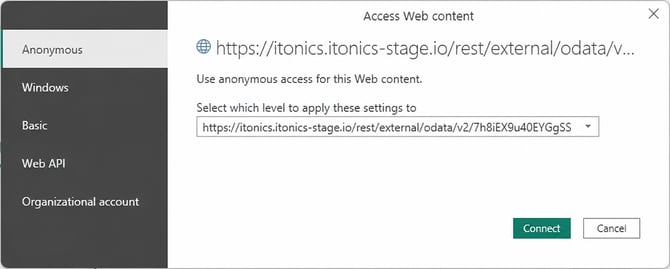
Note: When loading data from a web source (like you are doing here), PowerBI will prompt you to set Access Web content when connecting to the API for the first time.
Select Anonymous in the left side navigation (see image below) and select the URL as access level to apply this to, that you specified in the URL parameter (see below as to how that could look like).
Embed a PowerBI report into ITONICS & scheduled data refreshes
Embedding a report is as easy as pasting the report embed URL into the respective input field in the ITONICS Innovation OS. How to get to this link in the first place and setting up scheduled data updates (PowerBI paid license required), is the hard part. To only find out, where to paste the report embed URL, see the steps below, to find out how to get there (publishing & scheduled updates), see section Setting up a PowerBI report to be embeddable in ITONICS & scheduled data refreshes.
Embedding a report into ITONICS via report embed URL
Follow these steps closely.
- Enter the specific workspace where the report should be located in.
- Go to Report in the More Tools section
- In the top left, select + Embed new Report
- Select a Title
- Paste the Report URL (like:
https://app.powerbi.com/view?r=[...]) - Press Embed Report
- Now the report should display.
- You will also find the option to "Make publicly available". When you share with everyone, every workspace user with permission granted to view embedded reports finds the name of this saved view in their main menu under reports and can access it.
Note that, PowerBI reports can be access controlled, depending on your report configuration, users might have to log in to their respective Microsoft account to view a report.
Setting up a PowerBI report to be embeddable in ITONICS & scheduled data refreshes
To embed a report, it has to be published to a workspace in the PowerBI Cloud first. After that, to schedule daily data updates, a PowerBI Professional license has to be associated with that workspace.
- Publishing the report to a workspace
- Make sure there (app.powerbi.com) is a workspace already set up, where the report can be published/saved to.
- In PowerBI: go to Home tab > Publish > select a destination (workspace)
- When finished press Open '[report_name].pbix' in Power BI, continue from there
- Get the embed URL
In the PowerBI online service (app.powerbi.com):
- In the top left navigation bar, go to File > Embed report > Website or portal
- Copy Link to embed this content
- Continue as outlined above
- Setting up scheduled data refreshes
- Set the data source credentials
Before a scheduled refresh can run, the published semantic model needs its data source credentials set in the PowerBI service. This is separate from the authentication you configured in PowerBI Desktop.- Go to PowerBI in the respective workspace > semantic model > Settings > Data source credentials
- Next to the Web data source, click Edit credentials
- Set the Authentication method to Anonymous
- Set the privacy level as appropriate for your organization
- Tick Skip test connection
- Click Sign in
Note that, if you republish the report from PowerBI Desktop, check these credentials afterwards, as republishing can reset them. - Refresh cycle
- Go to the respective workspace > semantic model > settings > Refresh
- Configure semantic model refresh
Set time zone, set frequency (weekly, daily, etc.), and recipient of failure notifications
- Set the data source credentials
Now the report is scheduled to receive data updates in the specified frequency, at the specified time.
Note that, scheduled data updates are not included in free/standard PowerBI licenses and most likely require a PowerBI Professional license.
Also, as this is an external service provider, be aware, that the required licenses and this whole process may change in the future and may not be accurate anymore.
Troubleshooting a failing scheduled refresh
If a scheduled refresh fails with a credential or authentication error while the same report refreshes correctly in PowerBI Desktop, the cause is usually the connection test rather than the refresh itself. The PowerBI service validates the connection separately before refreshing, and that validation does not carry the Authorization header defined inside the fnGetElementsPage query — so it is rejected even though the refresh would succeed.
Setting the data source credentials to Anonymous and ticking Skip test connection resolves this, as described under Set the data source credentials above. If a refresh that previously worked starts failing, check these credentials first — republishing the report from PowerBI Desktop can reset them.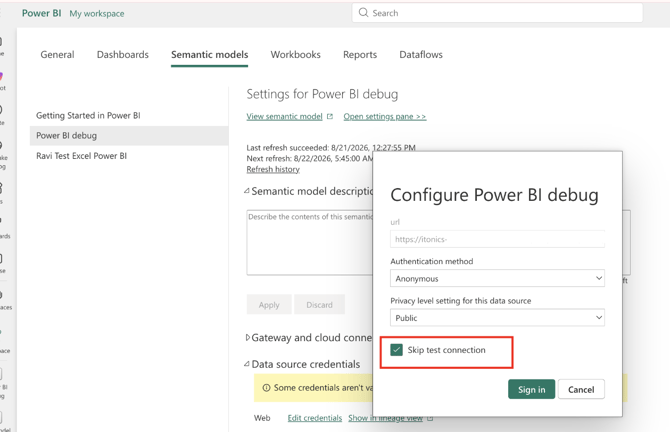
GET data into Google Looker Studio
After following all steps in this section, you will have one table in Looker Studio containing all requested elements with all properties.
Note: This approach uses Google Looker Studio, which offers freemium model. Restrictions may occur with api quotas or auto-refresh and might require a paid subscription.
Create an empty Google Sheet
To GET the data into Looker Studio, start by creating a new blank Google Sheet using your professional account.
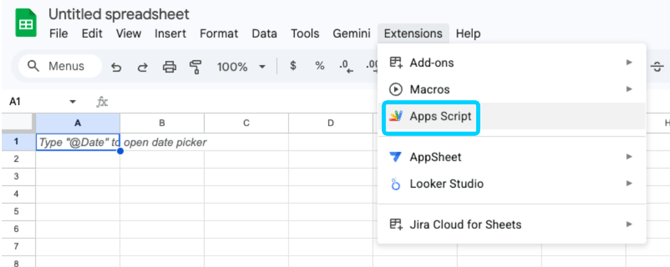
Next, navigate to Extension > Apps Script and open the script editor.
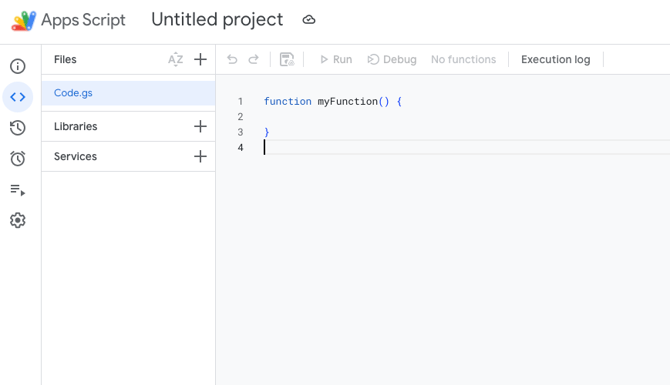
This will open a blank project in Apps Script:
In this step, you will need:
- API key (authorization key), see here
- URL of the OData API (URL column of the External Access tab)
- [Optional custom] Filter query - this defines the information that is to be requested
Now in the new project opened in Apps Script, follow these steps:
Past the following script to the code editor (make sure to insert your BASE URL and API KEY, and to change sheetName according to your preferences):function fetchApiToSheet() {
// --- Config (mirror: URL & FILTER_QUERY) ---
const BASE_URL = "{INSERT HERE YOUR URL of the OData API}";
const FILTER_QUERY = ""; // e.g. "?$filter=...&$top=200" (optional)
const FIRST_URL = BASE_URL + FILTER_QUERY;
// Prefer storing token in Script Properties:
// PropertiesService.getScriptProperties().setProperty("ITONICS_API_KEY", "...");
const token =
PropertiesService.getScriptProperties().getProperty("ITONICS_API_KEY") ||
"INSERT HERE YOUR API KEY";
const ss = SpreadsheetApp.getActive();
const sheetName = "api_data";
const sheet = ss.getSheetByName(sheetName) || ss.insertSheet(sheetName);
sheet.clear();
// --- 1) Pagination: fetch all pages ---
const allElements = [];
let nextUrl = FIRST_URL;
let safetyCounter = 0;
const MAX_PAGES = 1000; // safety guard
while (nextUrl && safetyCounter < MAX_PAGES) {
safetyCounter++;
const page = fetchPage_(nextUrl, token);
if (!page) break;
// Mirror PowerBI: elements + nextLink (but be tolerant to OData shapes)
const elements = page.elements || page.items || page.value || [];
if (Array.isArray(elements) && elements.length) {
allElements.push(...elements);
}
nextUrl = page.nextLink || page["@odata.nextLink"] || null;
}
if (!allElements.length) {
sheet.getRange(1, 1).setValue("No elements returned (or API shape mismatch).");
return;
}
// --- 2) ROBUST expansion: union of all keys across all rows ---
const headers = unionKeys_(allElements); // like AllColumnNames in PowerBI
sheet.getRange(1, 1, 1, headers.length).setValues([headers]);
// --- 3) Write rows ---
const rows = allElements.map(el =>
headers.map(h => normalizeCell_(el[h]))
);
sheet.getRange(2, 1, rows.length, headers.length).setValues(rows);
// Optional: basic formatting
sheet.setFrozenRows(1);
sheet.autoResizeColumns(1, headers.length);
}
/**
* Fetches a single page and returns parsed JSON.
*/
function fetchPage_(url, token) {
const res = UrlFetchApp.fetch(url, {
method: "get",
muteHttpExceptions: true,
headers: { Authorization: "ApiKey " + token }
});
const code = res.getResponseCode();
const text = res.getContentText();
if (code < 200 || code >= 300) {
// Write something helpful in logs for debugging
console.error("HTTP " + code + " for " + url + ": " + text);
return null;
}
try {
return JSON.parse(text);
} catch (e) {
console.error("JSON parse error for " + url + ": " + e + "\nBody:\n" + text);
return null;
}
}
/**
* Returns union of keys over all objects in the array (top-level only),
* matching the PowerBI "scan all rows" behavior.
*/
function unionKeys_(objects) {
const seen = new Set();
objects.forEach(obj => {
if (obj && typeof obj === "object" && !Array.isArray(obj)) {
Object.keys(obj).forEach(k => seen.add(k));
}
});
return Array.from(seen);
}
/**
* Makes values sheet-safe:
* - primitives stay as-is
* - objects/arrays become JSON strings
* - null/undefined -> empty cell
* - dates: if API gives ISO strings, you can leave them as string or parse (kept as string here)
*/
function normalizeCell_(value) {
if (value === null || value === undefined) return "";
const t = typeof value;
if (t === "string" || t === "number" || t === "boolean") return value;
// object/array -> JSON
try {
return JSON.stringify(value);
} catch (e) {
return String(value);
}
}
Parameters explanation:
- BASE URL
The URL which can be found in the External Access column in the ITONICS system. - FILTER_QUERY
Set the filter query to define what data will be requested, to just GET every element in the workspace, copy paste the text above. - API_KEY
URL and API key represent your authorization the ITONICS system, you will need to replace "INSERT HERE YOUR API KEY" in the script above, with your API key that you created and that is stored in the External Access settings.
The API key in the script could be something like this:A7fQ9mX2Zk04sB3NwC0EJt6DVaL1H3uP5YgKcM
Note: The resulting table will have all properties across all requested element types as unique columns, where each row represents an element. Be aware that, depending on the size of your workspace, this could be a lot.
It is also possible to split this table by element type if needed (prompt your favorite LLM if this is necessary).
- Run the script: Running the script fetches all elements from your specified work space, handles pagination, and normalizes the data into the spreadsheet.
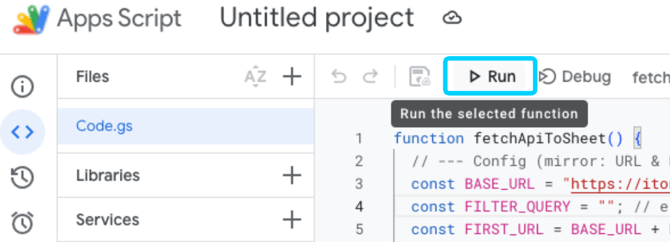
You will see that your formerly empty Google Sheet will be filled with the extracted info: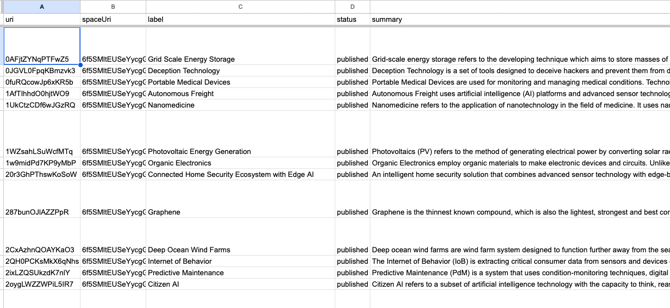
- Schedule the data update:
To keep the data updated, set up a trigger. Navigate to Triggers > Add Trigger :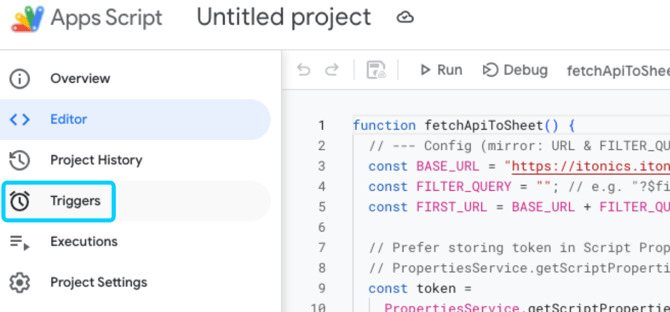
Set your desired trigger and Save (in the following example - a daily trigger updated at midnight):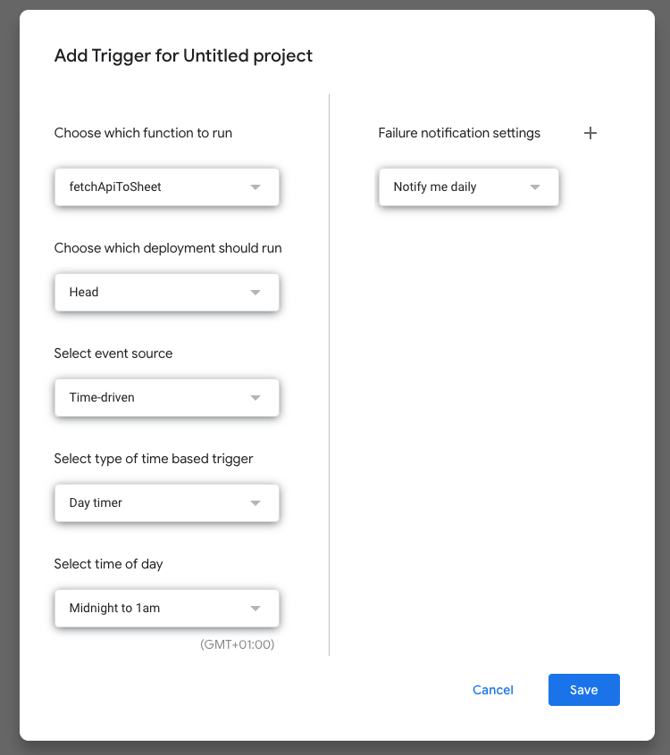
- Connect to Looker Studio:
Open Looker Studio and create a Blank Report: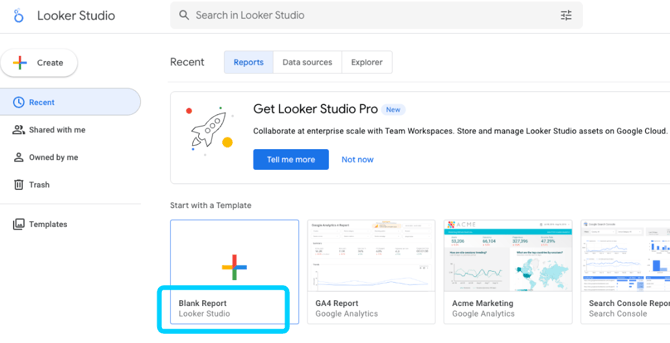
Choose Add data to report [1]> Google Sheets [2] and then select your file.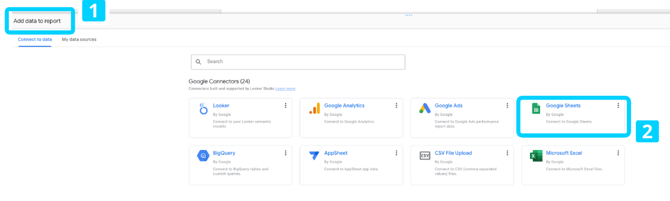
This will allow you to start drafting your BI reports with the extracted data.
Learn in the next section, how to embed this report into ITONICS.
Embed a Looker report into ITONICS
Embedding a report is as easy as pasting the report embed URL into the respective input field in the ITONICS Innovation OS.
Get an Embed URL from Looker Studio
To embed a report follow these steps:
- Share the report with the required personas
- The dashboard can be shared like a Google Doc, allowing invitation to specific email addresses. It is not a public link unless explicitly set.
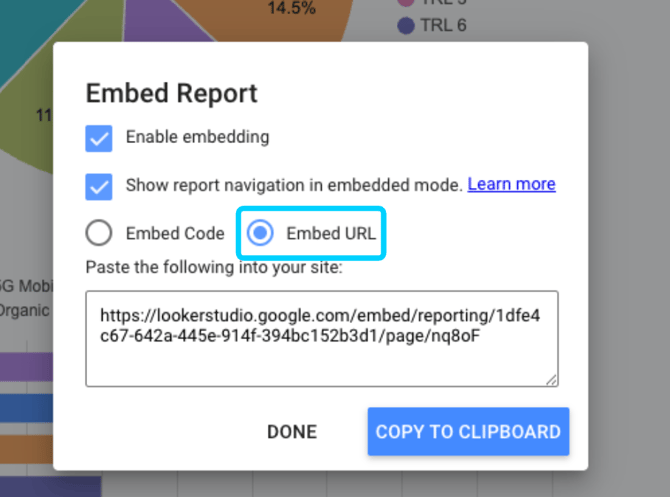
- Get the embed URL
Click on File > Embed report and choose Embed URL: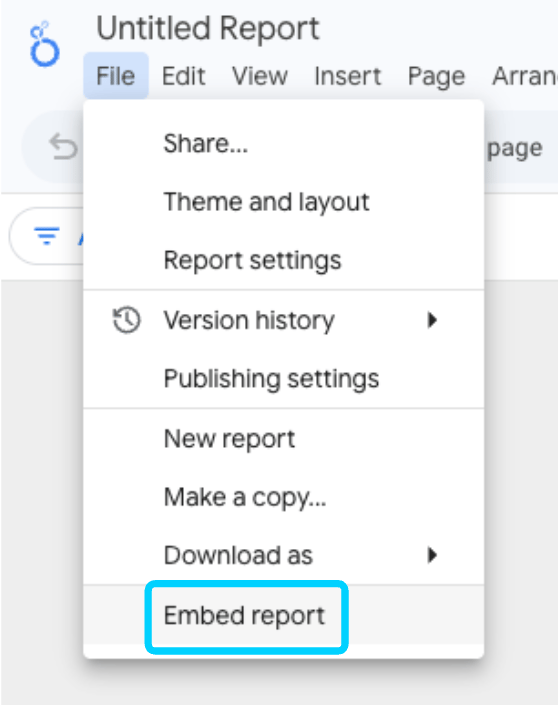
Note: As this is an external service provider, be aware, that the required licenses and this whole process may change in the future and may not be accurate anymore.
Embedding a report into ITONICS via report embed URL
Follow these steps closely.
- In ITONICS, go to the specific workspace where the report should be located in.
- Go to Report in the More Tools section
- Select Embed new report
- Enter a Report title
- Paste the Report URL (like:
https://lookerstudio.google.com/embed/reporting/[...]) - Press Embed Report
- Now the report should display.
- You will also find the option to "Make publicly available". When you share with everyone, every workspace user with permission granted to view embedded reports
finds the name of this saved view in their main menu under reports and can access it.
Note: Looker Studio reports can be access controlled, depending on your report configuration, users might have to log in to their respective Google account and to have viewer permissions to view a report.