![ITONICS-Logo-Night-Blue-2021.svg]](https://www.itonics-innovation.com/hubfs/ITONICS-Logo-Night-Blue-2021.svg)
This feature will be released on 09/21/26.
The Formula property calculates a value from the other properties of an element, in the same way a spreadsheet formula calculates a cell from other cells. Formulas may involve functions, numeric operations, logical operations and text operations that operate on properties.
If you already write spreadsheet formulas, the format below will look familiar.
Formula values are calculated by ITONICS and are read-only everywhere they appear. You write the formula once, in the property configuration, and every element of that element type carries its result. The property is marked with the ƒx icon and a computed tag.
In this article:
Overview
Properties are referenced by name, inside curly braces:
{Budget}
You can calculate with them:
{Budget} - {Remaining Budget}
And you can use parentheses to control the order in which the calculation happens:
({Budget} - {Remaining Budget}) / {Budget}
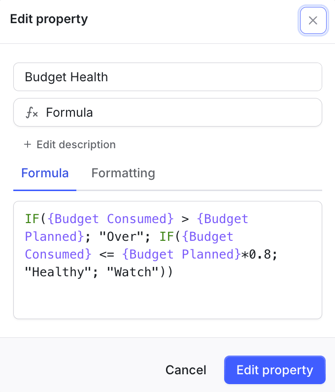
While you type, ITONICS highlights the property names it recognizes. When you leave the editor, the formula is validated: a valid formula is confirmed and previewed against a real element, and an invalid one is explained, with the part of the expression that caused the problem underlined.
Validation also determines the result type of the formula — number, date or text. You do not pick it; it follows from what the formula computes. On the Formatting tab, a formula that returns a number can be given a unit (€, %, cm and so on) which the value then carries wherever it is displayed. Date and text formulas have no formatting options.
One formula, one output type. A formula always produces a single output type. It cannot return a number for some elements and text for others — an expression such as IF({Budget} > 100000; 1; "None") mixes a number and a text value, and validation rejects it with a type mismatch. Rewrite it so that every branch returns the same type, for example IF({Budget} > 100000; "Over 100k"; "Under 100k").
Once the property has been saved, its output type is fixed. You can keep editing the expression afterwards, but only in ways that produce the same type: a formula saved as a number stays a number. This protects everything already built on the property: saved views and presets, filters, the PRISM master context, workflow criteria and widgets would otherwise keep operators and values that no longer fit the new type. If you need to calculate something of a different type, create a new Formula property.
A formula cannot reference itself, directly or through another formula. Circular references are rejected when the formula is validated.
Which properties you can reference
A reference always resolves to the readable value of a property — a label, a name, a title — never to an internal identifier.
| Property | Resolves to | Value |
|---|---|---|
| Title | Text | The title of the element |
| Summary | Text | The summary as plain text |
| Status | Text | The status label |
| Tags | Text / list | The tag name(s) |
| Site source | Text | The source label |
| Workflow Node | Text | The name of the node the element currently sits in |
| Workflow Process | Text | The name of the process the element is running through |
| Created at / Updated at | Date | The date |
| Created by / Updated by | Text | The name of the user |
| Text / Rich Text | Text | The text, with rich-text formatting removed |
| Number / Rating | Number | The value |
| Aggregated Rating | Number | The aggregated score shown on the element |
| Date | Date | The date |
| Hyperlink | Text | The URL |
| Dropdown | Text / list | The label of the selected option(s) |
| Hierarchical Dropdown | Text / list | The label of the selected node(s) |
| User | Text / list | The name(s) of the selected user(s) |
A property that holds several values resolves to a list, which the array functions (COUNT, ARRAYCONTAINS, ARRAYELEMENT) can work on. In a text result, the values are joined into a comma-separated string.
Header Image, Attachments and Relations cannot be referenced in a formula. A formula that refers to one of them will not validate, and the editor marks the reference that caused it.
Expressions
An expression is anything that produces a value: a single property, a calculation, a function call, or any combination of the three.
{Budget} * 2
Expressions can be chained and nested — the result of one function can be the argument of another:
ROUND({Budget} / {Headcount})
The arguments of a function are separated by a semicolon (;), and text values are written between double quotes:
CONCAT({Project Title}; " — "; {Status})
The IF() function lets a formula return different values depending on a condition. For example, to flag the projects that have already spent more than 100,000 of their budget:
IF({Budget} - {Remaining Budget} > 100000; "Over 100k"; "Under 100k")
Text operators and functions
Text operators
| Operator | Description | Examples |
|---|---|---|
& |
Concatenates text values into a single text value. Equivalent to CONCAT(). | {Project Title} & " Test" → Project Title Test |
Functions
| Function | Description | Examples |
|---|---|---|
ABS |
Returns the absolute value of a number. | ABS(value) |
AND |
Returns true if all arguments are true. | AND(logical1; [logical2; ...]) |
ARRAYCONTAINS |
Returns true if the list contains all the given values, otherwise false. | ARRAYCONTAINS(array; [...value]) |
ARRAYELEMENT |
Returns the element at the given position of the list. | ARRAYELEMENT(array; index) |
AVERAGE |
Returns the arithmetic average of a set of values. | AVERAGE(number1; [number2; ...]) |
CEILING |
Returns the nearest multiple of significance (1 if not provided) that is greater than or equal to the value. | CEILING(value) |
CONCAT |
Joins all arguments into a single text value. | CONCAT(value; [value2; ...]) |
CONTAINS |
Returns true if the first argument contains the second. | CONTAINS(value; value2) |
COUNT |
Returns the number of values in a list. | COUNT(value1; [value2; ...]) |
DATE |
Returns a date. | DATE(year; month; day) |
DATEDIF |
Returns the number of days, months or years between two dates. | DATEDIF(start_date; end_date; unit) |
EDATE |
Returns the date a specified number of months before or after another date. | EDATE(start_date; months) |
EOMONTH |
Returns the last day of the month falling a specified number of months before or after another date. | EOMONTH(start_date; months) |
EVEN |
Rounds a number up to the nearest even integer. | EVEN(value) |
FLOOR |
Rounds a number down to the nearest integer. | FLOOR(value) |
IF |
Returns the second argument if the condition is true, otherwise the third. | IF(logical_expression; value_if_true; value_if_false) |
LEN |
Returns the length of a text value. | LEN(text) |
LOWER |
Converts a text value to lowercase. | LOWER(text) |
MAX |
Returns the largest value in a list of numbers. | MAX(value1; [value2; ...]) |
MEDIAN |
Returns the median of a list of numbers. | MEDIAN(value1; [value2; ...]) |
MIN |
Returns the smallest value in a list of numbers. | MIN(value1; [value2; ...]) |
MOD |
Returns the remainder after a division. | MOD(dividend; divisor) |
MONTH |
Returns the month a date falls in, in numeric format. | MONTH(date) |
NETWORKDAYS |
Returns the number of net working days between two dates. | NETWORKDAYS(start_date; end_date) |
NOT |
Returns the inverse of a logical expression. | NOT(logical_expression) |
ODD |
Rounds a number up to the nearest odd integer. | ODD(value) |
OR |
Returns true if at least one argument is true. | OR(logical1; [logical2; ...]) |
POWER |
Returns a number raised to a power. | POWER(base; exponent) |
REPLACE |
Replaces part of a text value with a different text value. | REPLACE(text; stringToReplace; newString) |
ROUND |
Rounds a number to the nearest integer. | ROUND(value) |
SQRT |
Returns the positive square root of a positive number. | SQRT(value) |
TODAY |
Returns the current date. | TODAY() |
TRIM |
Removes leading, trailing and repeated spaces from text. | TRIM(text) |
TRUNC |
Truncates a number to a certain number of significant digits by omitting the less significant ones. | TRUNC(value; [places]) |
UPPER |
Converts a text value to uppercase. | UPPER(text) |
WEEKDAY |
Returns the day of the week of a date, as a number. | WEEKDAY(date) |
WEEKNUM |
Returns the week of the year a date falls in, as a number. | WEEKNUM(date) |
WORKDAY |
Returns the date falling a specified number of working days after a date. | WORKDAY(start_date; num_days) |
XOR |
Returns true if only one argument is true. | XOR(logical1; [logical2; ...]) |
YEAR |
Returns the year of a given date. | YEAR(date) |
Numeric operators
| Operator | Description | Examples |
|---|---|---|
+ |
Adds two numeric values together. | {Budget} + 200 |
- |
Subtracts one numeric value from another. | {Budget} - 200 |
* |
Multiplies two numeric values. | {Budget} * 2 |
/ |
Divides one numeric value by another. | {Budget} / 2 |
Logical operators
| Operator | Description | Examples |
|---|---|---|
> |
Greater than | 3 > 2 → true |
< |
Less than | 2 < 3 → true |
>= |
Greater than or equal to | 3 >= 3 → true |
<= |
Less than or equal to | 2 <= 2 → true |
= |
Equal to | 2 = 2 → true |
<> |
Is not equal to | 3 <> 2 → true |
When a formula cannot be calculated
A formula can be perfectly valid and still fail on a particular element — for example when a referenced property is empty, or when a division works out to a division by zero. In that case the element shows an alert in place of the value, and hovering it explains why. The formula itself stays valid and keeps calculating for every other element.