
Add milestones to a roadmap to mark key events or goals, such as a launch or a decision. To learn how milestones differ from activities, see Overview of roadmaps.
Before you start
By default, Workspace Admins and Moderators can add and change milestones.
Add a milestone
Create a new milestone
Open the roadmap, point to Create in the bottom-right corner, and click Create Milestone.
Milestones are added only from this menu, not on the layers.
Under Date, select the date, and under Title, enter a name.
Optional: Under Milestone Type, select a type to give the milestone its color and icon.
Click Create Milestone.
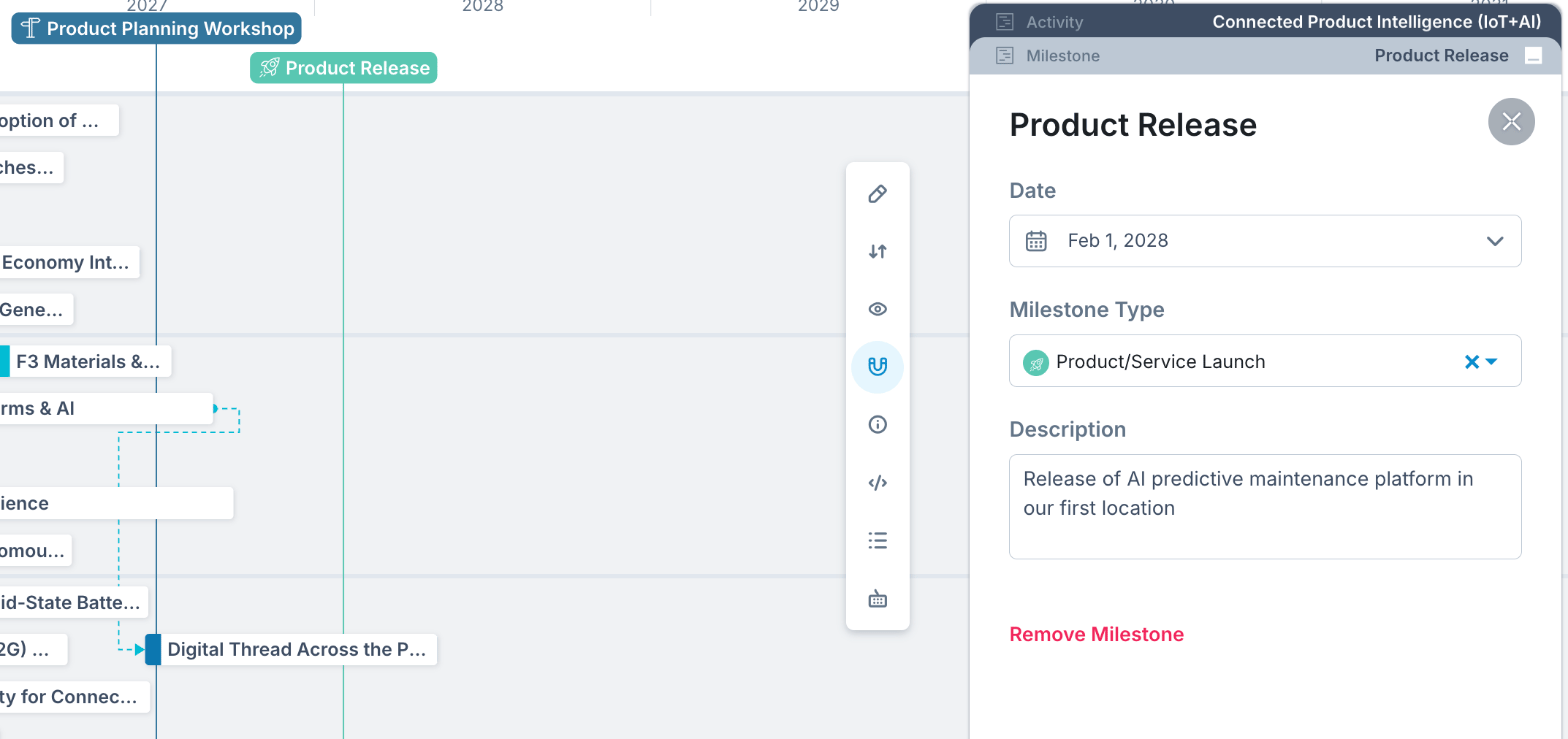
Click the milestone to see and change its details.
Add a milestone from another roadmap
Point to Create and click Add Existing Milestone.
The option shows when other roadmaps have milestones.
Under Milestone, select the milestone, and click Add Milestone.
To change or remove a milestone:
- To change its details, click the milestone above the layers. In the panel that opens, change the title, Date, Milestone Type, or the description.
- To take the milestone off this roadmap, click it and click Remove Milestone. It stays on other roadmaps.
- To delete a milestone from the workspace list, go to More Tools > Roadmap > Milestones, click the trash icon in its row, and confirm. This doesn't take it off the roadmaps it's on: use Remove Milestone on each roadmap for that.
Warning: A milestone can be on several roadmaps. If you change its details, the change shows on all of them.
Result
The milestone appears above the layers at its date, with the color and icon of its type.