
A roadmap is a timeline for planning elements, activities, and milestones over time, organized in layers. Use roadmaps to plan how your projects, technologies, and products develop, and to show the plan to others.
Parts of a roadmap
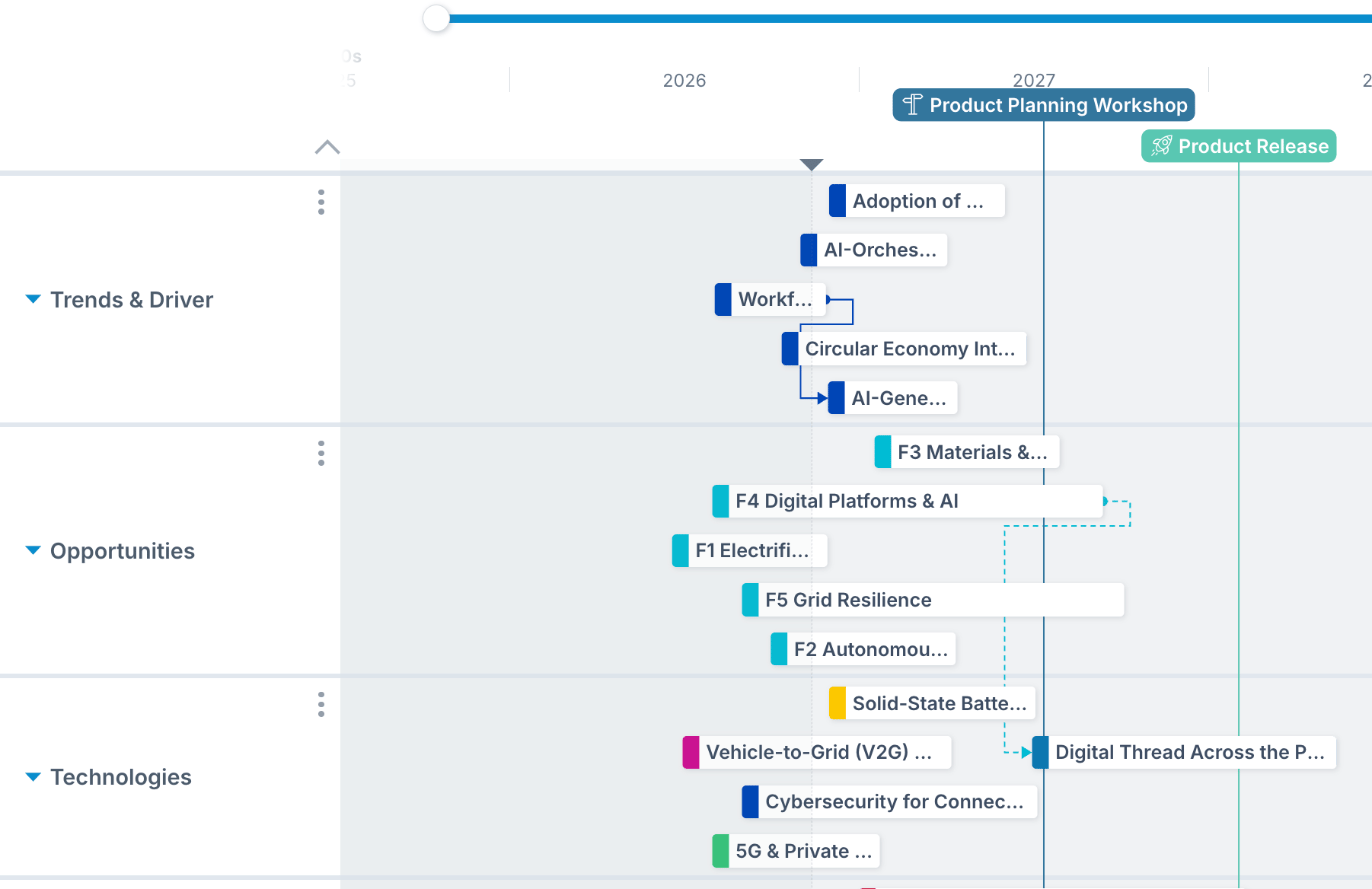
- Layers are the rows of a roadmap, for example products, technologies, and markets. A layer can have sublayers.
- An activity is an item on a roadmap with a start and an end date. Activities are the bars on the layers and lead up to your milestones. An activity type sets their color, and each can be linked to an element. See Add activities.
- A connection is a link between two items on a roadmap that shows a dependency. Connections are the arrows between activities. See Add connections.
- A milestone is a single point in time on a roadmap, such as a deadline or a decision. Milestones sit above the layers, independent of the layer structure. See Add milestones.
A roadmap can also hold other roadmaps, so one roadmap can give an overview of the smaller roadmaps that different teams manage. See Create and manage roadmaps.
Activities and milestones are shared
The same activity or milestone can be on several roadmaps. When you change it on one roadmap, for example its dates, every roadmap that shows it changes too. If several initiatives depend on the same real-world activity, add that one activity to each roadmap instead of creating copies.
On the roadmaps overview, the Activities and Milestones tabs list every activity and milestone in the workspace, with the roadmaps they're on.
The timeline
Every roadmap has a timeline at the top. A new roadmap starts with about 2 months around the day you create it, and the timeline grows to fit the activities and milestones you place on it. To extend the timeline before you add activities, add a milestone far ahead or far back in time. The current date is marked on the timeline.
- To zoom into a period, drag the round handles of the time frame bar. Drag the bar itself to move through time.
- To show all activities again, click Fit to View. To center the roadmap on today, click Center Around Now. Both icons are next to the time frame bar.
- To zoom, scroll with the mouse wheel. In Quick Editing mode, hold Space while you scroll. To pan, hold Space and drag.
Roadmap toolbar
The toolbar on the right of a roadmap holds its tools.
| Tool | What it does |
|---|---|
| Quick Editing | Lets you add activities by clicking on a layer. |
| Reorder Layers | Changes the order of layers and sublayers. |
| Change Layer Visibility | Hides or shows layers and the activities on them. |
| Snap to Grid | Snaps activities to the intervals of the timeline when you drag them. On by default. |
| Roadmap Editor | Changes the title and description of the roadmap. |
| Embed | Gives you a code or URL to show the roadmap on a webpage outside ITONICS. |
| Legend | Shows the activity types, linked element types, and milestone types the roadmap uses, and opens their settings. See Configure activity and milestone types. |
| Keyboard Shortcuts | Lists the keyboard shortcuts for the roadmap, for example to toggle snapping or fit the roadmap to the window. |