
Add activities to the layers of a roadmap, change them, and take them off again. To learn how activities fit into a roadmap, see Overview of roadmaps.
Before you start
The roadmap needs at least 1 layer. See Create and manage roadmaps. By default, Workspace Admins and Moderators can add and change activities.
Add an activity
Create a new activity
Open the roadmap, point to Create in the bottom-right corner, and click Create Activity.
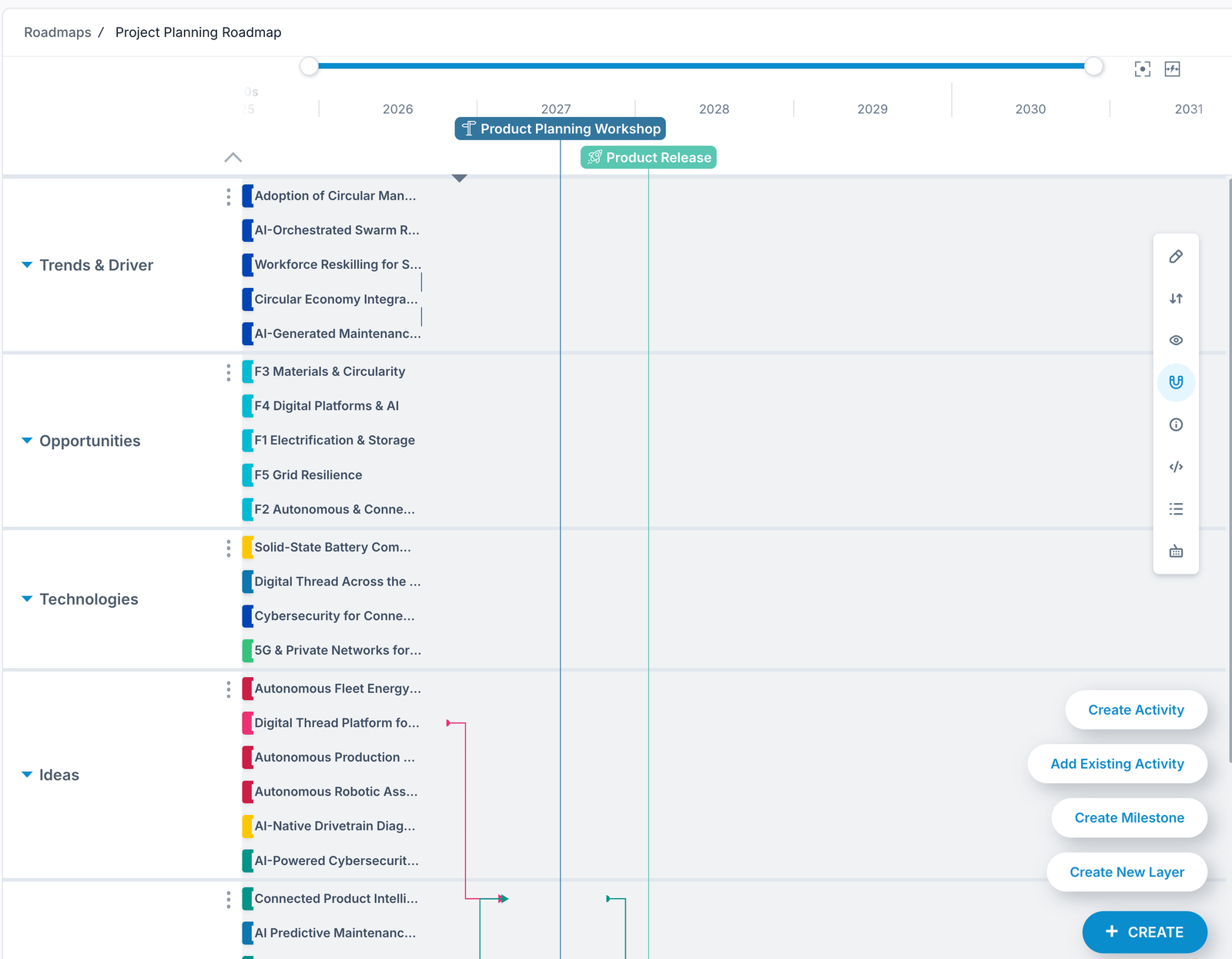
Under Date Range, select the start and end dates, under Title, enter a name, and under Layer, select the layer.
Optional: Under Activity Type, select a type to give the activity its color.
Click Create Activity.
The activity appears on its layer. Click it to see and change its details.
Draw an activity on a layer
In the roadmap's toolbar, click the Quick Editing icon.
On the layer, drag from the start date to the end date of the activity.
Clicking the layer without dragging opens Create Activity instead.
Enter a name and press Enter.
To cancel, press Esc.
Add an activity from another roadmap
Point to Create and click Add Existing Activity.
Under Activity, select the activity, and under Layer, select the layer.
Click Add Activity.
The activity is on both roadmaps. Changes to it show on every roadmap it's on.
To change or remove an activity:
- To change its dates, turn on Quick Editing, then drag the activity to another time, or drag its start or end.
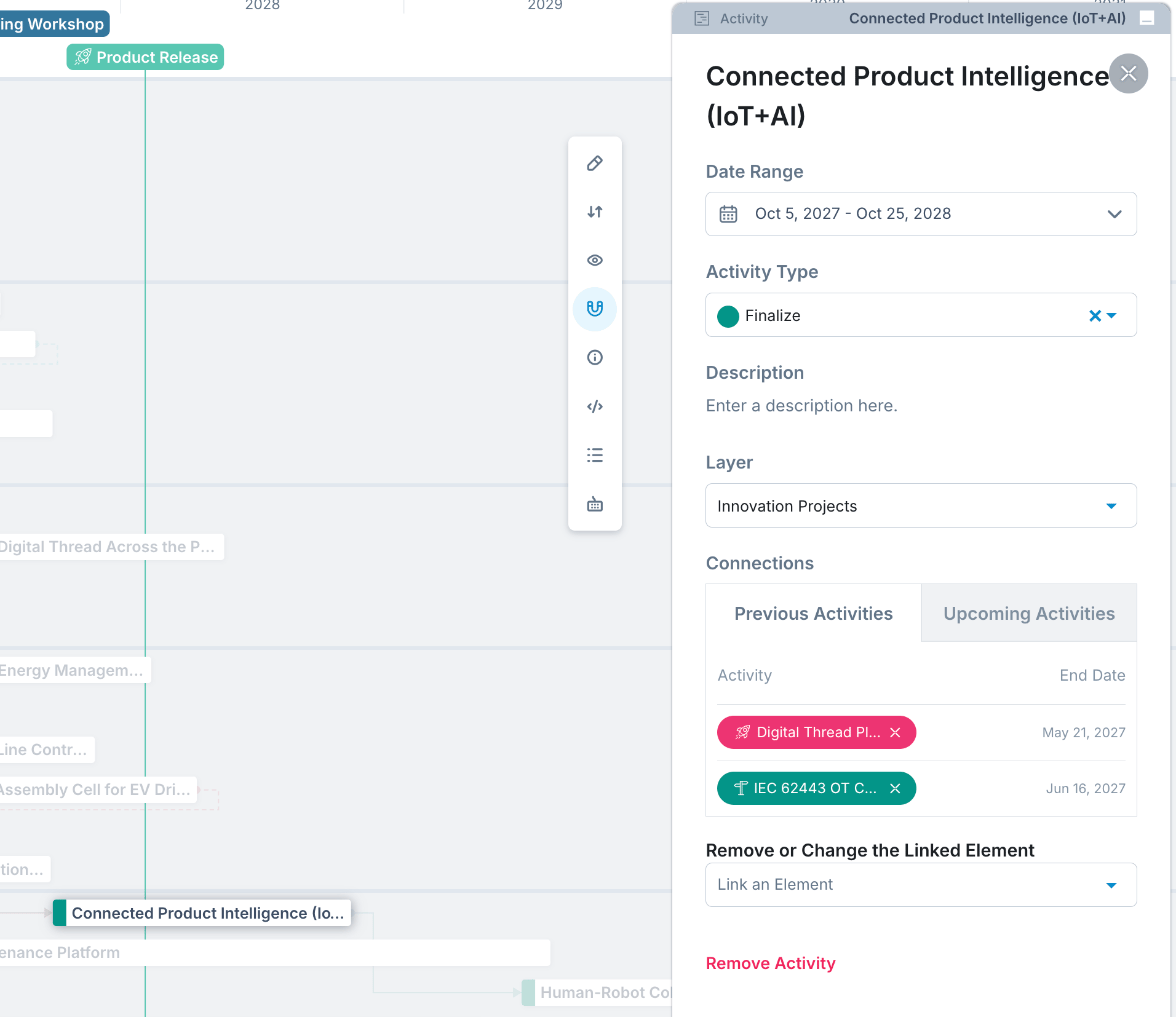
- To change its details, click the activity. In the panel that opens, change the title, Date Range, Activity Type, the description, or Layer, or link an element of your workspace to it.
- To take the activity off this roadmap, click it, click Remove Activity, and confirm. The activity isn't deleted: it stays on other roadmaps, and you can add it back with Add Existing Activity.
- To delete an activity from the workspace list, go to More Tools > Roadmap > Activities, click the trash icon in its row, and confirm. This doesn't take it off the roadmaps it's on: use Remove Activity on each roadmap for that.