
Create a roadmap from a template or from the layers of an existing roadmap, set up its layers, and manage it. To learn how roadmaps work, see Overview of roadmaps.
Before you start
To view roadmaps, your workspace role needs the View all Roadmaps permission. To create, edit, or delete roadmaps and configure their layers, it needs the matching roadmap permissions. By default, all workspace roles can view roadmaps, and Workspace Admins and Moderators can do the rest. A Workspace Admin sets this under Workspace settings > Permissions > Features > Roadmap.
Create a roadmap
Go to More Tools > Roadmap.
The overview lists the roadmaps of the workspace.
Click Create Roadmap.
Under Roadmap Name, enter a name.
Select what the roadmap starts from: Blank Roadmap, a template, or one of your existing roadmaps.
An existing roadmap gives you its layers, without its activities and milestones.
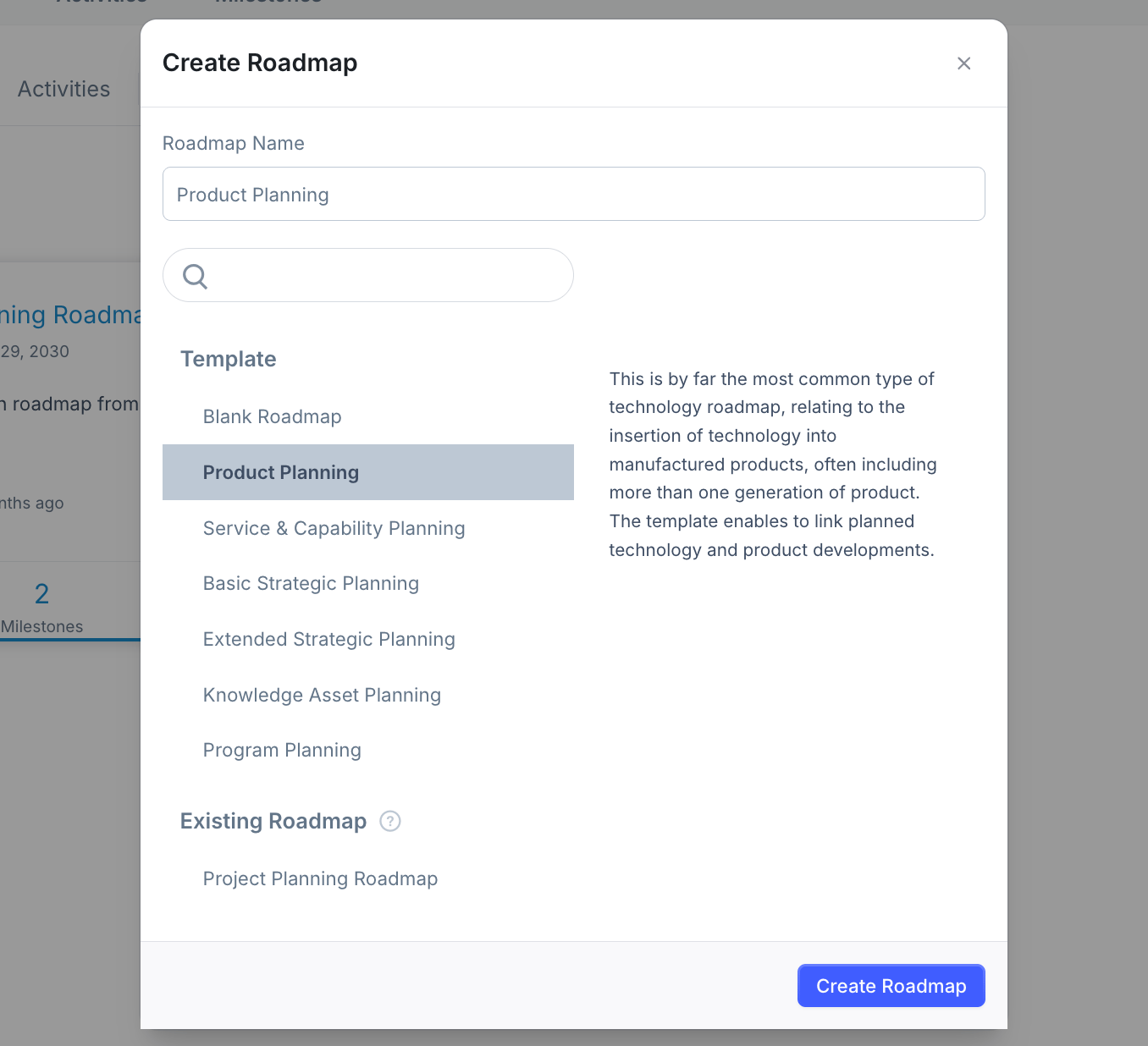
Click Create Roadmap.
The roadmap opens with the layers of what you selected and a timeline of about 2 months around today.
| Template | Good for |
|---|---|
| Product Planning | Linking planned technology and product developments across product generations. Best used after a strategic roadmap. |
| Service & Capability Planning | Service-based organizations: how technology supports their capabilities. |
| Basic Strategic Planning | A vision of the future business and the gaps to the current position. |
| Extended Strategic Planning | The same, with more granular sublayers, for companies with many products or services. |
| Knowledge Asset Planning | Aligning knowledge assets with business objectives, in knowledge-intensive organizations such as R&D. |
| Program Planning | Putting strategy into programs, such as R&D programs, with phases, project milestones, and key decision points. |
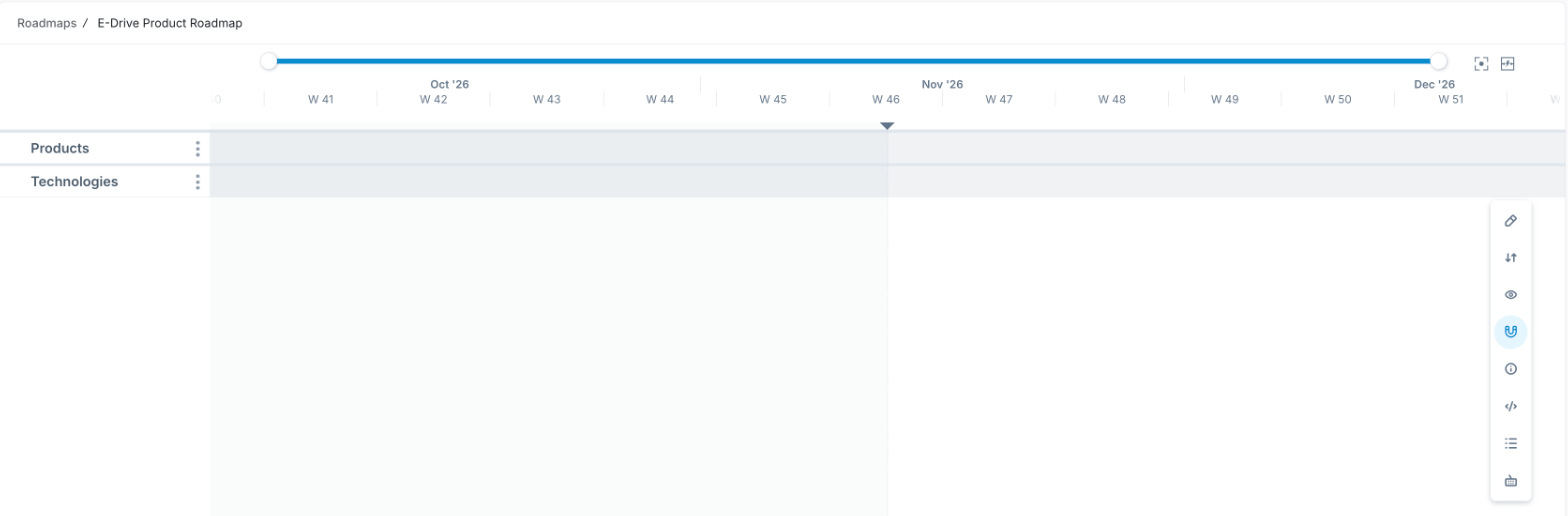
To open a roadmap, click its title on the overview. To set it up and manage it, use these actions. The Create menu opens when you point to Create in the bottom-right corner; the icons are in the toolbar on the right.
| To | Do this |
|---|---|
| Add a layer | Point to Create and click Create New Layer. It appears at the bottom. |
| Rename a layer | Point to the layer, click the pen icon, enter a name, and press Enter. |
| Add a sublayer | Click the more icon next to the layer and select Add Sublayer. Sublayers can have sublayers. |
| Delete a layer | Click the more icon next to the layer and select Delete Layer. Its sublayers and the activities on it are deleted too. |
| Change the layer order | Click the Reorder Layers icon, drag the layers, and click Submit. |
| Hide layers | Click the Change Layer Visibility icon and clear the layers to hide. Their activities are hidden too, also after a reload. |
| Change the title or description | Click the Roadmap Editor icon. |
| Add another roadmap to it | Point to Create, click Add Roadmap, and select the roadmap and a layer. The option shows when the workspace has other roadmaps. |
| Show it on a webpage | Click the Embed icon. See Embed a roadmap on a webpage. |
| Delete the roadmap | On the overview, find the roadmap, for example with the search field, click the trash icon on its card, and click Delete. It's also removed from every roadmap that shows it. You can't undo this. |