
Available by default to
Give users their organization role and their workspaces and roles automatically, based on the claims your identity provider sends. Users then get the right access from their first sign-in, without manual changes.
Before you start
SSO must be set up, see Set up and manage single sign-on (SSO). You need the Application Admin role to open the organization settings.
Map claims to roles and workspaces
Click the workspace name in the top left, select Organization settings, and select SSO.
If you have several identity providers, click the tab of the one to map.
In the organization role part of the claim role mapping, click Add claim value.
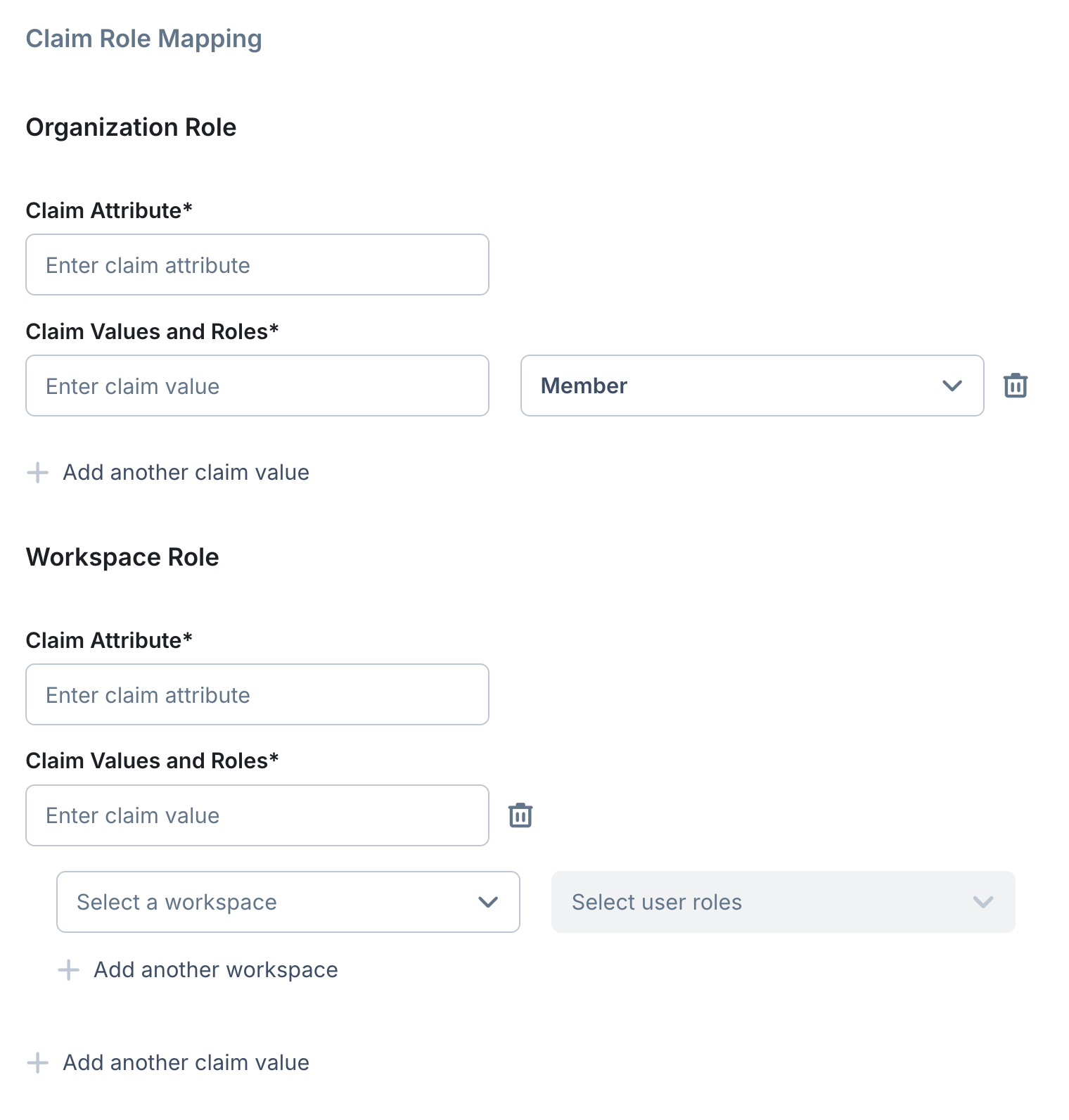
In Claim Attribute, enter the attribute your identity provider sends with the value to map, for example the user's group.
Enter a claim value, and select the organization role users with this value get.
To map more values, click Add another claim value.
In the workspace role part, click Add claim value, and enter the Claim Attribute.
Enter a claim value, select a workspace, and select the user roles for it.
To give the same value access to more workspaces, click Add another workspace. To map more values, click Add another claim value.
Click Apply changes.
Result
Users who sign in with SSO get the organization role and the workspace roles that match their claim values.
A workspace role that's used in the mapping can't be deleted. Remove it from the mapping first, see Manage workspace roles. For roles you give by hand, see Manage workspace users.