
Available by default to
Let your users sign in to ITONICS with their company account through a SAML identity provider (IdP), for example Microsoft Entra ID, ADFS, or OneLogin, instead of separate ITONICS credentials. For what the organization settings hold, see Understanding organizations.
Before you start
Single sign-on is part of the professional plan. If the SSO page asks you to contact support, SSO isn't activated for your organization yet: see Contact support. You need the Application Admin role to open the organization settings.
Connect an identity provider
Click the workspace name in the top left, select Organization settings, and select SSO.
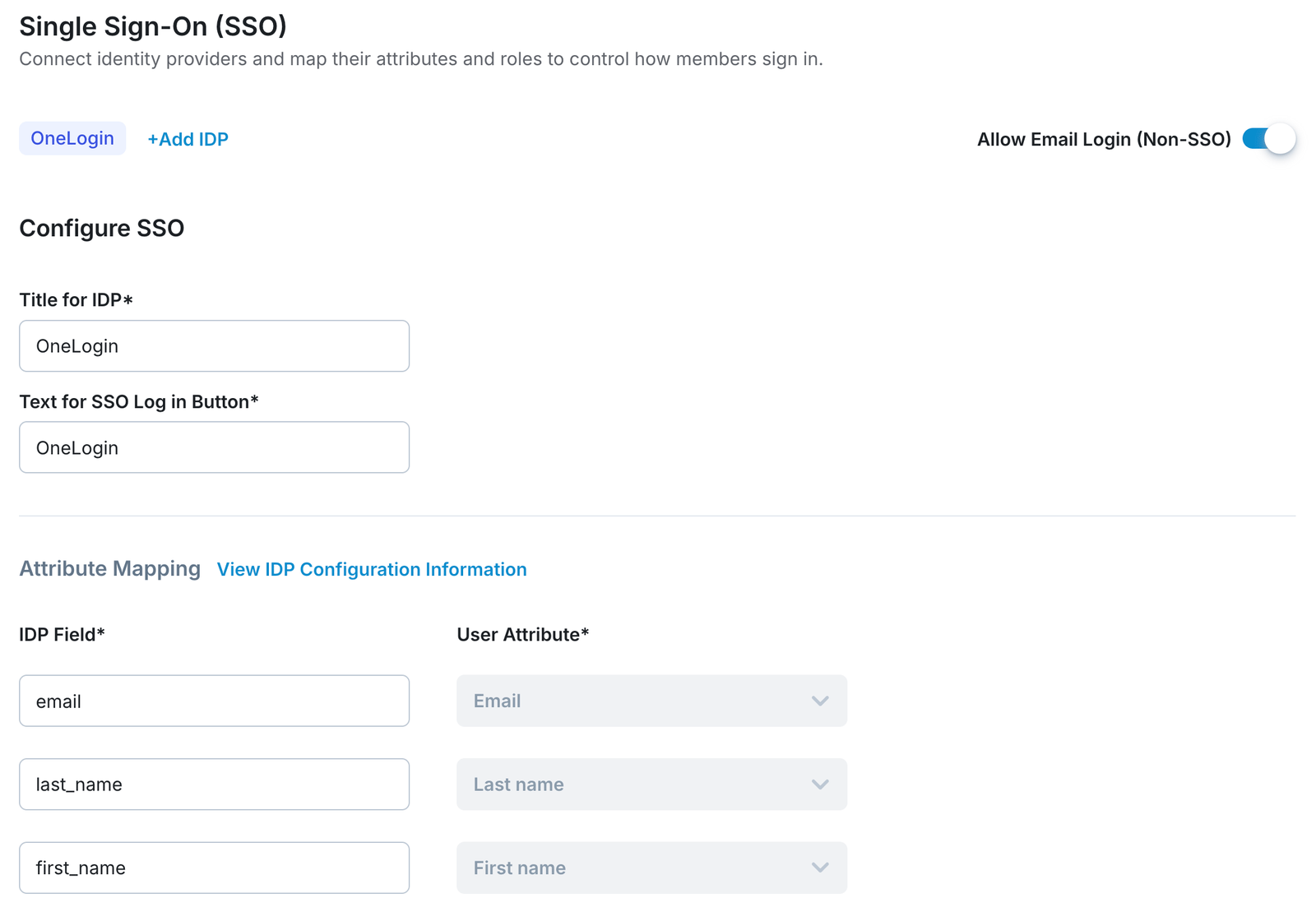
To add an identity provider, click +Add IDP.
If none is set up yet, the form for the first one is already open.
Enter a Title for IDP and the Text for SSO Log in Button.
Users see the button text on the sign-in page, for example "Use Company Login".
Under Attribute Mapping, enter a placeholder in each IDP Field, for example
placeholder-email,placeholder-lastname, andplaceholder-firstname.ITONICS needs them before it can read the metadata. You replace them in step 9.
Under Metadata Configuration, select Metadata URL or Metadata XML File Content, and enter the URL or the XML from your identity provider.
In Microsoft Entra ID, it's in the SAML Certificates section of the enterprise application:
https://login.microsoftonline.com/{tenant-id}/federationmetadata/2007-06/federationmetadata.xml?appid={app-id}.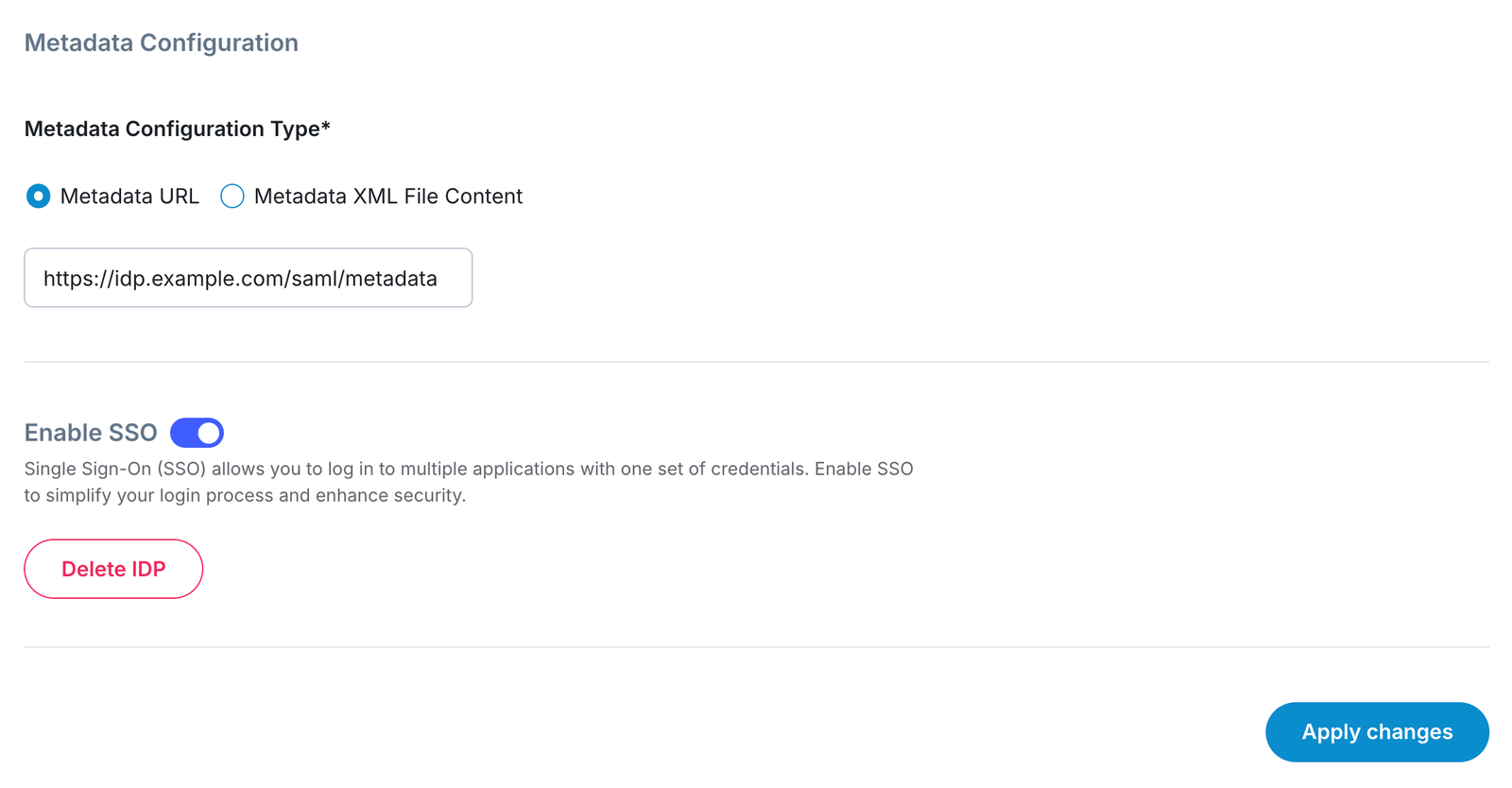
Optional: select the security options your identity provider needs.
See the table below. Turn on signing and encryption only if your identity provider is set up for them, otherwise sign-in fails.
Click Save.
ITONICS creates the configuration information for your identity provider.
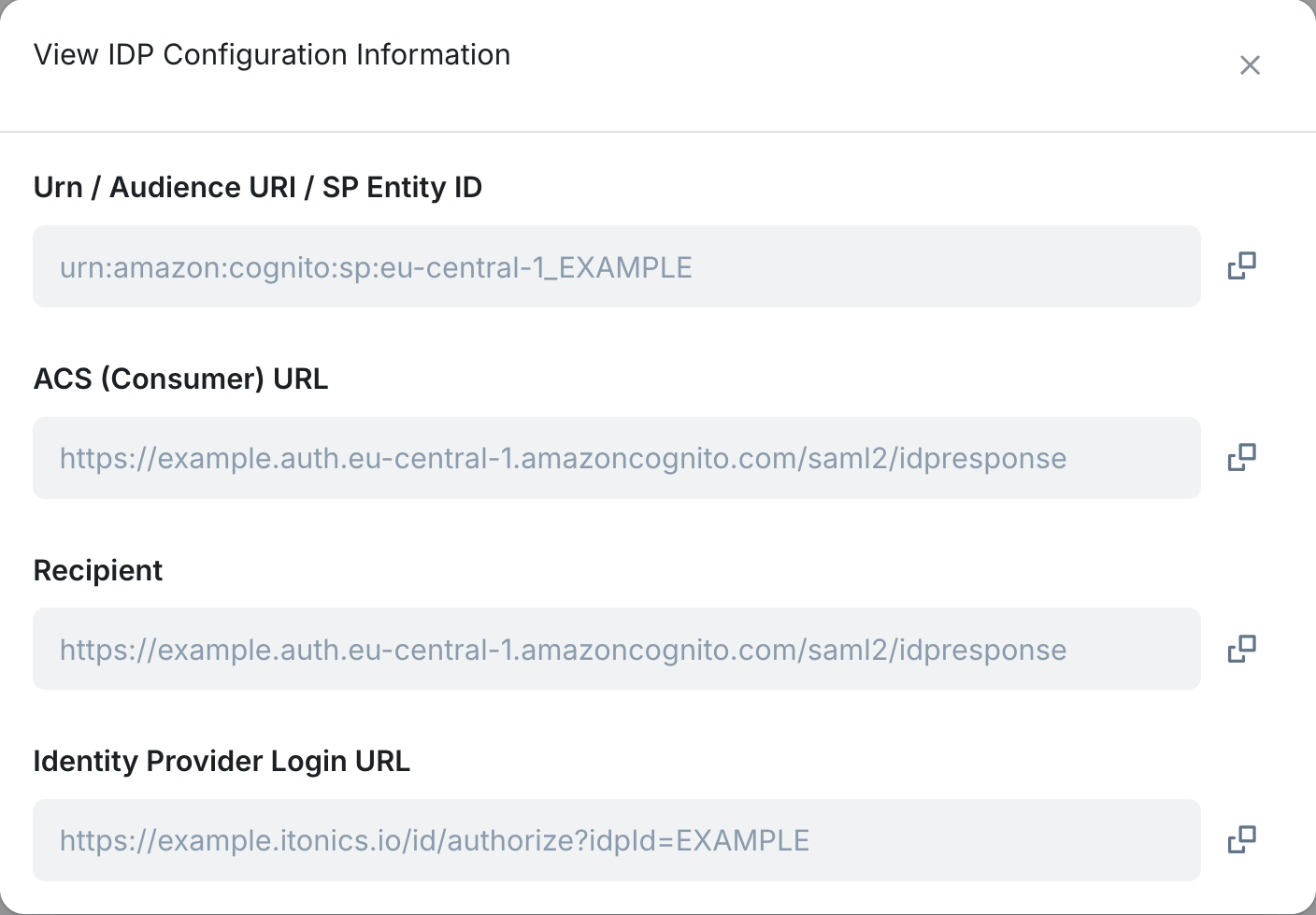
Click View IDP Configuration Information, and give the four values to your IT team.
They use them to set up ITONICS in your identity provider, for example in ADFS. Continue only when that's done.
Under Attribute Mapping, replace the placeholders with the attributes your identity provider sends, and click Apply changes.
Use the full URIs from the metadata, for example
http://schemas.xmlsoap.org/ws/2005/05/identity/claims/givenname, not onlygivenname.Turn on Enable SSO.
The sign-in page now shows the button for this identity provider.
| Option | What it does |
|---|---|
| Sign-Out Flow | Users who sign out of ITONICS are signed out of your identity provider at the same time. |
| Sign SAML requests | Your identity provider can check that a sign-in request has the expected signature. |
| Encrypted SAML assertions | Your identity provider must encrypt all SAML assertions with a public key that ITONICS provides. |
Allow Email Login (Non-SSO) (formerly Local Login) in the top right lets users sign in with their email in addition to SSO, and works only while SSO is on. To use only SSO, turn it off. Users then see:
| Identity providers | What users see |
|---|---|
| One | Everyone goes straight to your identity provider. There's no email sign-in, for every role, Application Admins included. |
| Two or more | The sign-in page shows a button for each identity provider. Users who enter their email see a notice that their account is managed via single sign-on. |
Users who opened the sign-in page before the change may still see the old page from their browser cache. Clearing the cache or opening the sign-in page in a private window shows the current page, see Trouble signing in.
Test before you turn off email login. Keep it on until a test user has signed in with SSO and got the right organization role and workspace roles. A setup error usually only shows when someone clicks the SSO button. While email login is on, you can still sign in with your email, fix the setup, and try again. Run the test sign-in in a private browser window while your admin session stays open in another window.
Warning: With one identity provider and email login off, every user is sent to the identity provider, Application Admins included. A broken setup can then no longer be fixed from inside ITONICS, so turn off email login only when sign-in, roles, and workspace assignments all work as intended.
You can add up to 3 identity providers, each with its own sign-in button. Switching tabs with unsaved changes asks you to discard them.
Note: You can connect several Microsoft Entra IDs as separate identity providers. Each one needs its own metadata URL and gets its own sign-in button.
For what users get at their first sign-in, see Authenticate and create users with SSO. To fill in more profile fields, see Populate user profile attributes via SSO. To assign roles and workspaces from claims, see Assign roles and workspaces via SSO.
To change a saved identity provider, open its tab, make your changes, and click Apply changes. To remove it, click Delete IDP, and confirm. When you turn off Enable SSO, users sign in with their email instead, including users created through SSO.