
An organization is your company's account in ITONICS. It holds all workspaces and users and has its own settings, roles, and system URL.
Organization and workspaces
Every workspace belongs to one organization. People first join the organization as users. Which workspaces they can open depends on each workspace's access setting: everyone in the organization can join a public workspace, while a private workspace is open only to people who are invited. To learn more, see Understanding workspaces.
Organization roles
Organization roles apply to the whole organization, separately from the roles a user has in each workspace. Every user is a Member. Users who manage the organization also have the Application Admin role.
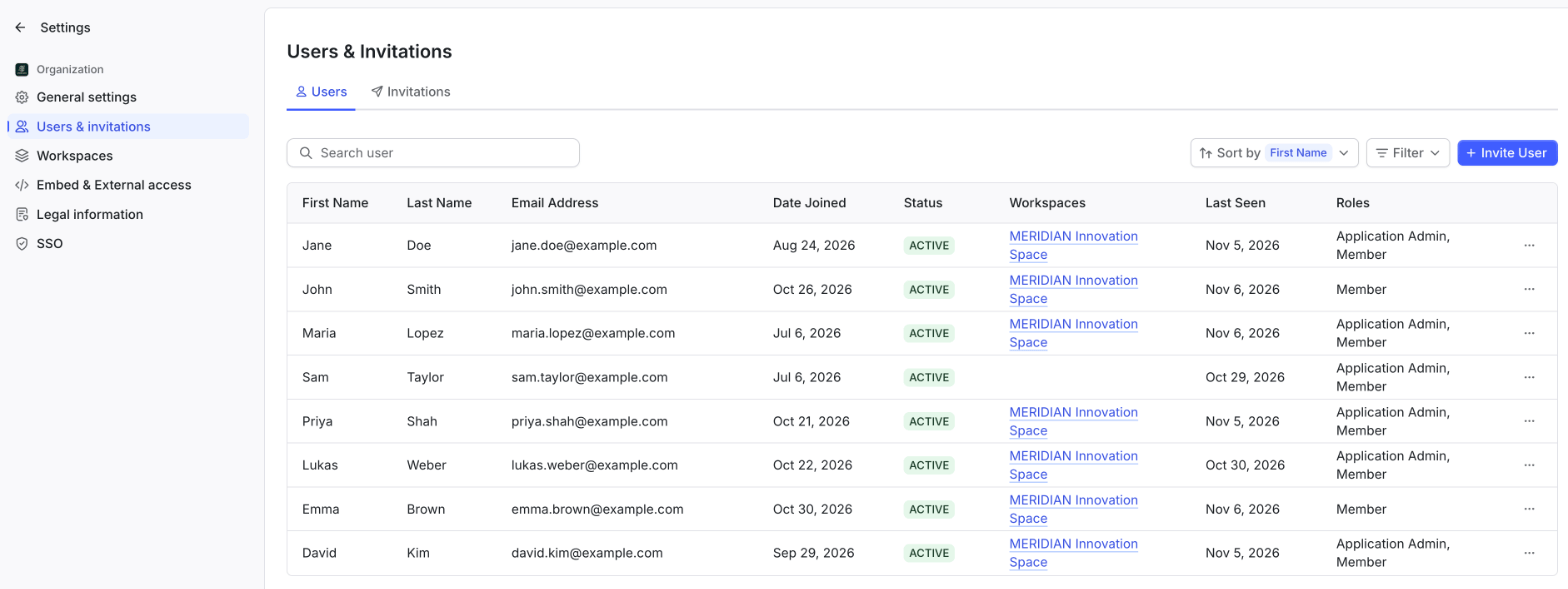
| Role | What it's for |
|---|---|
| Member | Every user of the organization. Members work in the workspaces they have access to. |
| Application Admin | An additional role for users who manage the organization: its settings, users, and workspaces. See Change a user's organization role. |
To learn about workspace roles, see Permission reference.
Organization settings
Settings that apply to the whole organization are in Organization settings, which Application Admins open from the workspace menu (the workspace name in the top left).
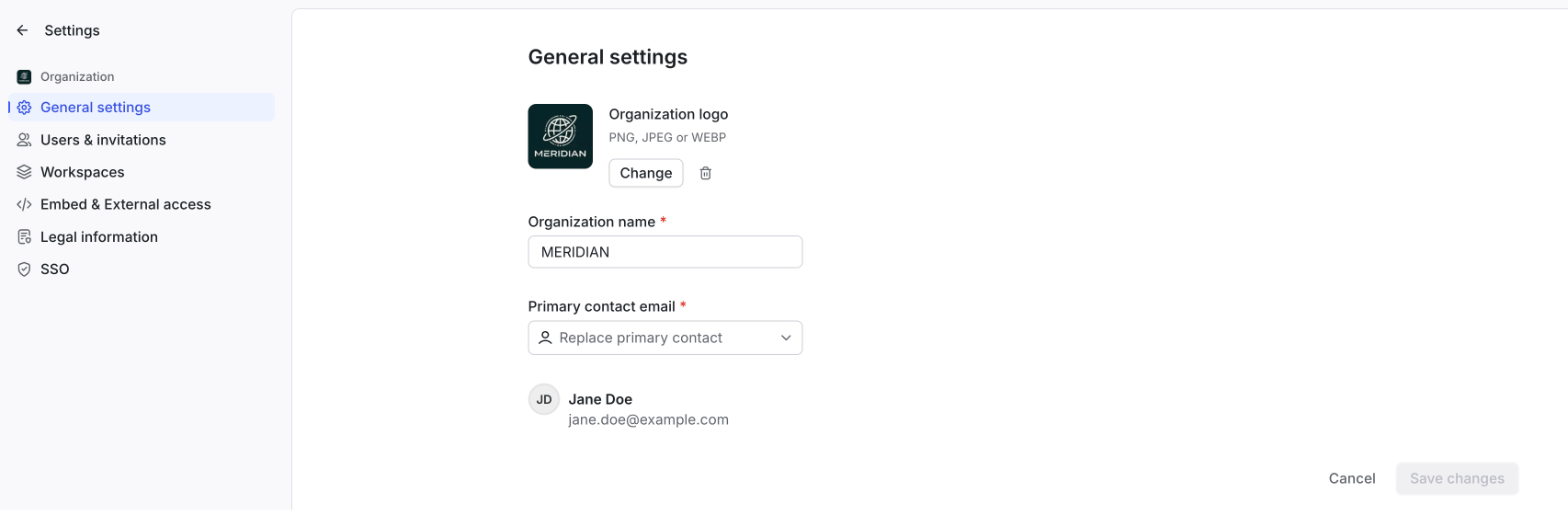
| Page | What you manage there |
|---|---|
| General settings | The organization logo, name, and primary contact email. See Manage organization profile and settings. |
| Users & invitations | The users of the organization and open invitations. See Manage users and invitations. |
| Workspaces | All workspaces of the organization. See Manage all workspaces. |
| Embed & External access | API keys for embeds and for external tools that connect through the API. See Embeds and external access. |
| Legal information | The policies your users see and accept. See Manage legal policies. |
| SSO | Single sign-on with your company's identity provider. See Set up and manage single sign-on (SSO). |
The pages are listed in a sidebar on the left. If you leave a page with unsaved changes, you're asked to save or discard them.
System URL
Your organization has its own system URL, the web address where your users sign in. See System URL.