
Available by default to
An API key is a key that authenticates requests to the ITONICS Cloud API and the MCP. The Embed & External access page in the organization settings holds all API keys of your organization, so that embeds and external tools can read content from the workspaces you select. Older articles call API keys external access tokens or, for embeds, embed tokens.
Why API keys are in the organization settings
API keys give access to workspace content from outside ITONICS, so Application Admins create and manage all keys of the organization in one place. Their role has the Manage organization permission, which also covers the general settings and the custom privacy policy. This page only manages the keys. How embeds work is explained in Overview of embeds, and how to connect external tools in the article for each key type below.
Types of API keys
Each key has a type and belongs to one or more workspaces, which you add one at a time when you create it. A key only gives access to the content of those workspaces.
| Type | What it's for | Read more |
|---|---|---|
| Embed | Shows radars and roadmaps from its workspaces on your own webpages, such as an intranet page or your public website. You need this key before you can copy an embed code from a radar or roadmap. One embed API key is enough for all your embeds, also for embeds from different workspaces, as long as the key includes those workspaces. | Create an embed API key |
| External Integration | Connects external tools, such as Power BI or the ITONICS MCP, to its workspaces through the API. You select what the key can do in each workspace and, if needed, across the whole organization. The list shows this type as External Access. | Create an integration API key |
If a type isn't part of your license, you can't create a key of that type, and the page tells you to contact ITONICS Support.
The API key list
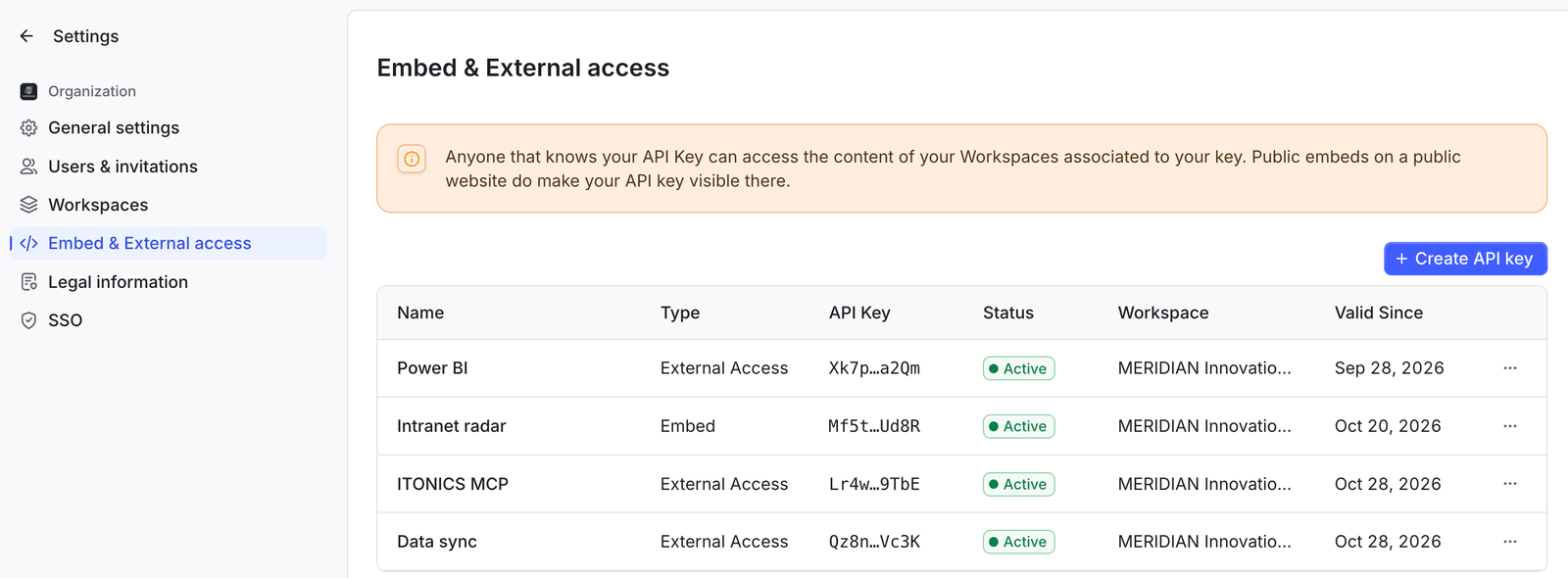
The list shows each key's name, type, a shortened key with a copy button, status, workspaces, and the date since when it's valid. With More options on a key, you can:
- Edit its name, workspaces, and permissions.
- Rotate it to replace the key with a new one. Embeds and tools that use the old key need the new one.
- Deactivate it. An inactive key stops working until you activate it again.
- Delete it with Delete API Key.
Who can see your content
Anyone who knows an API key can read the content of the workspaces the key belongs to. An embed shows its key in the embed URL, so anyone who visits the webpage can copy the key and use it with the API. This also gives access to the content of properties that are hidden in the workspace's element configuration. Select the workspaces of an embed API key with this in mind.