
Available by default to
Create an embed API key (formerly embed token) so you can embed radars and roadmaps from your workspaces on a webpage. For what API keys are and who can read the content, see Embeds and external access.
Before you start
You need the Application Admin role to open the organization settings. If you don't have it, ask an Application Admin of your organization.
Create an embed API key
Click the workspace name in the top left, and select Organization settings.
Select Embed & External access, and click Create API key.
Under Name, enter a name that says where the key is used, for example "Intranet radar".
Under Type, select Embed.
Under Where, select the workspace that holds the radars and roadmaps.
For an embed key, Can do next to the workspace is always Read only: the key can only read the workspace's content to show it in your embeds, never change it. To add another workspace, click Add workspace and select it in the new row.
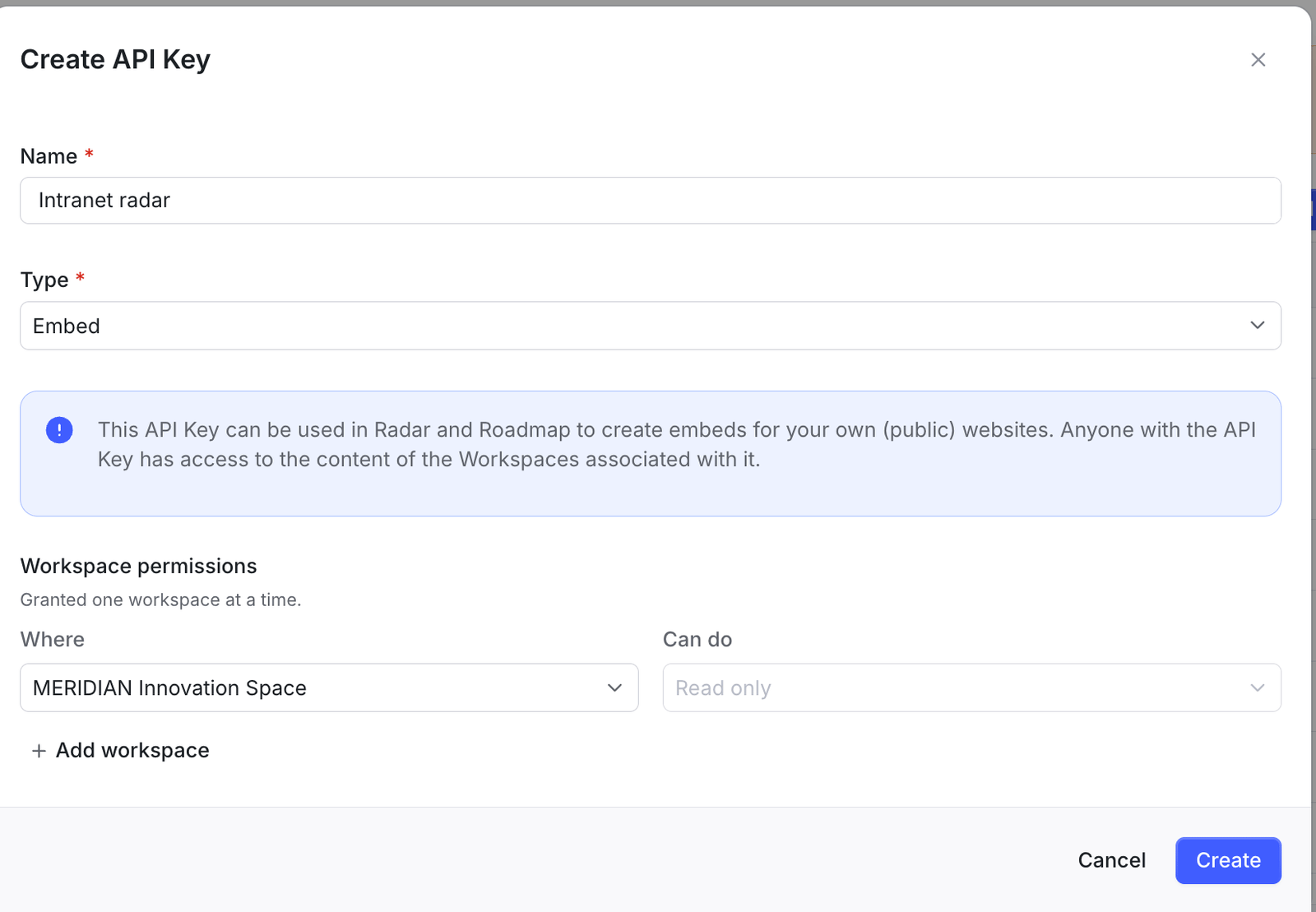
Click Create.
The key appears in the list with its type, workspaces, status, and the date since when it's valid.
You only need one embed API key for all embeds from the workspaces it includes. To embed a view, see Embed a radar on a webpage or Embed a roadmap on a webpage.