
Available by default to
Create an API key of the type External Integration so external tools, such as Power BI or the ITONICS Cloud MCP, can work with your workspaces through the ITONICS Cloud API. For what API keys are and who can read the content, see Embeds and external access.
Before you start
You need the Application Admin role to open the organization settings. If you don't have it, ask an Application Admin of your organization.
Create an integration API key
Click the workspace name in the top left, and select Organization settings.
Select Embed & External access, and click Create API key.
Under Name, enter a name that says what the key connects, for example "Power BI".
Under Type, select External Integration.
The dialog shows the organization and workspace permissions.
Optional: Under Organization permissions, select View organization user list.
Organization permissions apply to every workspace, also to ones created later. This one lets the key list all users of the organization, also those who aren't in a workspace yet.
Under Where, select a workspace the key may access.
Under Can do, select what the key may do in that workspace.
Select all selects every permission. Give the key only the permissions the tool needs.
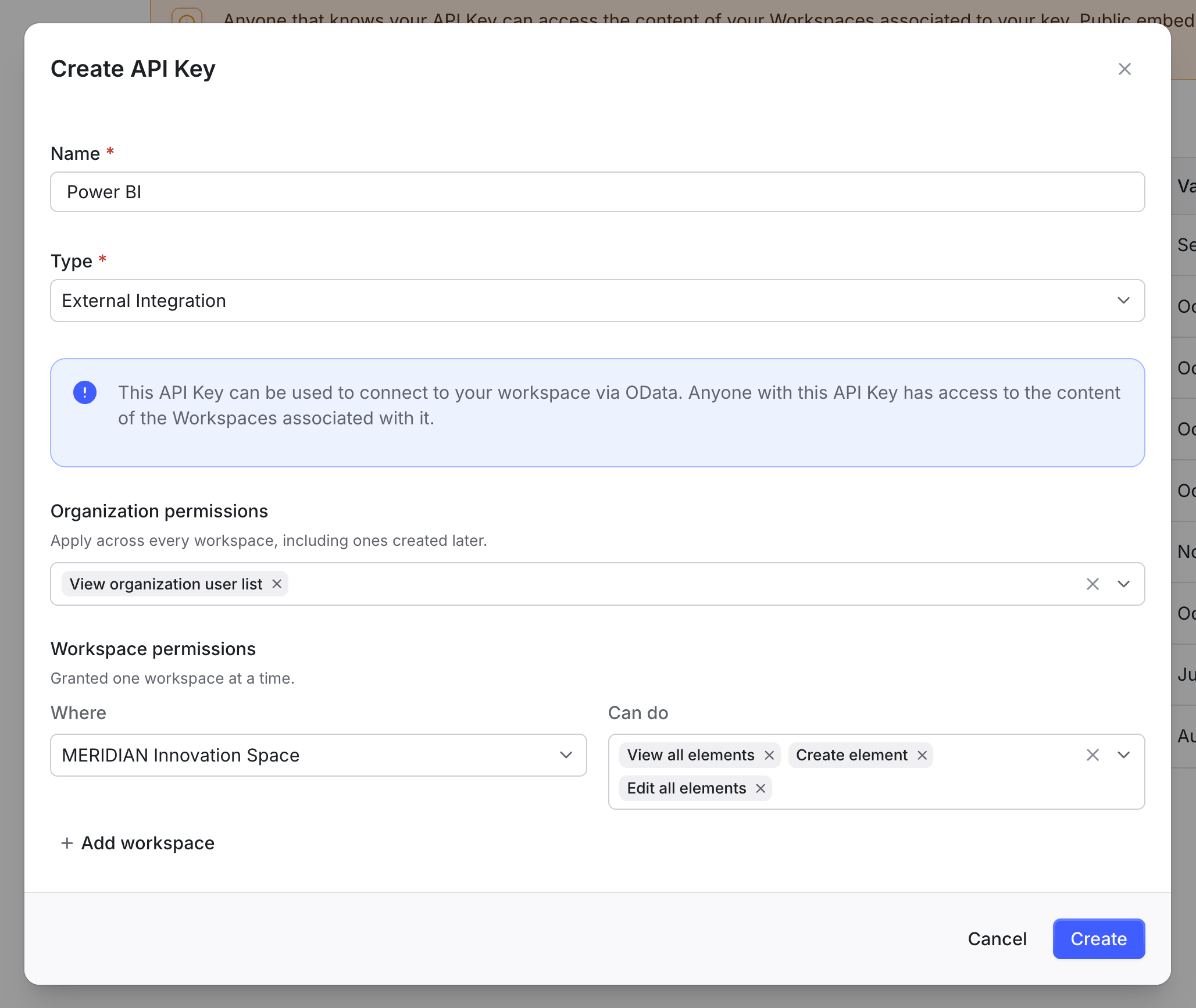
To give the key access to another workspace, click Add workspace, and select the workspace and its permissions in the new row.
Each workspace needs at least 1 permission.
Click Create.
The key appears in the list with its name, type External Access, status, workspaces, and the date since when it's valid.
The permissions you can give a key in a workspace:
| Area | Permissions |
|---|---|
| Elements | View all elements, View all draft elements, View all archived elements, Create element, Create draft elements, Edit all elements, Delete all elements |
| Element types | Update element type, Create element type |
| Pages | Create view, Edit all views, Delete all views |
| Comments | Create comment, View all comments, Manage all comments |
| Users | Create user, View workspace user list, Manage all users |
| Ratings | Rate, View all ratings, Manage all ratings |
A key you created earlier gets an organization permission only when you edit the key and select it.
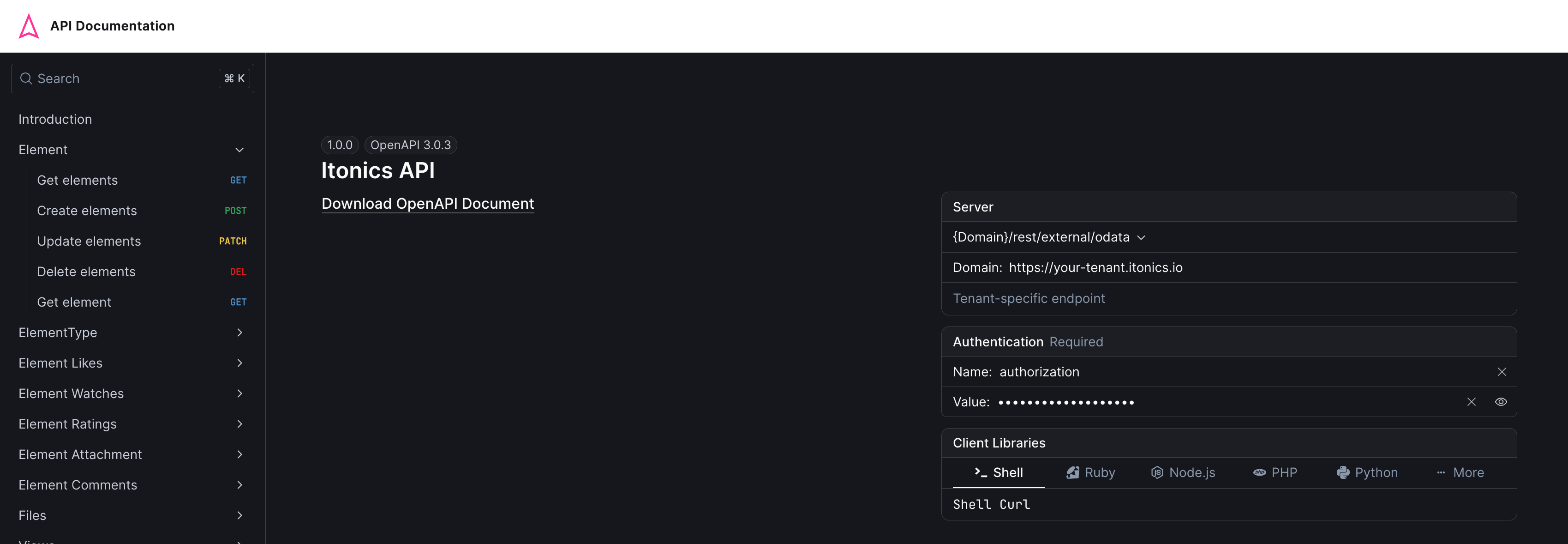
To test the key, open the ITONICS API documentation. Under Domain, enter your domain, for example https://your-tenant.itonics.io. In the Authentication section, enter your key in the format ApiKey <your-api-key>, then try a request.
Result
The key is ready to use. The external tool needs the key, which you copy next to the shortened key in the list, and the workspace's SpaceURI, which you copy with Copy URI next to the workspace name.