
Connect an AI assistant such as Claude, ChatGPT, or Microsoft Copilot Studio to an ITONICS workspace, so you can work with its content from the chat. To learn what the connection does, see Overview of the ITONICS Cloud MCP.
Before you start
- An API key of the type External Integration for the workspace, with the permissions the assistant needs. An Application Admin creates it. See Create an integration API key.
- Your tenant domain: the address you open ITONICS at, for example
https://your-tenant.itonics.io. - The workspace's SpaceURI: go to Organization settings > Embed & External access and click Copy URI next to the workspace name in your key's row. It's also the part after
/views/in the address of a view, for examplehttps://your-tenant.itonics.io/views/{SpaceURI}/…. - An AI assistant that supports remote MCP servers.
Connect your AI assistant
Connect for the first time
In your AI assistant, add a custom connector with the URL
https://itonics-mcp.com/mcp.Always include the
/mcppath: some assistants also accept the domain alone, but others, such as Microsoft Copilot Studio, reject it. Where you add it depends on your assistant: in Claude and ChatGPT, the setting is called connectors; in Gemini and other clients, look for MCP servers, integrations, or tools. For example, in a Claude workspace for teams, an admin adds the connector for everyone, and each member then connects to it, as described in Claude's guide to adding a custom connector. For Microsoft Copilot Studio, follow the steps below instead.Connect to the connector.
Your browser opens the connector's sign-in page. It lists what you allow the connector to do, such as reading, creating, updating, and deleting elements and element types, uploading files, and managing watchers and likes.
Enter your work email and your tenant details: a profile name, the tenant domain, the SpaceURI, and your API key.
ITONICS records your changes under this email address. Enter the full tenant domain, for example
https://your-tenant.itonics.io, without a slash at the end. Never paste your API key into the chat: enter it only on this page. You can also skip the tenant for now and add it later.Save the tenant and authorize the connection.
The connector checks your details with ITONICS before it saves them. Your browser then returns to the assistant, now connected.
Warning: Never paste your ITONICS API key into the AI chat. Enter it only in the connector's tenant form.
Connect Microsoft Copilot Studio
Go to
copilotstudio.microsoft.com, select Agents, click New agent, and name the agent.In the toolbox on the right, click +, then Add, and select Model Context Protocol (MCP).
Enter a server name, for example "ITONICS", and a description.
Set Server URL to
https://itonics-mcp.com/mcp, Authentication to OAuth 2.0, and Configuration type to Dynamic (with discovery).Check all three before the next step: Copilot Studio doesn't let you change them later.
Click Add.
Copilot Studio takes a few minutes to set up the sign-in.
Open the Not connected menu, select Create new connection, name the connection, and click Create.
The ITONICS MCP sign-in page opens.
Enter a profile name, the tenant domain, the SpaceURI, your API key, and your work email.
Save the tenant and authorize the connection.
Add another workspace or tenant
Ask your assistant to add an ITONICS profile.
It gives you a link to the connector's form, valid for 15 minutes.
Open the link and enter the Profile name, Tenant domain, Space URI, and API key.
The profile name can contain lowercase letters, digits, and dashes, up to 40 characters. Enter the API key only here, never in the chat.
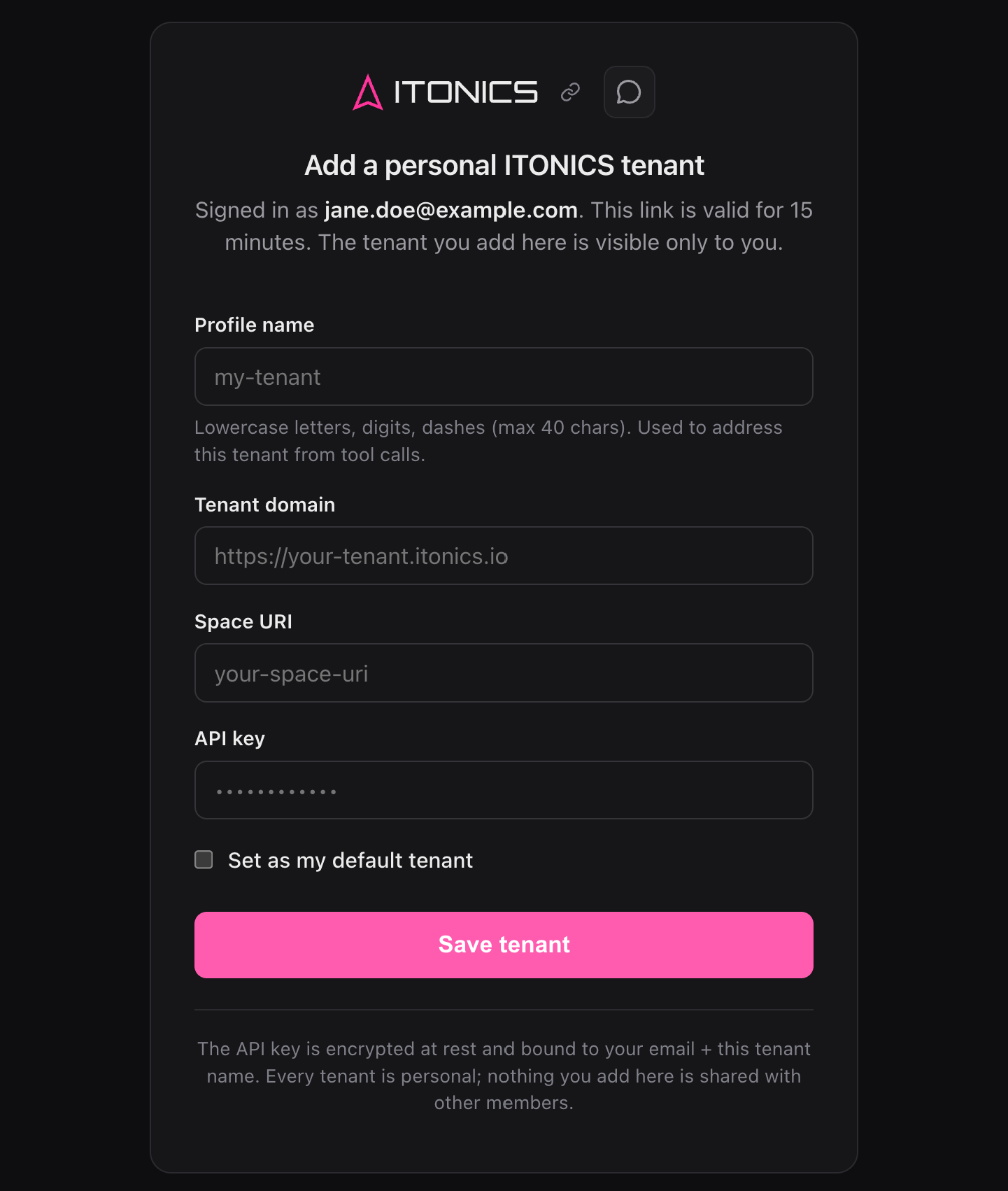
Optional: Select Set as my default tenant.
The assistant uses the default profile when a request doesn't name one.
Click Save tenant.
Name the profile in your requests, or ask the assistant to make it your default.
You can switch between profiles within the same chat.
Warning: In Microsoft Copilot Studio, the server URL, authentication, and configuration type can't be changed after you click Add. If one of them is wrong, delete the connector and add the MCP tool again.
Copilot Studio keeps the connector and its connection in Power Apps (make.powerapps.com). Under Custom connectors, you edit or delete the connector with the MCP address; if its authentication isn't OAuth 2.0, delete it and start again. Under Connections, you edit or delete the connection with your tenant domain, SpaceURI, API key, and email. If you mistyped something on the ITONICS MCP sign-in page, click Switch account to sign in again.
Result
To check the connection, ask your assistant to run itonics_whoami. When it shows your tenant domain, the workspace's SpaceURI, and your email address, you're connected, and the assistant can work with the workspace in every chat where the connector is on.