
The ITONICS Cloud MCP is a server that lets external AI clients read and change ITONICS data through tools. With it, you ask an AI assistant such as Claude or ChatGPT in plain language to find, summarize, create, or update content in your workspace, without leaving the assistant.
What you can do with it
Once connected, your assistant can work with most of the content in a workspace:
- Find, filter, and read elements of any element type, and create, update, or delete them, one at a time or in bulk.
- Read element types and create new ones.
- Read and write comments, mention people, and refer to other elements.
- Read and set ratings, likes, and watchers.
- Upload files and attach them to elements.
- Build simple custom pages, for example a digest of new trends.
- List, add, and update users and their workspace roles.
The assistant picks the right tools from your request, so you don't need to know their names. For the full list, see MCP tools reference.
How it works
MCP (Model Context Protocol) is an open standard that connects AI assistants to other systems. The ITONICS Cloud MCP is a remote MCP server at https://itonics-mcp.com/mcp. It works with any AI client that supports remote MCP servers with OAuth sign-in, such as Claude, ChatGPT, Microsoft Copilot Studio, and many IDE extensions and agent frameworks.
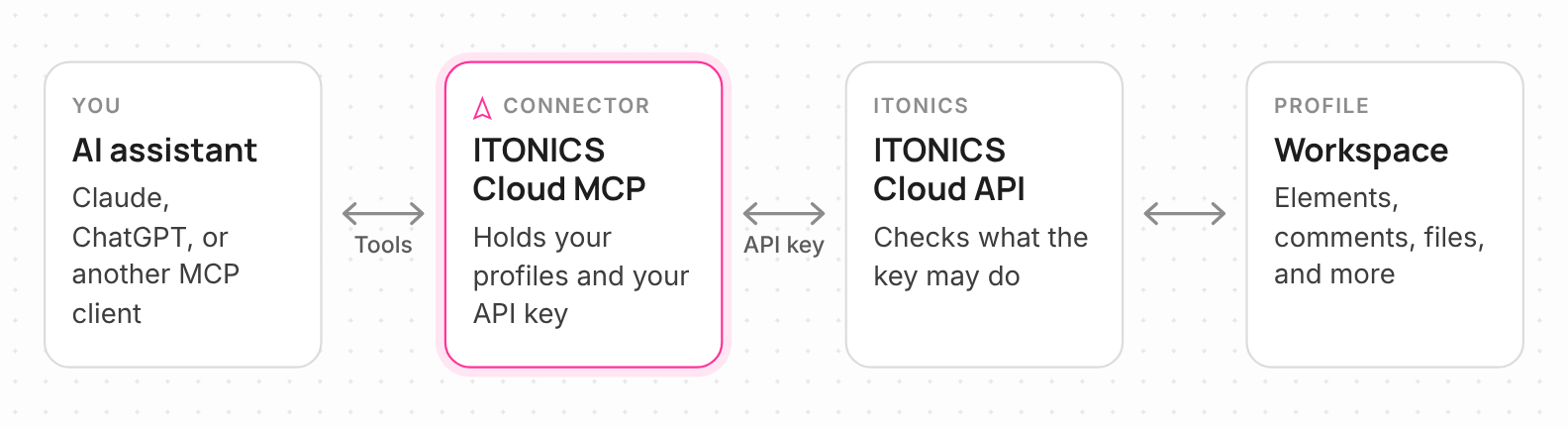
The server is built on the ITONICS Cloud API. Each connection points to one workspace in one tenant, called a profile. You can add several profiles, for example for different workspaces, and set which one the assistant uses by default. See Connect the MCP.
Access and security
The connector keeps your access personal and limited to what your API key allows.
| Safeguard | What it means |
|---|---|
| Personal API keys | Everyone connects with their own API key. Keys and profiles aren't shared, and no one else sees your setup. |
| Key never in the chat | Never paste your API key into the chat. The connector uses OAuth 2.1: you sign in and enter the key in your browser, on the connector's form or the link the assistant gives you to add a profile. |
| Encrypted storage | Your API key is stored encrypted and tied to your email address. |
| Key permissions | The assistant can do only what the API key's permissions allow in the workspace. An Application Admin sets them when creating the key. |
| Changes under your name | Everything the assistant creates or changes is recorded under your email address. |
| Confirmation before deleting | Tools that delete are marked as destructive, so the assistant asks you to confirm first. |
Anyone who has the API key can read the content of the workspaces the key is for, including properties that are hidden in an element type's configuration. Treat the key like a password, and rotate it if it may have been exposed.
Common jobs
Describe what you want in plain language, and the assistant picks the tools. Requests people make most often:
| Job | What the assistant does | Try asking |
|---|---|---|
| Review and triage new ideas | Pulls up your draft elements, reads each one with its comments and attachments, and suggests what to publish, keep, or archive. | "Show me all draft ideas, summarize each, and tell me which look ready to publish." |
| Get a digest or report | Summarizes recent activity as a digest in the chat, or saves it as a page in ITONICS that others can open. | "Give me a one-page overview of all trends created this month and save it as a page." |
| Add a batch of new content | Creates an element for each file you hand over, with a header image and the file attached. | "Create an idea for each of these documents and attach the file to each." |
| Loop your team in | Comments on an element, mentions the right people, and adds them as watchers, so they're notified of changes. | "Comment on this idea, mention my colleague to review the budget, and add them as a watcher." |