
Available by default to
Change your organization's logo, name, and primary contact in the organization settings. For what the organization settings hold, see Understanding organizations.
Before you start
You need the Application Admin role to open the organization settings.
Change the organization profile
Click the workspace name in the top left, and select Organization settings.
Select General settings.
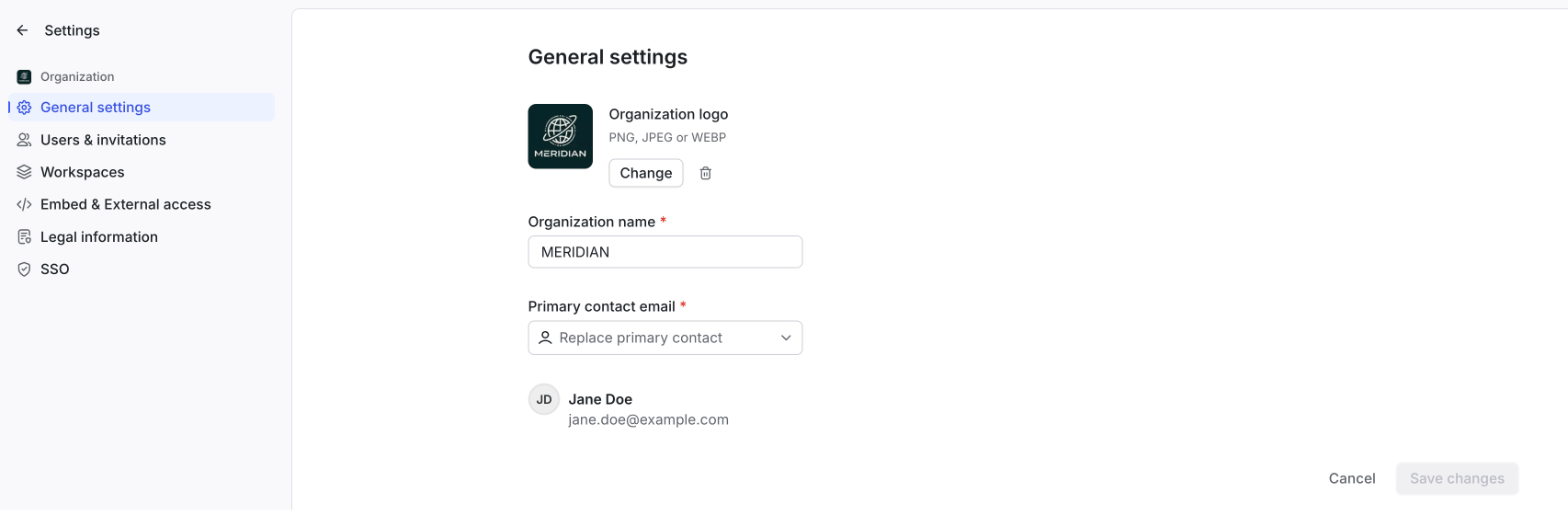
To change the logo, click Change next to the logo, and upload a PNG, JPEG, or WEBP file.
Use a square image so that the logo isn't cropped. To remove the logo, click the delete icon next to Change.
To rename the organization, enter the new name in Organization name.
The name is required.
To change the primary contact, select a member in Primary contact email.
Search the list by name. The primary contact is the person ITONICS contacts about your organization, and gets notifications from ITONICS.
Click Save changes.
To discard your changes, click Cancel.
The logo and name are shown to your users when they sign in to the organization, and at the top of the organization settings.
The primary contact is one person and doesn't change anyone's permissions. To let more people manage the organization, give them the Application Admin role. See Change a user's organization role. You can't deactivate or remove the primary contact in Manage users and invitations until you select another one here.
Note: Subscription details aren't shown in the organization settings. To review or change your subscription, contact your account manager at account_manager@itonics-innovation.com.