
Available by default to
See everyone in your organization, deactivate, reactivate, or remove users, and keep track of open invitations. For organization roles, see Understanding organizations.
Before you start
You need the Application Admin role to open the organization settings.
Deactivate, reactivate, or remove a user
Click the workspace name in the top left, and select Organization settings.
Select Users & invitations.
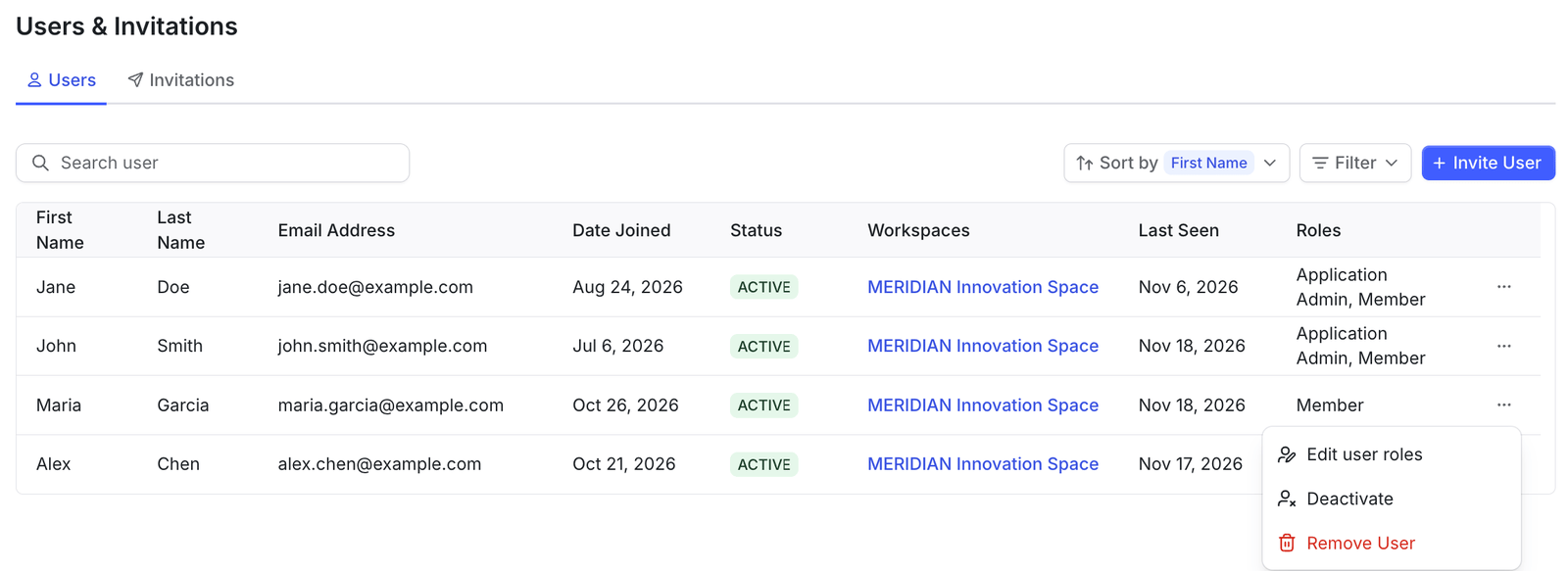
The Users tab lists every user with name, email address, date joined, status, workspaces, last seen date, and organization roles.
Find the user: enter a name in Search user, or use Sort by and Filter.
You can filter by role (Member, Application Admin) and by status (Active, Inactive). Long lists are split into pages: use the page numbers at the bottom.
Click the more icon in the row of the user.
Select an action, and confirm it in the dialog.
| Action | What it does |
|---|---|
| Edit user roles | Changes the user's organization roles. See Change a user's organization role. |
| Deactivate | Blocks the user from the organization. The status changes to Inactive, and you can reactivate the user later with Reactivate. The user's name stays on the content they created, rated, or commented on, and in user properties, where it's marked Deactivated. |
| Reactivate | Gives an inactive user access again. The user gets an email and has to confirm it before they can sign in. |
| Remove User | Removes the user from the organization. Their name disappears from content they created, rated, or commented on, and is replaced by "Anonymous User". |
Warning: Removing a user can't be undone. If the user may come back, deactivate them instead.
Some users are protected:
- You can't remove an Application Admin. Remove the Application Admin role first with Edit user roles; the user keeps the Member role.
- You can't deactivate yourself or the last Application Admin.
- You can't deactivate or remove the primary contact. Select another primary contact first, see Manage organization profile and settings.
You can't change a user's email address after the user is added. To remove a user from one workspace only, see Manage workspace users.
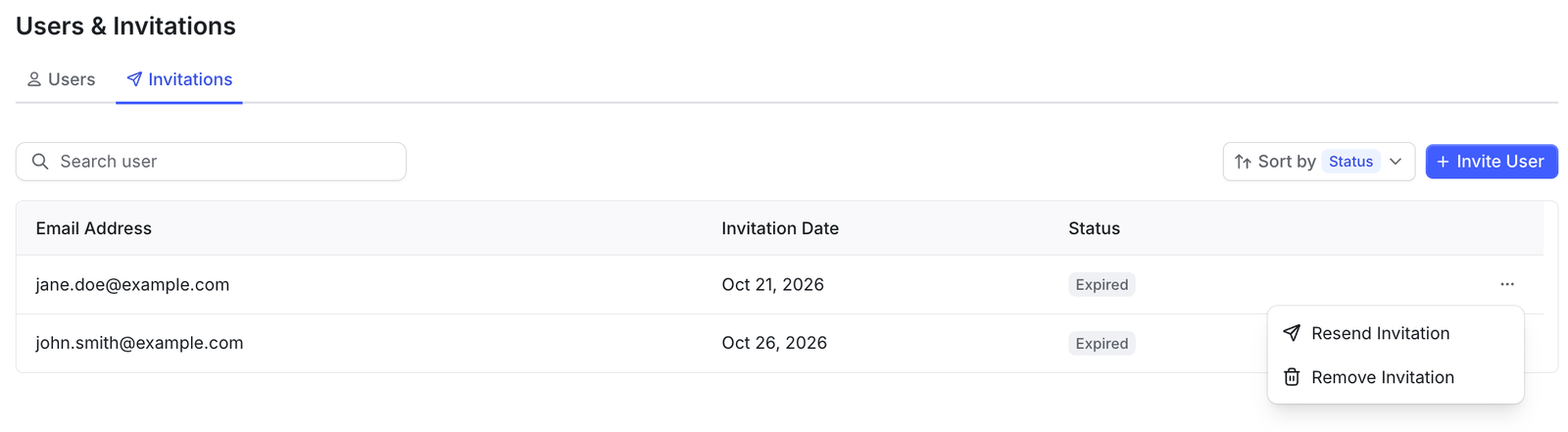
To see the invitations you sent, click the Invitations tab. The list shows each invitation with email address, invitation date, and status: Open or Expired. An invitation is valid for 7 days.
To resend or withdraw an invitation, click the more icon in its row, and select Resend Invitation or Remove Invitation. After you resend an invitation, you have to wait a few minutes before you can resend it again.
To invite new users, click Invite User. See Invite users with local accounts. If your organization uses single sign-on, Invite User is hidden.