
Available by default to
Invite people to your organization by email, and set their organization role and the workspaces they start in. For what organization roles mean, see Understanding organizations.
Before you start
You need the Application Admin role to open the organization settings.
Invite users
Click the workspace name in the top left, select Organization settings, and select Users & invitations.
Click Invite User.
In Invite by mail, enter one or more email addresses.
Separate the addresses with a comma, a space, or Enter.
Select Member or Application Admin as the organization role.
Member is selected by default. Application Admins manage the organization, its workspaces, and its users.
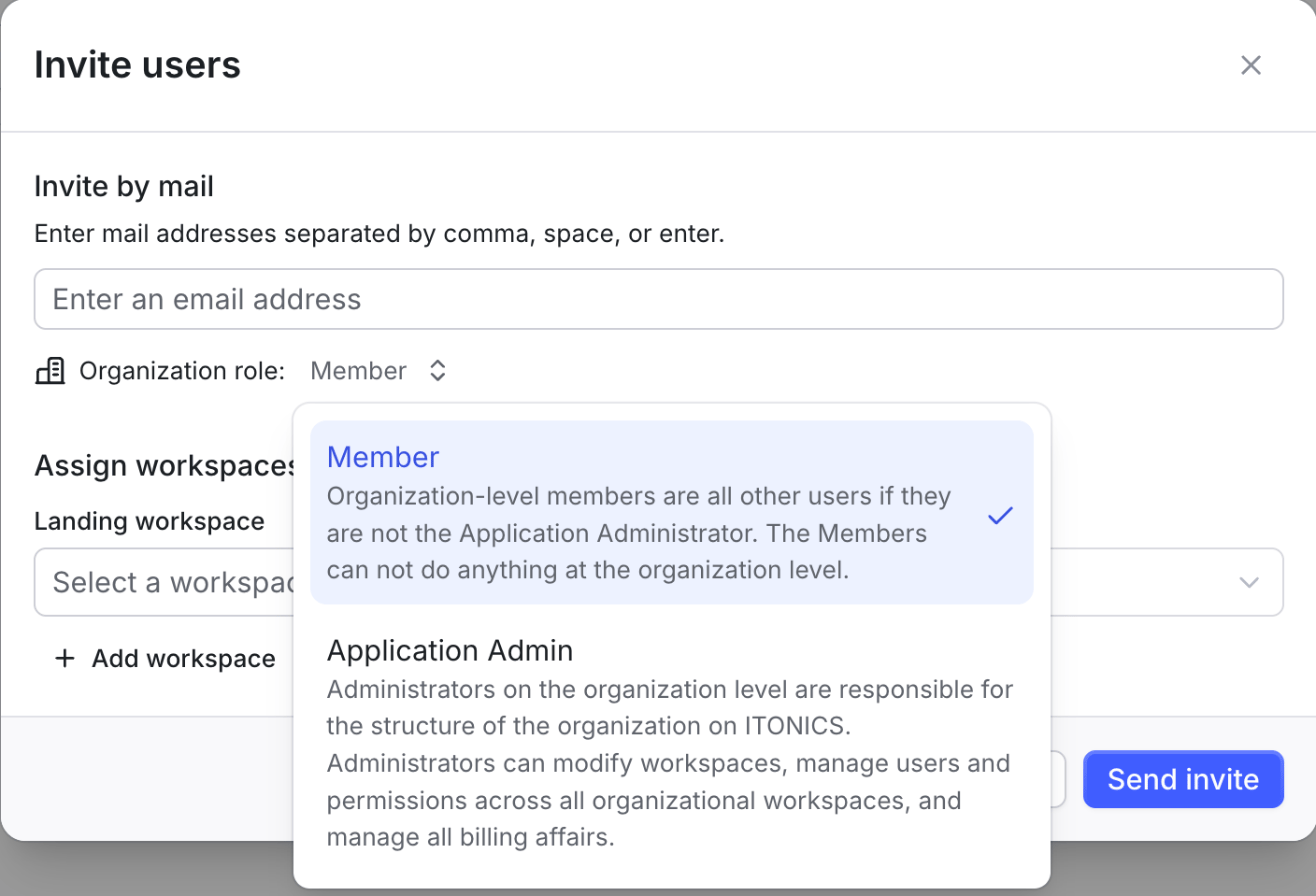
Under Assign workspaces, select the Landing workspace and the Roles the users get there.
The landing workspace opens when the users sign in for the first time. After that, ITONICS opens the workspace they visited last.
Optional: to give access to more workspaces, click Add workspace, and select a workspace and its roles.
Click Send invite.
Note: An invitation is valid for 7 days, and you can give up to 5 roles per workspace. After their first sign-in, users get access to all public workspaces with the default role, so a public landing workspace is enough, unless they also need a private workspace or another role.
To see open and expired invitations, click the Invitations tab. To resend or remove one, see Manage users and invitations. To change a role later, see Change a user's organization role. Workspace Admins can also change a user's workspace roles in the workspace settings, see Manage workspace users.
Note: If your organization uses single sign-on, Invite User is hidden. Users from your identity provider don't need an invitation: they get their account at their first SSO sign-in, see Authenticate and create users with SSO.