
When single sign-on is on, users don't need an invitation: ITONICS creates their account the first time they sign in with their company account. Here's what a user does and what ITONICS creates, for example when you test your setup.
Before you start
SSO is set up and turned on for your organization, see Set up and manage single sign-on (SSO). Users start from your organization's system URL.
Sign in with SSO for the first time
Open your organization's system URL.
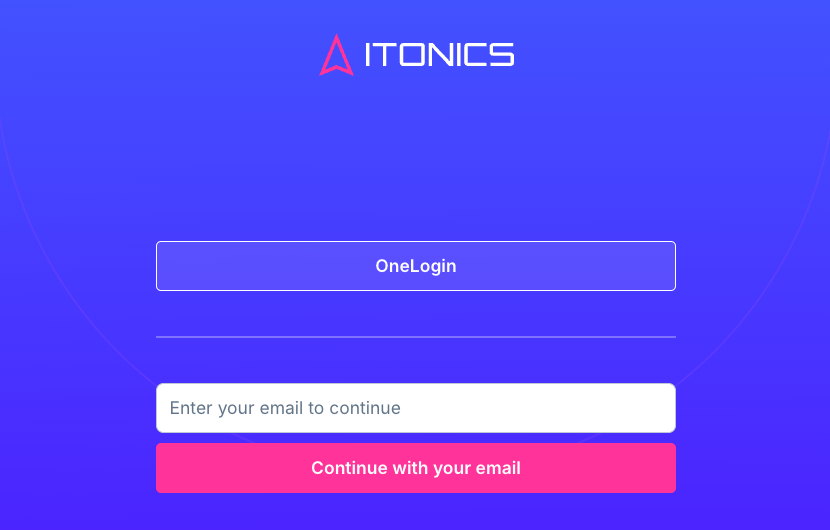
Click the button with your identity provider's name, for example OneLogin.
The button text is set in the SSO settings, for example "Use Company Login". If your organization uses only SSO with one identity provider, this page is skipped and you go straight to your company's login.
Sign in with your company account at your identity provider, for example Microsoft Entra ID, ADFS, or OneLogin.
Result
ITONICS creates the user account with the organization role Member and takes the email, first name, and last name from the identity provider. The user lands in a public workspace. To check the new user, go to Organization settings > Users & invitations.
Private workspaces aren't included. Add the user to them after the first sign-in, see Manage workspace users, or assign them automatically, see Assign roles and workspaces via SSO. For how users sign in later, see Sign in to ITONICS.