
Available by default to
Publish your organization's own legal documents, such as a privacy policy, terms of use, or a code of conduct, and decide which ones your users have to accept. For what the organization settings hold, see Understanding organizations.
Before you start
You need the Application Admin role to open the organization settings.
Add a custom policy
Click the workspace name in the top left, and select Organization settings.
Select Legal information, and click Add custom policy.
The new policy opens in its own tab. An organization can have up to 10 custom policies.
Under Consent, decide whether users have to accept the policy.
Both switches are on for a new policy. See the table below.
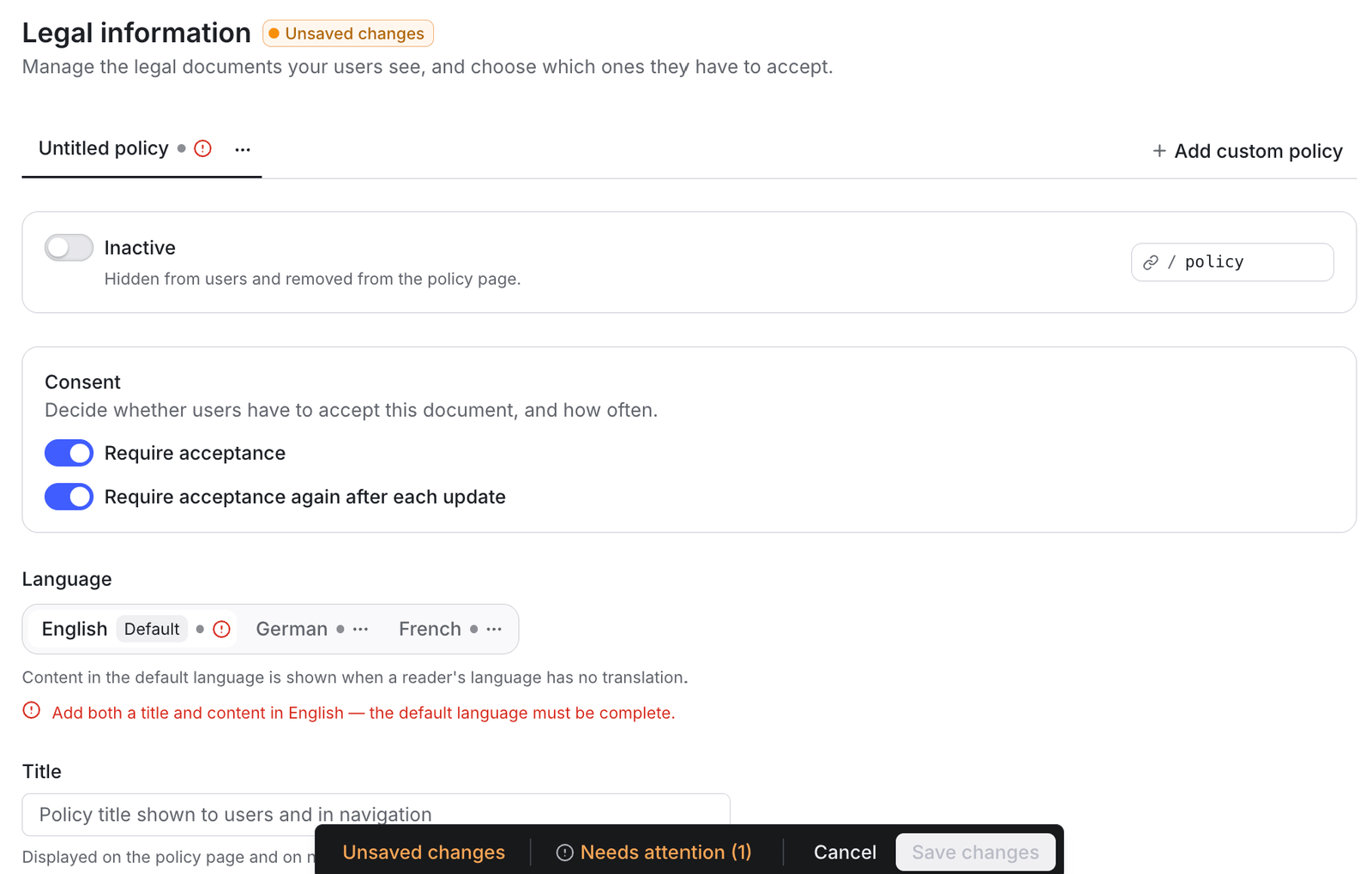
Under Language, enter a Title and the content in the default language.
The default language is marked Default and must have both a title and content. The title is shown on the policy page and in the menus that link to it.
Optional: select another language, and enter its title and content.
Users see the policy in their own language, or in the default language if there's no translation. A language needs both a title and content, or neither. To change the default, open the language's menu and select Set as default.
Enter the policy's address in Policy URL.
Use lowercase letters, numbers, and hyphens, up to 60 characters. The address must not be used by another policy or by an active ITONICS blueprint.
Turn on the status switch at the top of the policy to make it active.
An active policy is published and visible to all users. An inactive policy is hidden from users and removed from the policy page.
Click Save changes.
To discard your changes, click Cancel.
| Setting | What it does |
|---|---|
| Require acceptance | Users have to accept the policy before they can use ITONICS. Users who are already in your organization are asked at their next sign-in. |
| Require acceptance again after each update | Users have to accept the policy again each time you change its content. |
| Both off | The policy is for information only. It's linked from the Legal & Help menu and the sign-in page, and nobody is asked to accept it. |
Each active policy has its own page under your system URL. Users reach it from anywhere in ITONICS through the Legal & Help menu in the bottom left, and from the sign-in page.
To change a policy later, click its tab on Legal information, make your changes, and click Save changes. To hide a policy, turn off its status switch: it's removed from the policy page right away, and you can make it active again at any time. To delete a policy, open the menu on its tab, select Delete policy, and confirm. Deleting removes the policy permanently.
ITONICS also provides blueprint policies, for example a cookie policy, an imprint, and a privacy policy. They're listed under ITONICS blueprints on the same page, are active by default, and are shown to your users as they're written.
Blueprints are read-only: click View to read one, and click Copy text to paste its content into a custom policy as a starting point. Your copy doesn't change when ITONICS updates the blueprint. To stop showing a blueprint, turn off its switch, and click Save changes.
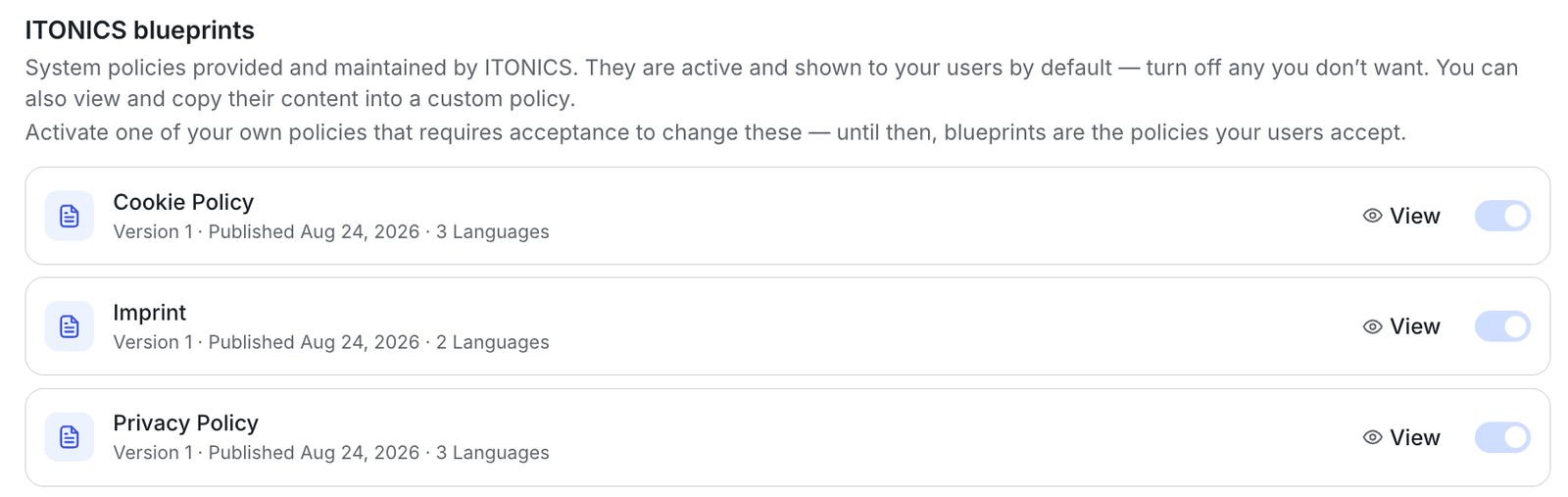
Note: You can turn off blueprints only after one of your own policies is active and requires acceptance. If a change leaves no such policy, ITONICS asks you to switch the blueprints back on before it saves.
When users sign in and haven't accepted an active policy that requires acceptance, they see the dialog "We've updated our policies". They click Read to open the policy in another tab, select "I have read and accept the following document", and click Continue. Until they accept, they can only sign out.