
Available by default to
Fill in more fields of your users' profiles, for example their department, with data from your identity provider. For what user fields are, see User properties.
Before you start
Mapping profile fields is part of the professional plan. SSO must be set up, see Set up and manage single sign-on (SSO). You need the Application Admin role to open the organization settings.
Map an attribute to a profile field
Click the workspace name in the top left, select Organization settings, and select SSO.
If you have several identity providers, click the tab of the one to map.
Under Dynamic Attribute Mapping, click Add attribute.
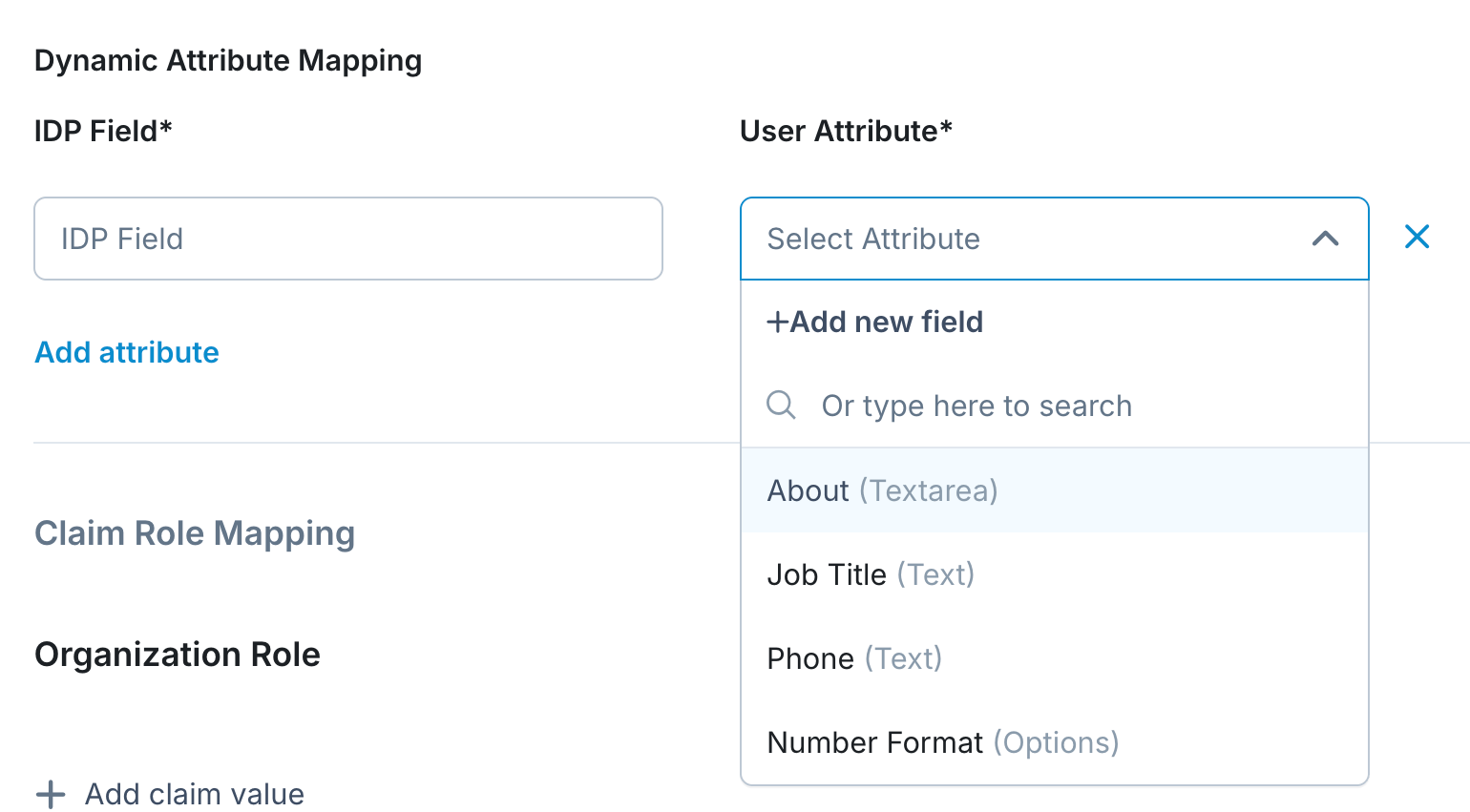
In IDP Field, enter the claim attribute your identity provider sends, for example
http://schemas.xmlsoap.org/ws/2005/05/identity/claims/department.Under User Attribute, select the profile field to fill.
The list shows your organization's user fields with their type, for example Job Title (Text).
Optional: to fill a field that doesn't exist yet, select +Add new field, and create it.
Enter a Label, select a Field Type (Text, Options, or Textarea), and click Save.
Click Apply changes.
To map more attributes, click Add attribute again. To remove a mapping, click the × next to it, and click Apply changes.
Result
The profile field is filled in from the identity provider when a user signs in with SSO, and updated at every sign-in.