
Load all elements of a workspace into Power BI through the ITONICS Cloud API, and keep the published report up to date with scheduled refreshes. For what the API offers, see Overview of the ITONICS Cloud API.
Before you start
- Use Power BI Desktop. The web version of Power BI can't define the API calls this setup needs.
- Have an integration API key that can view the elements of the workspace. See Create an integration API key.
- Have the workspace's API URL:
https://{your-domain}/rest/external/odata/v2/{spaceUri}. To get the SpaceURI, go to Organization settings > Embed & External access, and click Copy URI next to the workspace name.
Warning: Don't connect Power BI to the API URL as a plain Web data source: that takes its columns from a sample of 1,000 rows, so properties missing there are left out, and it stops after the first 100 elements. The two queries below scan every element for columns and follow the pages until all elements are loaded.
Load ITONICS data into Power BI
In Power BI Desktop, start a new blank report, and go to Home > Transform data > Transform data.
The Power Query editor opens.
Go to Home > Manage Parameters > New Parameter, and create three required text parameters with these names and current values.
URL: your API URL.FILTER_QUERY:/elements?$top=100to get every element of the workspace, or your own filter query.API_KEY:ApiKey <your-api-key>.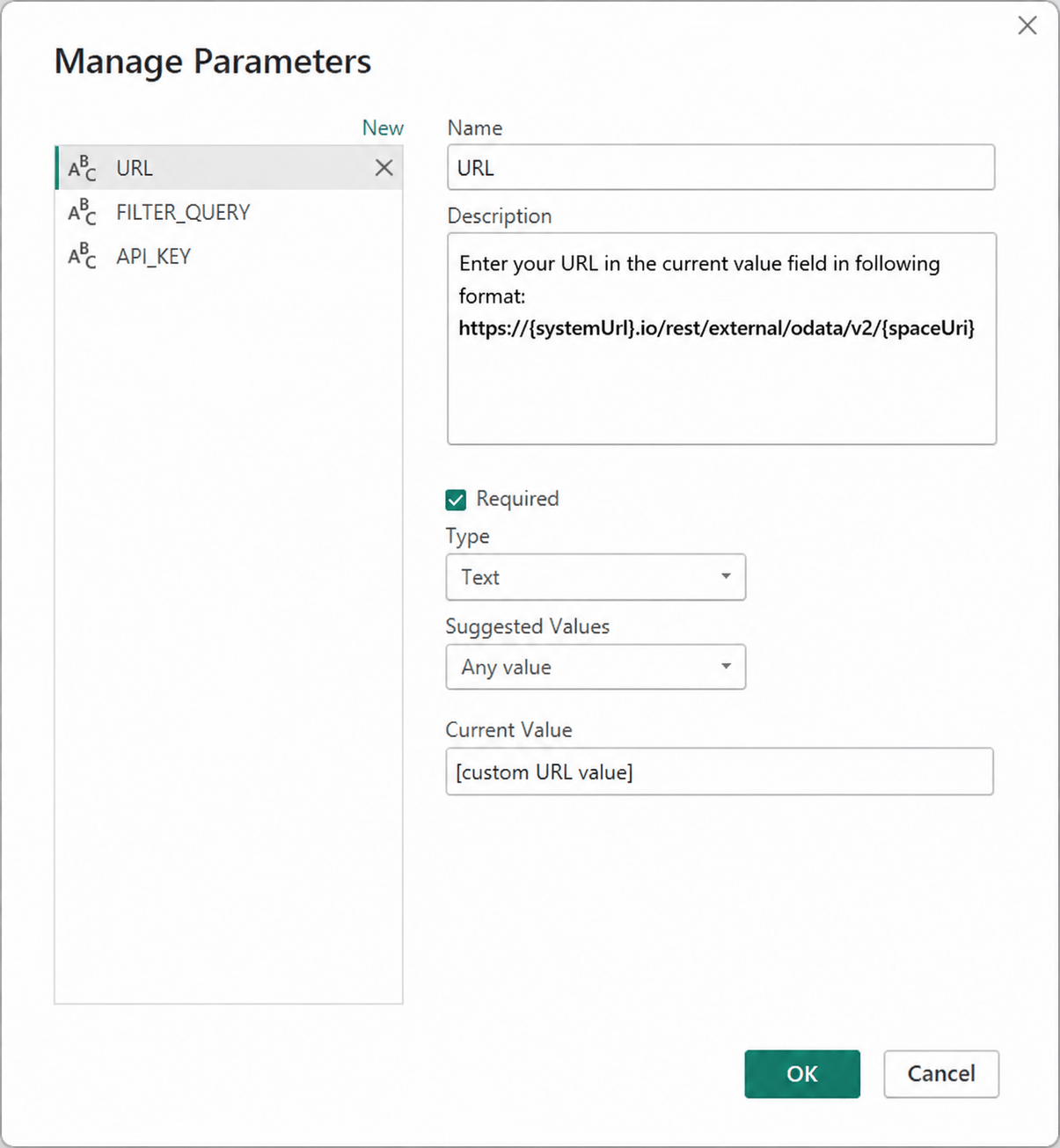
Right-click the query list on the left, select New Query > Blank Query, and rename the new query to
fnGetElementsPage.Right-click
fnGetElementsPage, select Advanced Editor, replace the content with the fnGetElementsPage code below these steps, and click Done.Create a second blank query the same way, rename it to
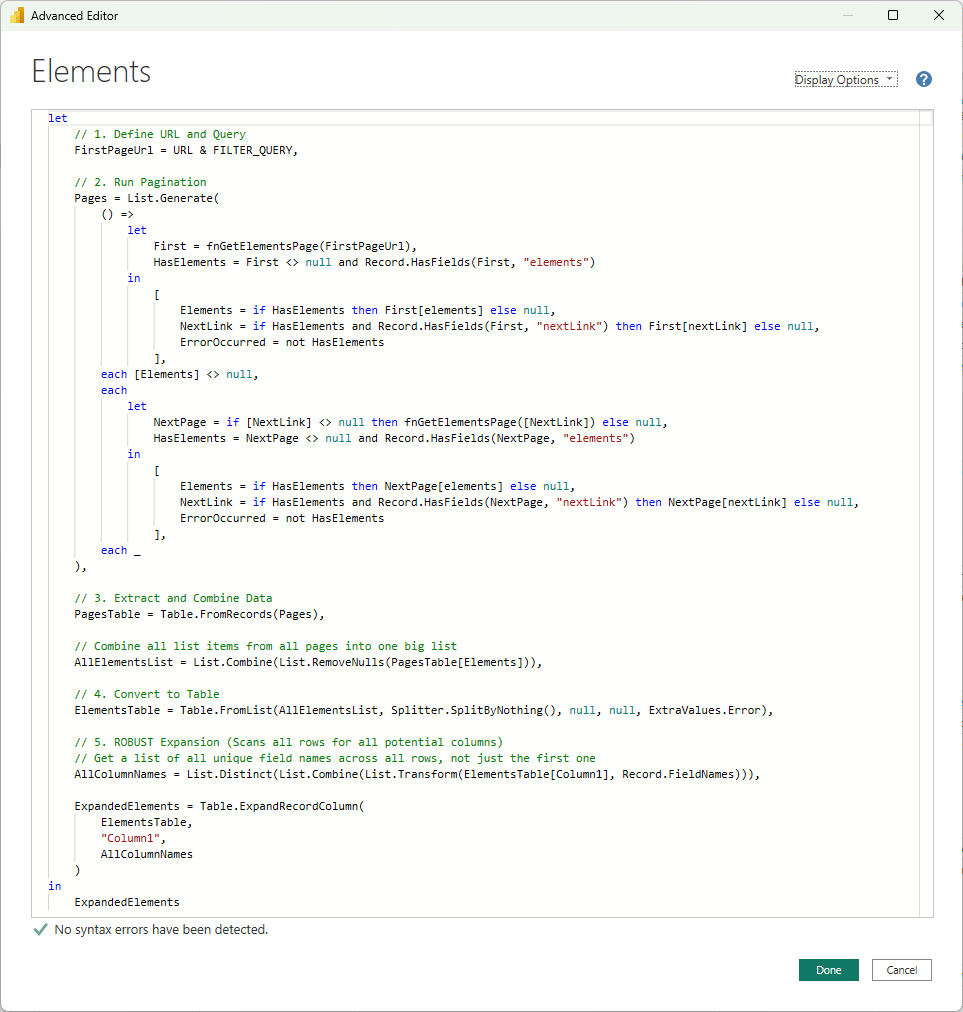
Elements, paste the Elements code below these steps in its Advanced Editor, and click Done.The query calls fnGetElementsPage for each page, combines all pages into one table, and creates a column for every field it finds in any element.
Right-click
Elements, and make sure Enable load and Include in report refresh are selected.The editor shows a preview of all elements.
Click Close & Apply.
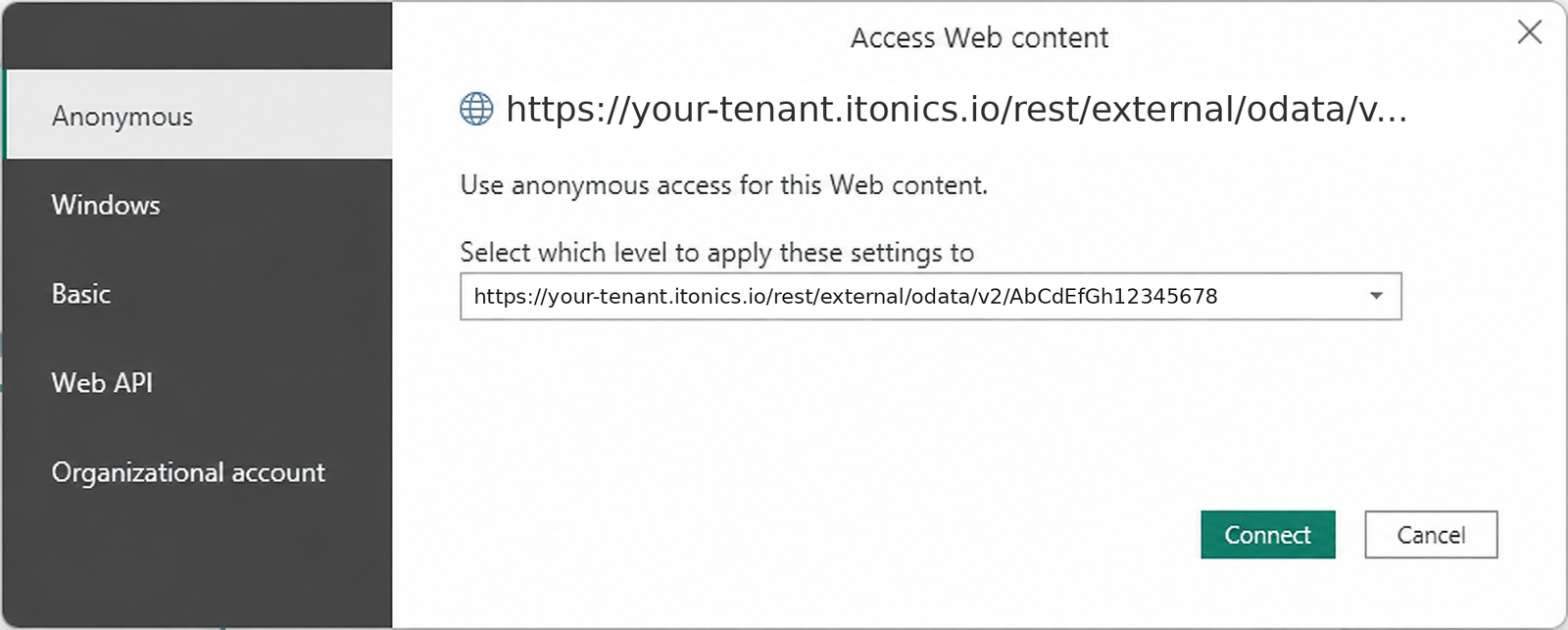
The first time Power BI connects to the API, it asks how to access the web content: select Anonymous, select your API URL as the level to apply the settings to, and click Connect. If no data loads, go to Home > Refresh > Schema and data.
To publish the report, go to Home > Publish, select a workspace in the Power BI service, and when it's done, select Open '<report name>.pbix' in Power BI.
The workspace must already exist in the Power BI service (app.powerbi.com).
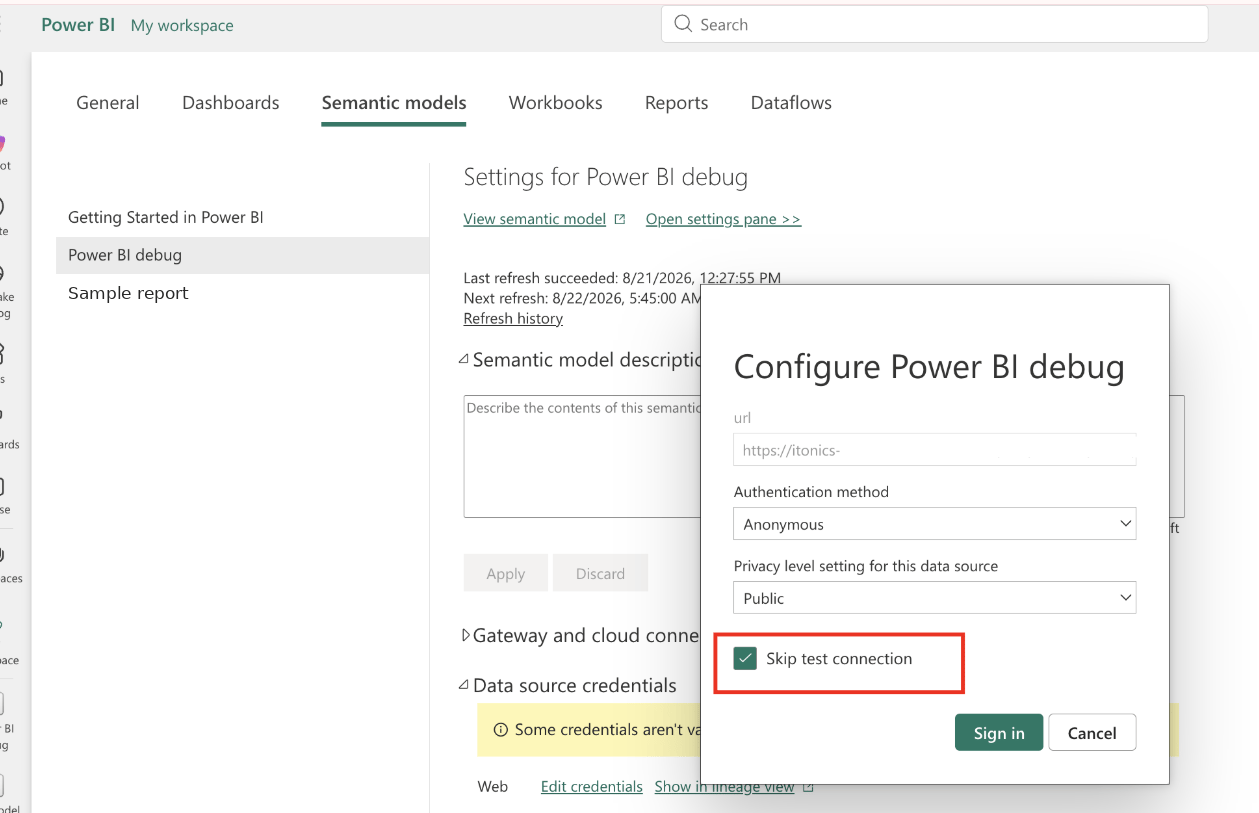
In the Power BI service, open the settings of the report's semantic model, go to Data source credentials, click Edit credentials next to the Web data source, set Authentication method to Anonymous and the privacy level your organization needs, select Skip test connection, and click Sign in.
These credentials are separate from the ones in Power BI Desktop. The API key is sent in the header that fnGetElementsPage defines, not by the connection, so Power BI's connection test would fail although the refresh works. If you publish the report again from Power BI Desktop, check these credentials, because publishing can reset them.
In the semantic model's settings, go to Refresh, and set the time zone, how often to refresh, and who gets notified when a refresh fails.
Code for the query fnGetElementsPage:
Power Query M
(pageUrl as text) as nullable record =>
let
    // 1. Identify the static Base URL.
    BaseUrl = URL,
    // 2. Break down the incoming dynamic URL (nextLink) and the Base URL
    UrlParts = Uri.Parts(pageUrl),
    BaseParts = Uri.Parts(BaseUrl),
    // 3. Calculate the Relative Path (The difference between the full path and base path)
    // We remove the Base Path from the Full Path to get the segment relative to the root
    RelativePath = Text.TrimStart(Text.Replace(UrlParts[Path], BaseParts[Path], ""), "/"),
    Response = try
        Json.Document(
            Web.Contents(
                BaseUrl, // <--- This is now STATIC (assuming 'URL' is a constant/parameter)
                [
                    RelativePath = RelativePath,
                    Query = UrlParts[Query], // <--- The dynamic parameters go here
                    Headers = [
                        Accept = "application/json",
                        Authorization = API_KEY
                    ],
                    ManualStatusHandling = {400,401,403,404,500}
                ]
            )
        )
    otherwise
        null
in
    Response
Code for the query Elements:
Power Query M
let
    // 1. Define URL and Query
    FirstPageUrl = URL & FILTER_QUERY,
    // 2. Run Pagination
    Pages = List.Generate(
        () =>
            let
                First = fnGetElementsPage(FirstPageUrl),
                HasElements = First <> null and Record.HasFields(First, "elements")
            in
                [
                    Elements = if HasElements then First[elements] else null,
                    NextLink = if HasElements and Record.HasFields(First, "nextLink") then First[nextLink] else null,
                    ErrorOccurred = not HasElements
                ],
        each [Elements] <> null,
        each
            let
                NextPage = if [NextLink] <> null then fnGetElementsPage([NextLink]) else null,
                HasElements = NextPage <> null and Record.HasFields(NextPage, "elements")
            in
                [
                    Elements = if HasElements then NextPage[elements] else null,
                    NextLink = if HasElements and Record.HasFields(NextPage, "nextLink") then NextPage[nextLink] else null,
                    ErrorOccurred = not HasElements
                ],
        each _
    ),
    // 3. Extract and Combine Data
    PagesTable = Table.FromRecords(Pages),
    // Combine all list items from all pages into one big list
    AllElementsList = List.Combine(List.RemoveNulls(PagesTable[Elements])),
    // 4. Convert to Table
    ElementsTable = Table.FromList(AllElementsList, Splitter.SplitByNothing(), null, null, ExtraValues.Error),
    // 5. ROBUST Expansion (Scans all rows for all potential columns)
    // Get a list of all unique field names across all rows, not just the first one
    AllColumnNames = List.Distinct(List.Combine(List.Transform(ElementsTable[Column1], Record.FieldNames))),
    ExpandedElements = Table.ExpandRecordColumn(
        ElementsTable,
        "Column1",
        AllColumnNames
    )
in
    ExpandedElements
To load only some elements, change FILTER_QUERY, for example to /elements?$filter=elementType eq 'Idea'&$top=100. For filters and other options, see API endpoint reference.
The Elements table has one row per element and one column per property of all element types in the result. In a large workspace, that can be many columns, and you can split the table by element type if you need to.
Property columns are named by their field URI, for example 16VexcnEw64W08yl, and the workflow columns are named workflowProcess_<spaceUri>, workflowNode_<spaceUri>, and workflowPhase_<spaceUri>. Each value is a record with its type, label, and value, unless the request sets rawFieldValues=true:
JSON
"properties": [
  {
    "28vEO3v0TQGGaKMS": {
      "type": "user",
      "label": "Owner",
      "value": "jane.doe@example.com"
    }
  }
]
To see the property names, expand the property record one level deeper in Power Query. For a full mapping of field URIs to names, for example to rename columns, add https://{your-domain}/rest/external/odata/v2/{spaceUri}/elementtypes with the same key as a second query, and merge it as a lookup. It lists each element type's properties with their URI, name, type, and description, and the options of select properties.
Field URIs don't change, so rebuild the mapping only when properties are added or removed. The workflow columns aren't in /elementtypes, but they expand to their names the same way.
To show the report in ITONICS, go to File > Embed report > Website or portal in the Power BI service, copy the link, and embed it as described in Sync data and embed custom reports from BI tools. Depending on the report's settings, people may have to sign in with their Microsoft account to see it. If a scheduled refresh fails, see Troubleshooting the ITONICS Cloud API.
Note: Scheduled refreshes aren't part of free Power BI licenses and most likely need a Power BI Pro license. Power BI is a Microsoft service, so its licenses and these steps may change.
Result
The Elements table in Power BI holds all elements of the workspace, and the published report refreshes on your schedule.