
Copy elements from their workspace to another workspace with Smart copy, or import them into the workspace you're in, so you can work with them there without creating them again. To learn how workspaces separate content, see Understanding workspaces.
Before you start
You need permission to create elements in the target workspace. The element types of the copied elements must be active there; if they aren't, you can enable them while you copy.
Copy elements to another workspace
Copy several elements
In the workspace that holds the elements, open a grid view.
Point to an element card and select its checkbox, then select the other elements you want to copy.
A bar at the bottom shows how many elements you selected. To select every element the view shows, click the checkbox in the bar. You can copy up to 4,000 elements at once.
In the bar, click Smart copy.

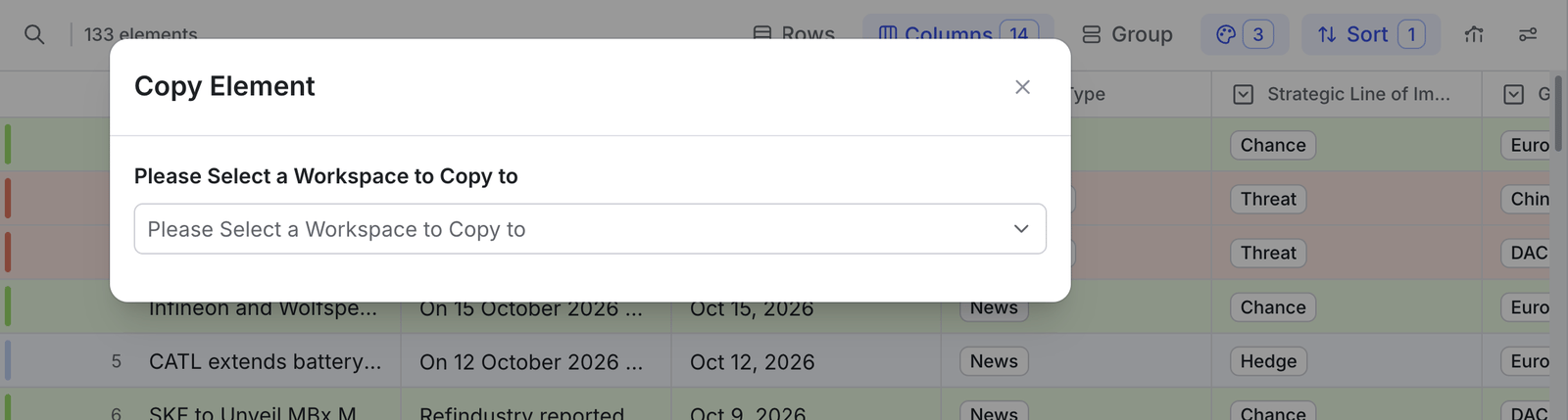
Under Please Select a Workspace to Copy to, select the target workspace.
You can copy to one workspace at a time. To copy to more workspaces, repeat the steps.
Optional: To update elements you copied to this workspace before, select Overwrite Changes on Copy.
Without it, elements that already exist in the target workspace aren't copied again.
Click Copy.
If some element types aren't active in the target workspace, click Enable and Copy to enable them, or Copy Compatible to copy only the elements whose types are active.
Copy one element from a table view
In a table view, point to the element's row and click its row menu.
Select Smart copy.
Select the target workspace and copy the element as in steps 4 to 6 above.
Import elements from another workspace
In the workspace you want to copy to, click Create in the sidebar, and select Copy from another Workspace.
Select the workspace to import from.
The list shows the other workspaces you're a member of. Workspaces without content that fits this workspace are listed as incompatible.
Select the element types whose elements you want to import.
If some element types can't be imported with the current settings of this workspace, a message says so.
Click Import Content.
The button shows how many elements are imported.
Warning: With Overwrite Changes on Copy, changes made in the target workspace to elements copied before are lost and can't be restored. Their ratings and comments are kept.
Note: Of an element's ratings, only the average is copied, shown in gray. As soon as someone rates the element in the target workspace, their rating replaces the copied average.
Result
The copies appear in the target workspace with the values of the properties that both workspaces' element types share, and a message confirms the copy. The original elements stay unchanged.