
Add a ready-made element type to your workspace instead of building one from scratch. To learn how templates and element types work, see Understanding element types.
Add an element type from a template
Click the workspace name in the top left.
Select Workspace settings.
Click Element types.
Click Add element type.
Select Use a template.
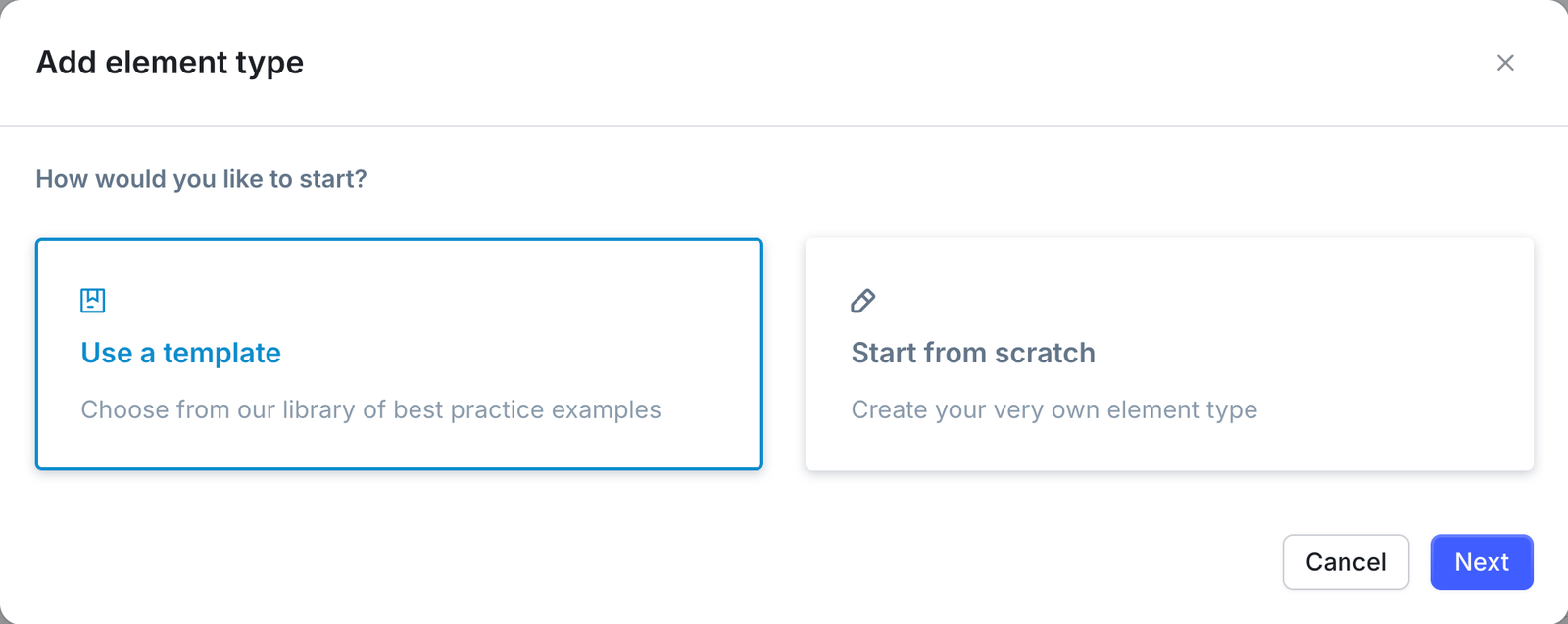
Click Next.
The templates open in two groups: ITONICS templates, which follow common innovation practice, and custom templates, which are element types your organization already uses in its workspaces.
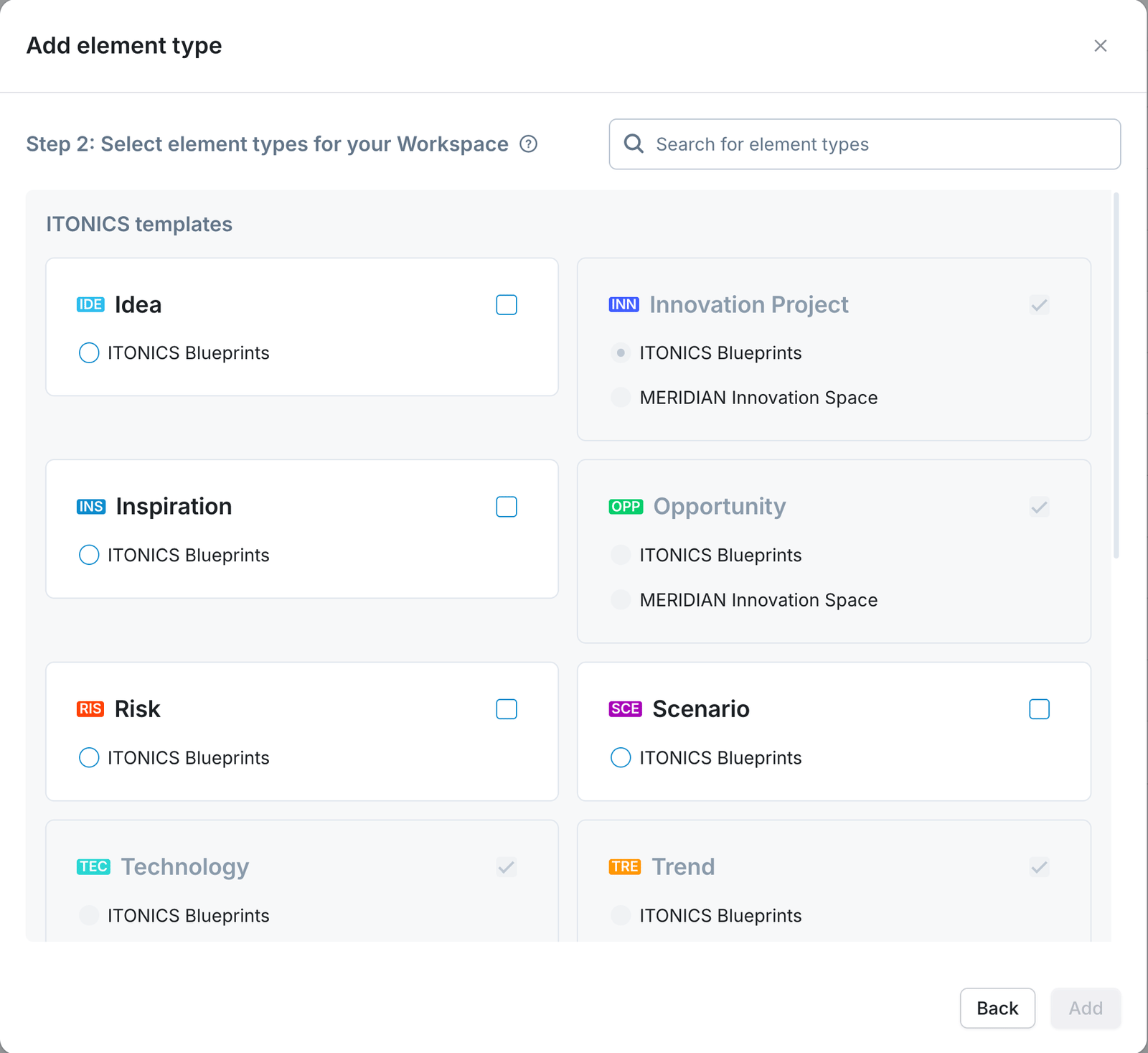
Select the checkbox of each element type you want to add.
Element types that your workspace already has are marked as already added.
Under each element type you selected, select where to copy it from.
ITONICS Blueprints adds the ready-made version. A workspace adds the element type as that workspace uses it.
Click Add.
Note: An element type you add from a template doesn't replace properties that already exist in your workspace.
Result
The element types you added appear on the Element types page. To change their header, tabs, or details page, see Configure the layout of an element type.