
Ask Prism to create an element for you from a short request, then accept its proposal. To learn what Prism can do, see Overview of Prism.
Before you start
You need permission to create elements of that element type.
Create an element with Prism
Open the view or element you want to work from, and click the Prism button in the bottom-right corner.
Prism opens in a panel and adds the open view or element as context.
Enter a description of the element you want, including its element type and title, and send the request.
For example: Create a Technology element titled "Solid-State Transformers for Grid Edge" with a short summary. To combine existing elements, name them, for example: Create a Trend based on the elements Solid-State Battery Commercialization and Next-Generation Cell Chemistries.
Check the proposal.
Prism checks the workspace for duplicates and related elements, explains what it found, and shows a card with the title, the proposed values, marked as a suggested create.
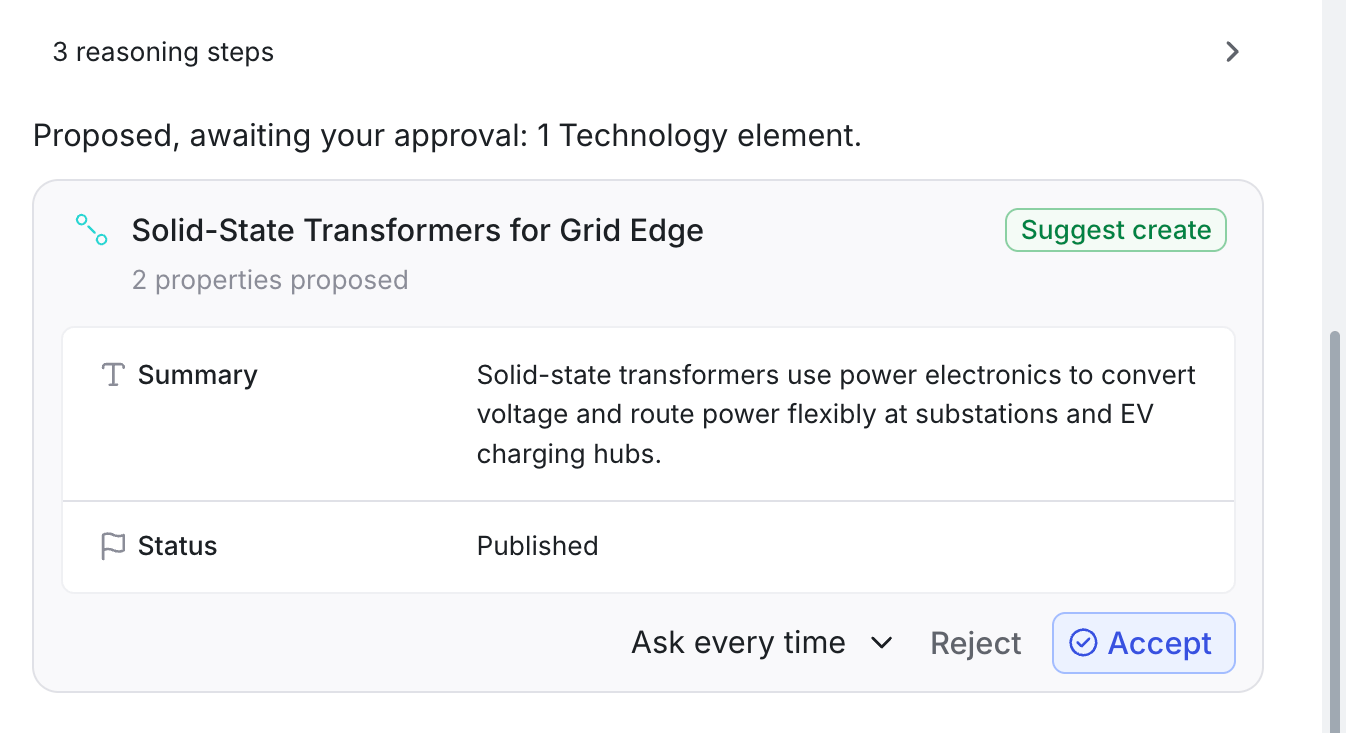
Click Accept.
To drop the proposal, click Reject instead.
Tip: To let Prism apply its changes without asking, change Ask every time to Automatically apply every time.
Result
The element appears in the workspace with the values from the proposal, and the card shows Open element. To add more information, open the element and edit it. See Edit an element.