
Give Prism background about your organization and goals that it uses in every chat in a workspace. To learn how Prism uses context, see Prism context awareness.
Before you start
You need to be a Workspace Admin. Prepare the text: what your organization does, what it works toward, and what Prism should do for each use case.
Set up the master context
Click the Prism button in the bottom-right corner of any page in the workspace.
In the Prism panel's header, open the more menu and select Configure.
The dialog shows the workspace's current master context, if there's one.
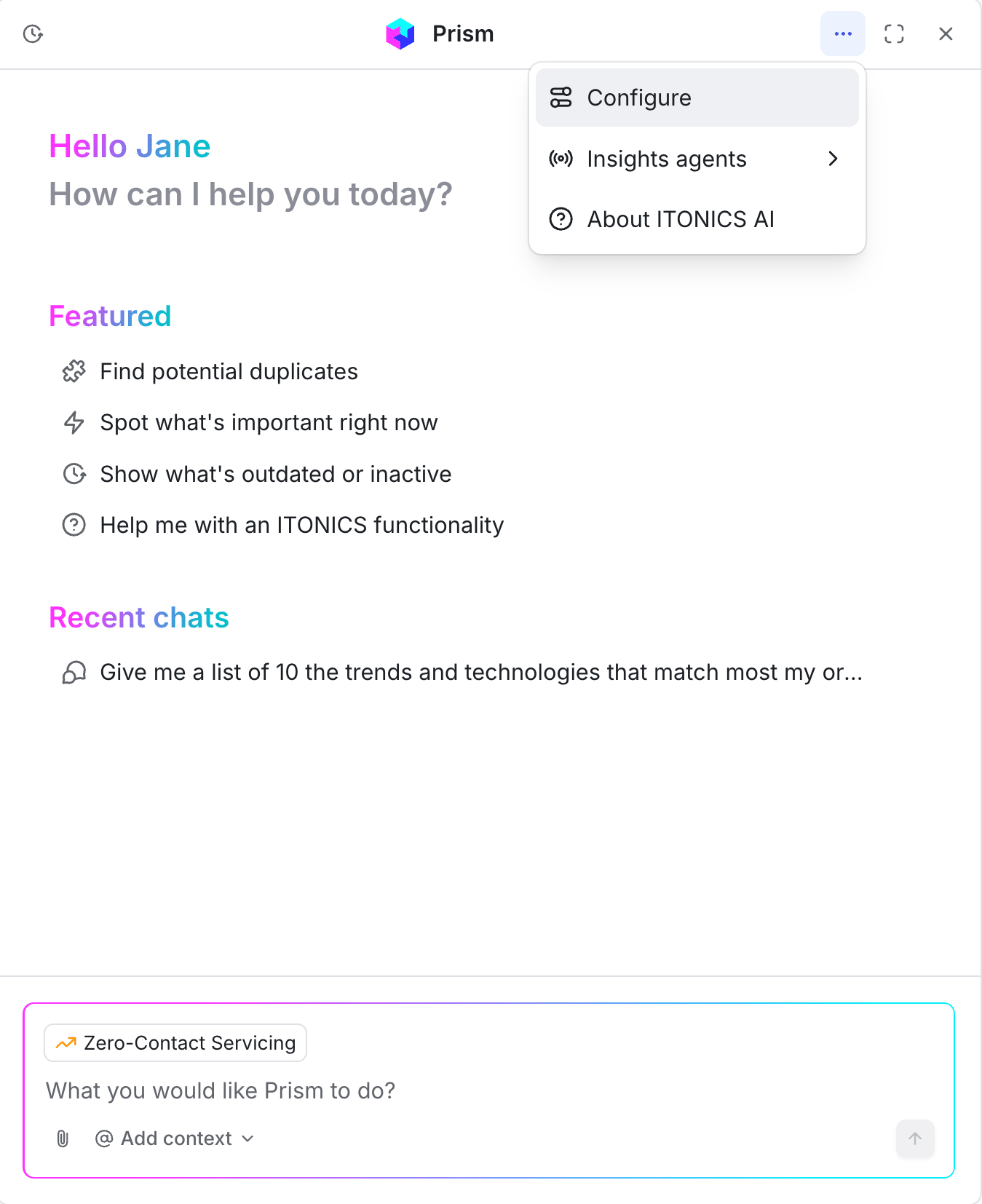
Under Describe the mission, focus, and key goals of this workspace, enter or paste your master context.
Keep it to 300–400 lines at most. For each line, ask whether Prism would make a mistake without it. If not, cut it, or move it into an element that describes the workspace context, so Prism reads it only when it works with what it applies to.
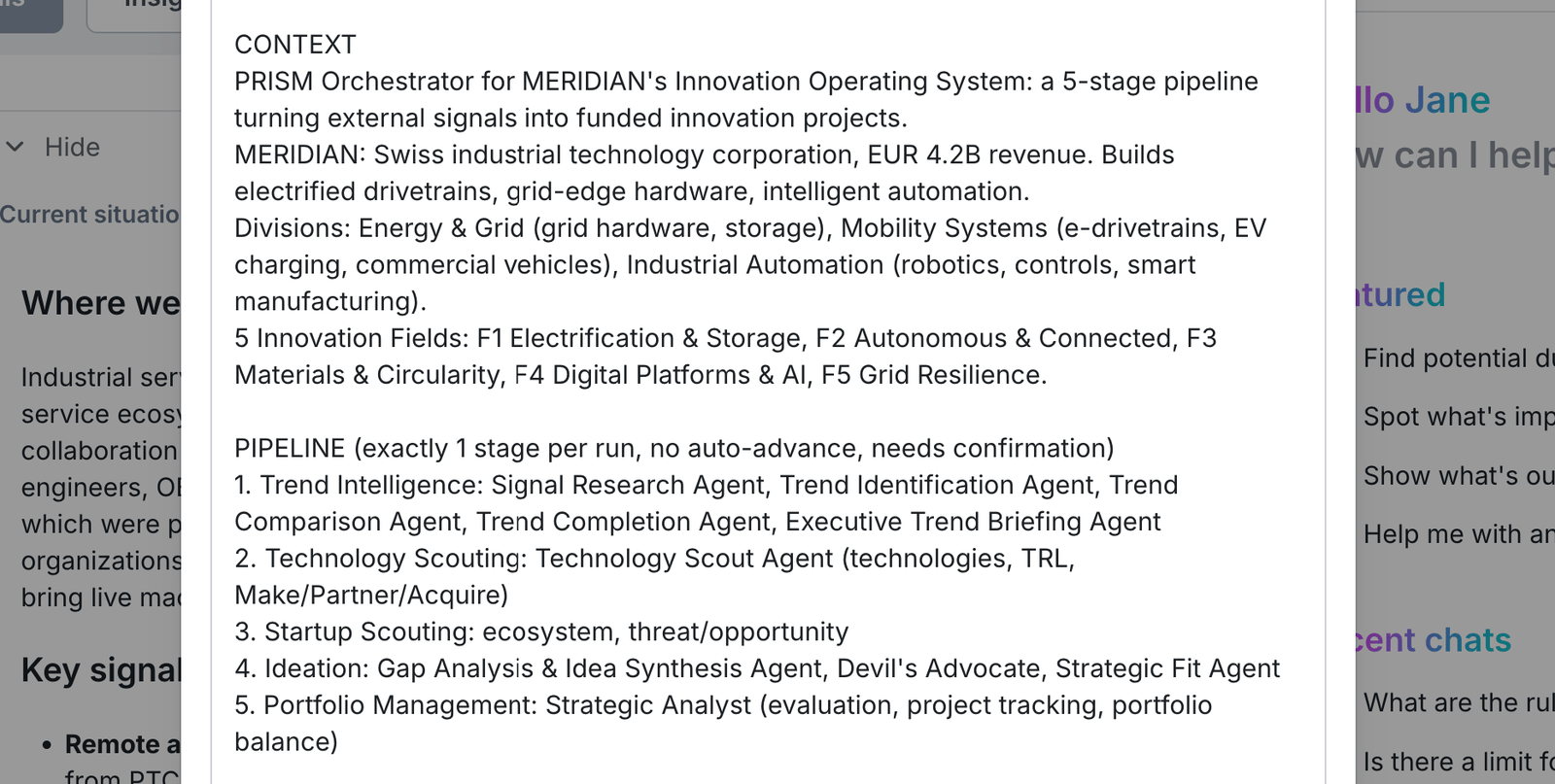
Optional: Under Select an element type that describes the workspace context, select an element type that holds your strategy, for example strategic goals.
Prism derives strategic direction from the elements of that type. To use only some of them, open Advanced filters and click Add criteria.
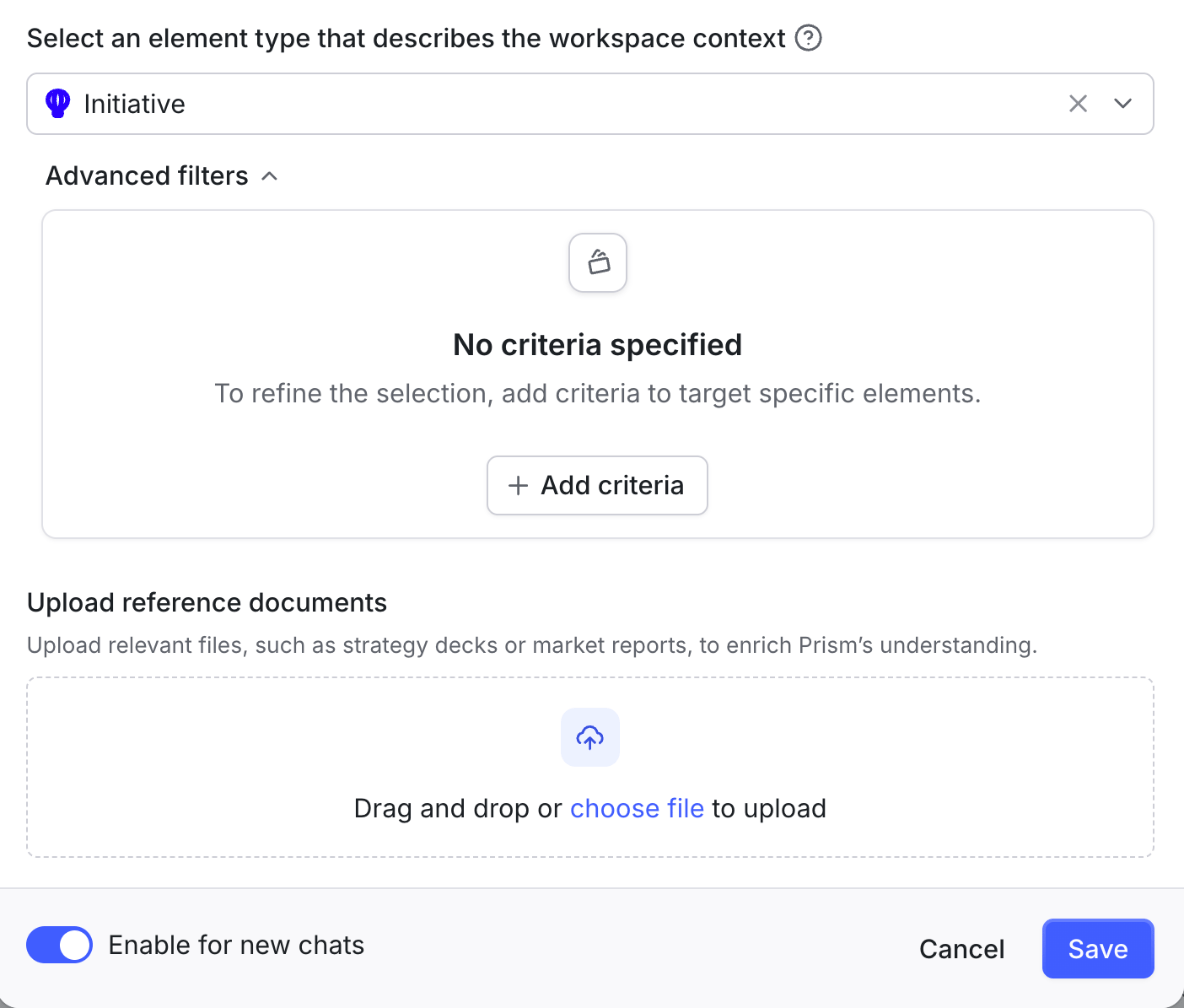
Optional: Under Upload reference documents, add up to 3 files, such as a strategy deck or a market report.
Prism draws on the files alongside your text; they add to it and don't replace it. Prism reads each document in full, and describes images and stores the descriptions as text. Each file can be up to 100 MB: a document, spreadsheet, presentation, image, or video. For every format, see Supported file formats and sizes.
Make sure Enable for new chats is switched on, and click Save.
Uploaded files are processed after you save, which takes a moment. A second confirmation appears once the files are added to the master context.
Tip: For a first version, describe the purpose of the master context and your organization, for example with the introduction of your company's Wikipedia entry, and let an AI chatbot draft it. Then refine it with feedback from your colleagues.
Result
New chats in the workspace use the master context as background. To change it later, open Configure again and edit the text.