
Chat with Prism, line up several requests in a queue, and decide which of its proposed changes to apply. To learn what Prism can do, see Overview of Prism.
Use the Prism chat
Click the Prism button in the bottom-right corner of any page in the workspace.
To continue an earlier chat, click it under Recent chats, or click View your recent conversations in the header. You can delete a chat there too.
Check the context chips above the input field.
Prism adds the view or element you have open. To add more, click Add context.
Optional: To ask about a document, click Upload a file and attach up to 3 files.
Each file can be up to 100 MB: a document, spreadsheet, presentation, image, or video. For every format, see Supported file formats and sizes. Prism reads them for this chat only, so it can summarize a supplier PDF or a customer interview recording. For files Prism should use in every chat, add them to the master context.
Enter your request and press Enter.
While Prism works, it shows its steps. To reuse an earlier request, press the Up arrow key in the empty input field.
To queue another request, enter it while Prism is still working and press Enter.
The request waits in the queue above the input field and is sent once Prism finishes its current answer.
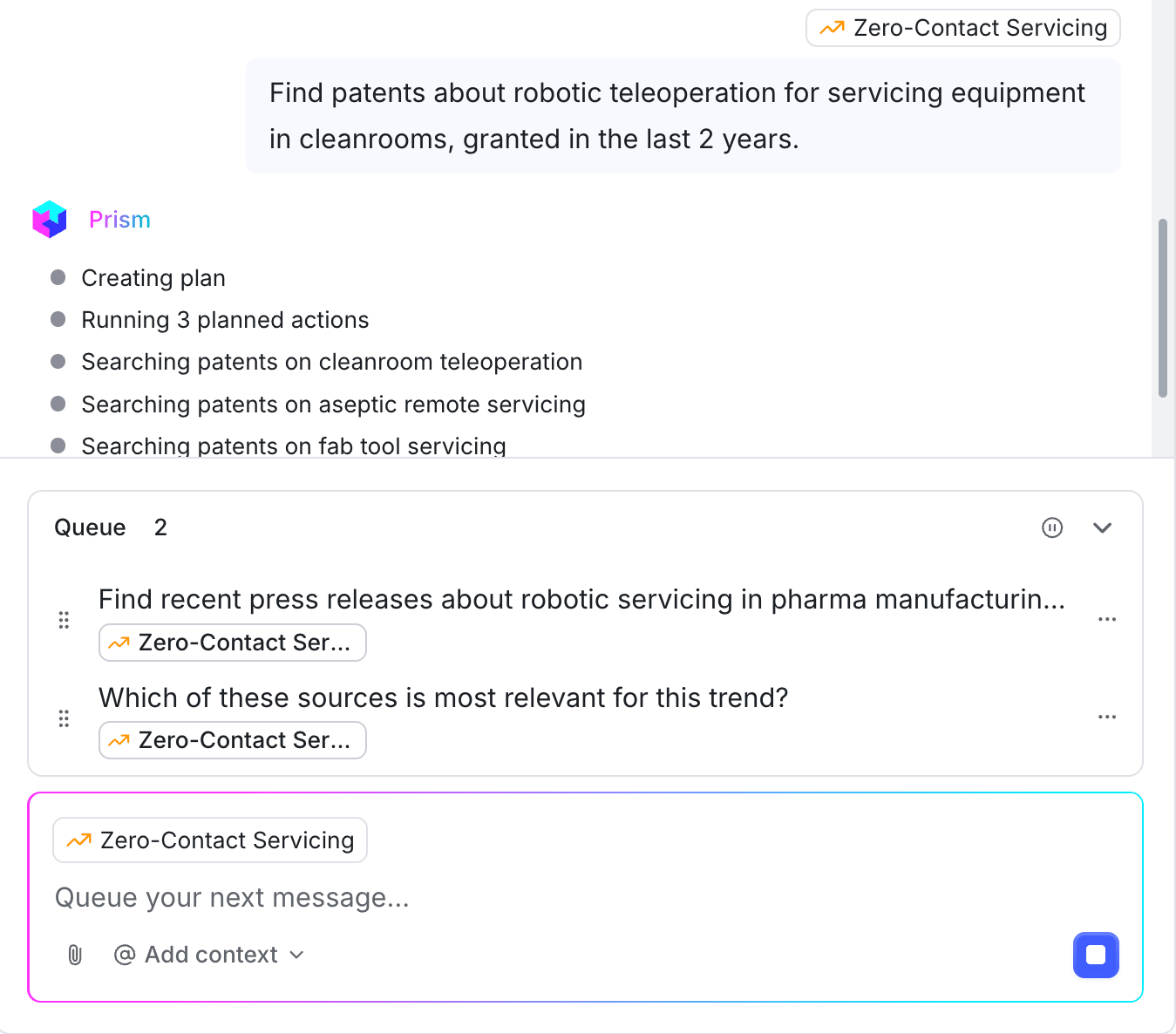
Optional: Manage the queue.
Drag a request by its handle to change the order. Its Queue item actions menu offers Edit, Copy, Repeat, and Remove. To hold the queue, click Pause queue, and click Resume queue to continue.
Review each proposed change.
When Prism wants to create or change an element, it shows a card. Click Accept to apply the change or Reject to drop it. By default, Prism asks every time.
Warning: With Automatically apply every time, Prism writes its changes to the workspace without asking, for all element types and in all chats. Switch it on only when you trust Prism's proposals; to switch back, select Ask every time on a card or under Profile > Prism suggestion apply mode.
Result
Prism answers each request in order. Above each answer, click the reasoning steps to see how Prism got there.