
Describe the view you need, and Prism picks the visualization and sets it up for you. To learn what Prism can do, see Overview of Prism.
Before you start
You need permission to create views in the workspace.
Create views with Prism
In the sidebar, click the plus icon next to Workspace views, select View, and select Create with Prism.
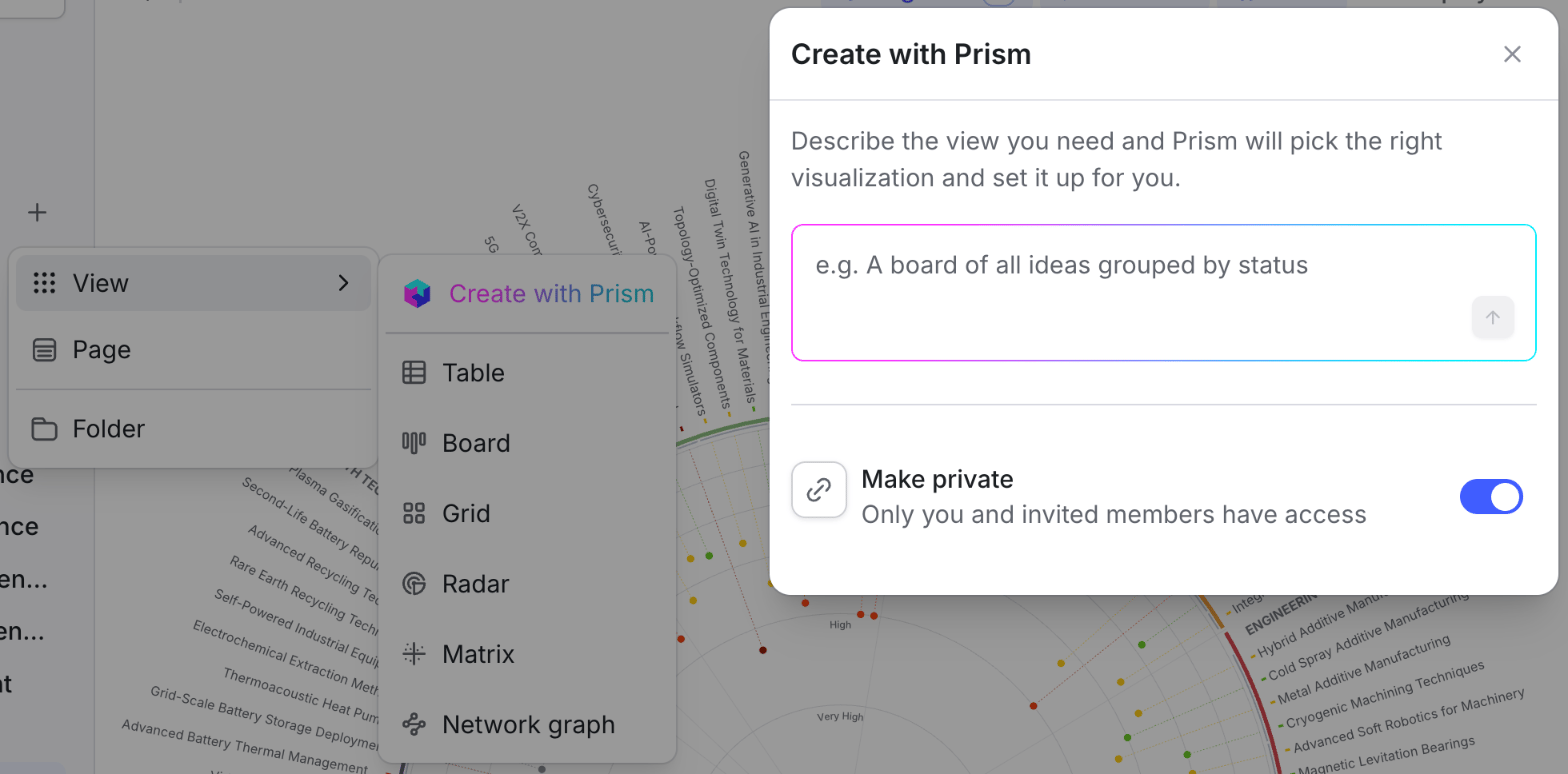
Optional: Turn on Make private to keep the view to you and the members you invite.
It's turned on by default.
Describe the view, and press Enter.
Name the element type and how to group or segment the elements, for example: A board of all ideas grouped by status. Prism shows Creating your view... while it works.
Result
The view opens and appears under Workspace views. It has the visualization and the filters Prism chose, such as the element type and the status. To change the view, see Create and manage views.