
Ask Prism about the elements in your workspace, and let it update them for you. To learn what Prism can do, see Overview of Prism.
Before you start
To let Prism change elements, you need permission to edit elements of that element type.
Interact with elements using Prism
Open the view or element you want to work with, and click the Prism button in the bottom-right corner.
Prism adds the open view or element as context. To add more, click Add context. The start page also offers featured prompts, such as Find potential duplicates and Show what's outdated or inactive.
Ask about the elements, and press Enter.
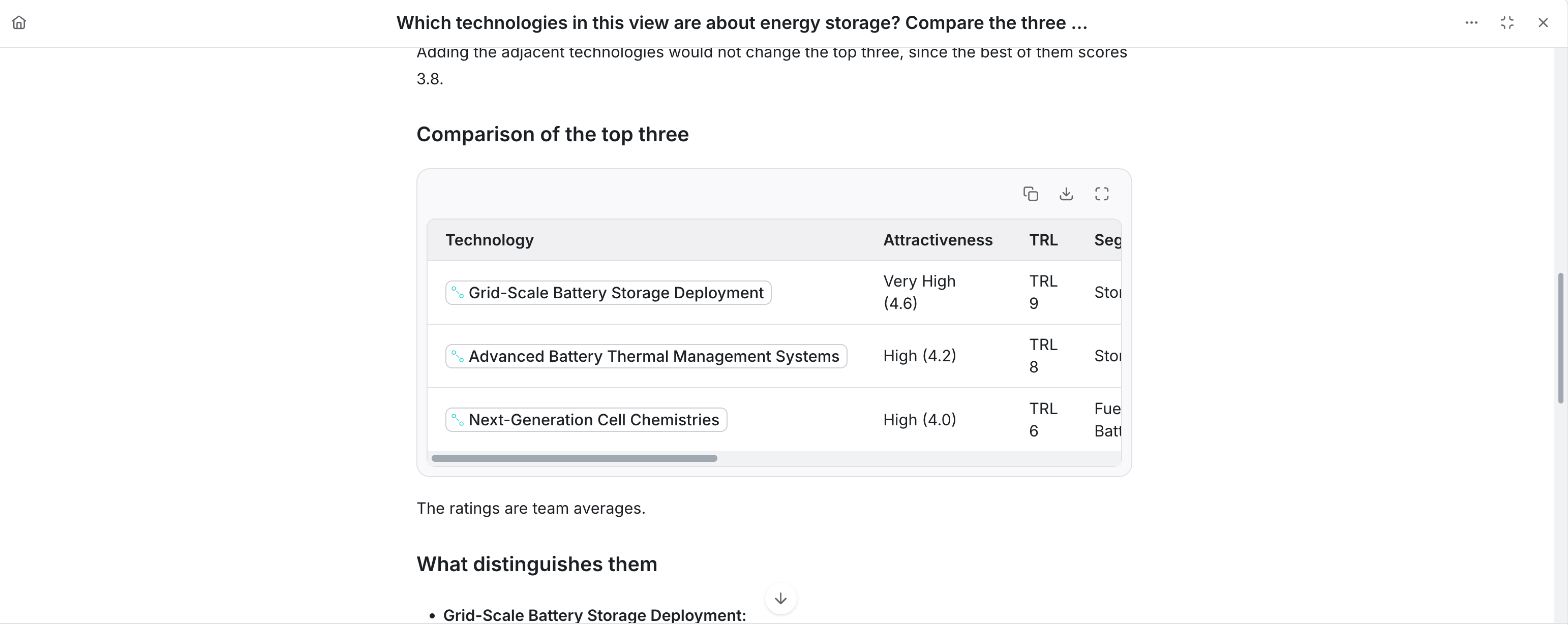
You can ask Prism to summarize an element, find its duplicates, find related elements, compare elements, or list an element's risks. For example: Which technologies in this view are about energy storage? Compare the three with the highest Technology Attractiveness in a table. Prism links each element it names.
To change an element, describe the change you want.
Name the element, the properties, and the values, so Prism changes only those. For example: Update "Grid-Scale Battery Storage Deployment": add the tag grid storage.
Check the card.
The card lists each property Prism wants to change: removed text is struck through, and new values are marked with a plus. Prism can replace text when you asked it to add some, so read the card before you accept it.
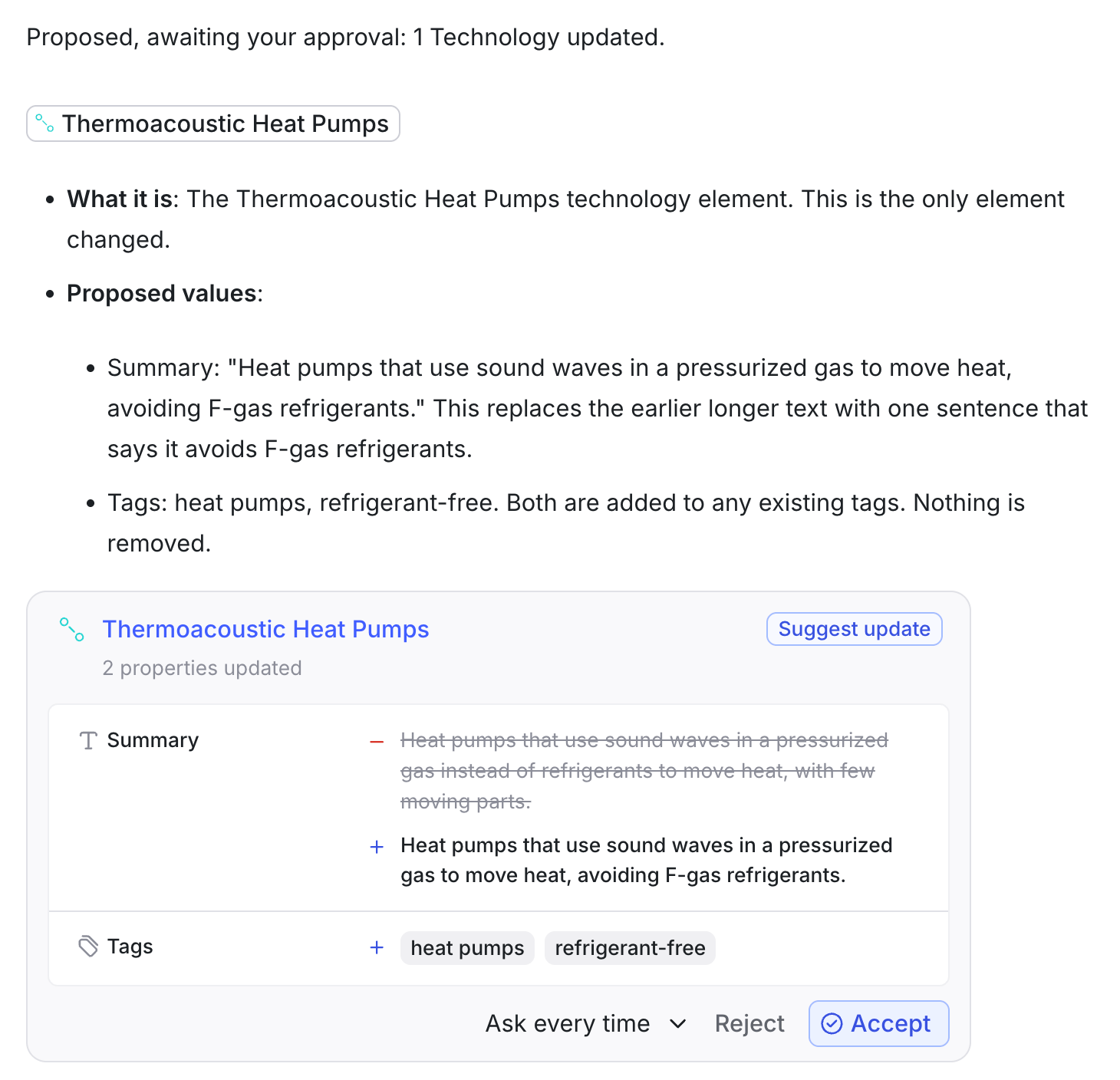
Click Accept.
To drop the change, click Reject. When Prism proposes changes to several elements, Accept all below the chat applies them all.
Result
The element shows the new values. Prism can't add attachments, set relations, or change all elements at once. See Troubleshooting Prism.