
Link an element to other elements through its relation properties, for example the technologies that enable a trend. To learn how relation properties work, see Relation properties.
Before you start
You need permission to edit the element, and its element type needs at least 1 relation property.
Relate elements
In a relation property
On the element's details page, go to the relation property you want to fill.
Its name depends on your workspace, for example is enabled by Technology.
Click Link or create.
A search field opens with a list of the elements you can link.
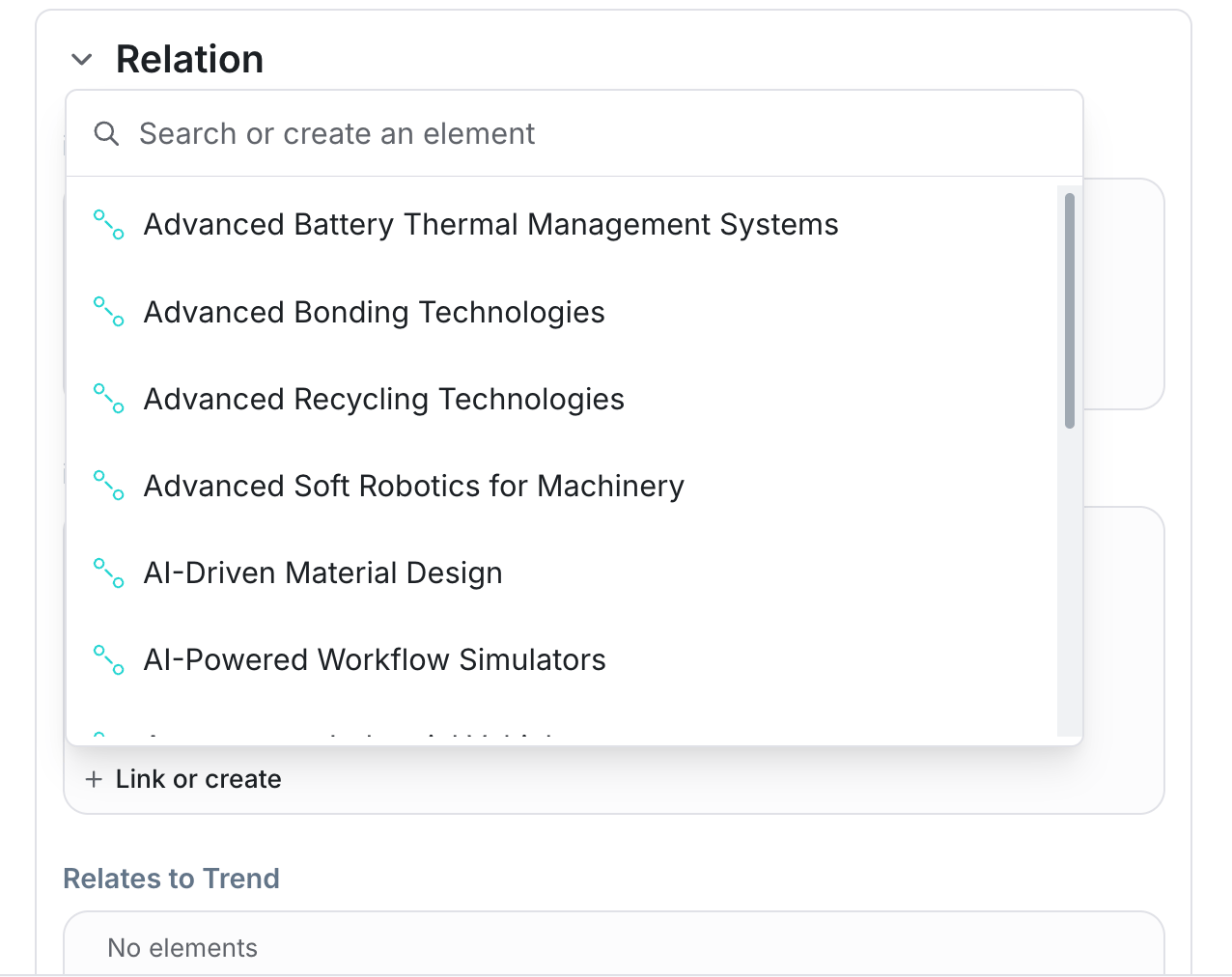
Search or scroll for the element, and select it.
If the element doesn't exist yet, type its title to create it.
In the related elements graph
On the details page, go to the network graph of related elements.
It shows the element in the center, linked to its related elements.
Click the + on the element in the center.
In the "Add relationship as..." menu, select the relation property.
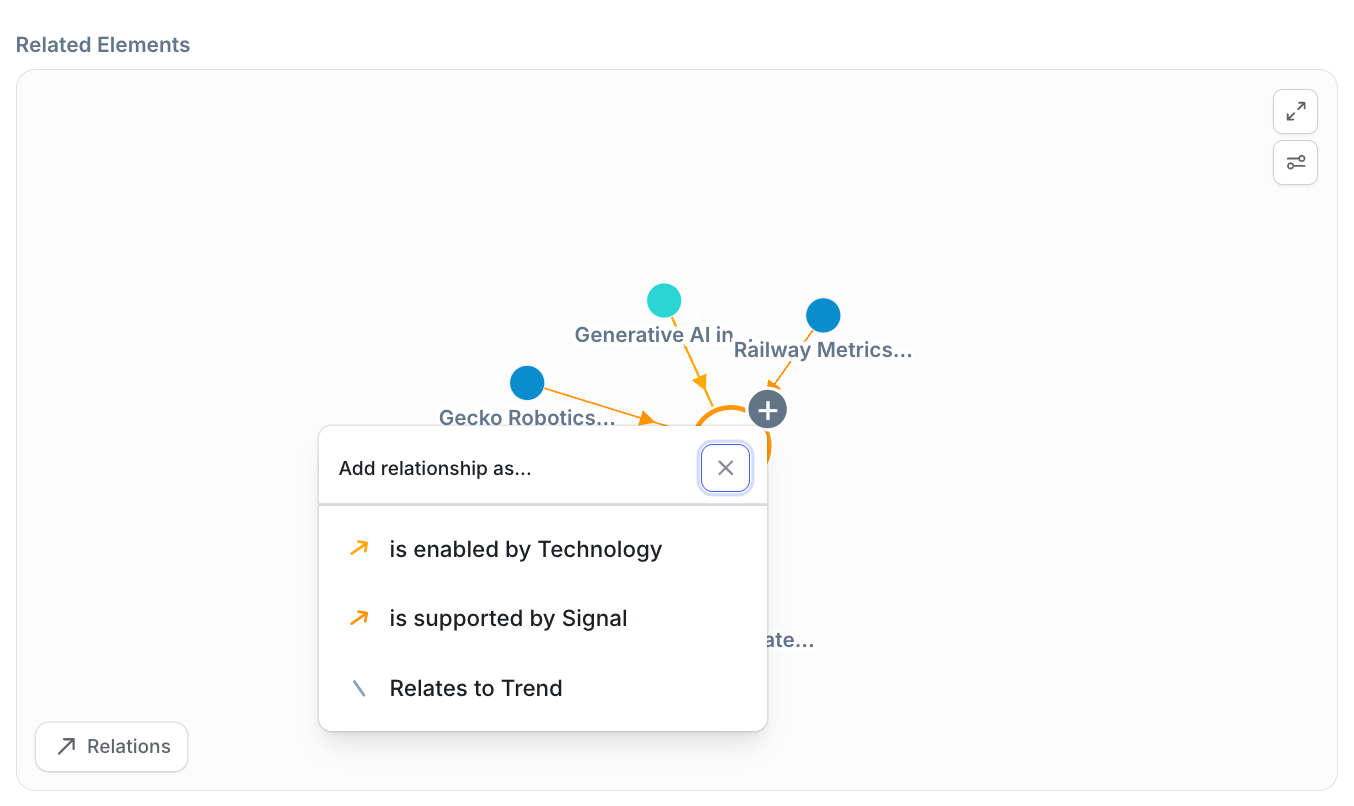
Search for the element, and select it.
As in a relation property, you can also type a title to create the element.
From recommended relations
On the details page, go to the recommended relations.
It shows elements that are similar to this one. Use the arrows to see more.
Optional: Click the title of a recommendation to check it in the stack view.
Click Add relation.
A message confirms that the relationship was added.
To remove a link, point to the related element in the relation property and click its ×. A link's relation property can't be changed: to move a link to another relation property, remove it and add it there. To relate elements from a table view, see Edit data in table views. To explore the relations in the graph, see Discover related and unrelated content.
Note: Draft and archived elements can't be selected as new relations. Existing links to them stay and show muted with a Draft or Archived badge, unless your role can't view those elements.
Tip: Recommendations compare the text of the published elements in the workspace, mostly their summaries. Summaries with the main keywords lead to better recommendations.
Result
The related element shows in the relation property and in the graph. For a two-way relation, the link also shows on the related element.