
A relation property links an element to other elements, such as the technologies that enable a project or the trends that drive it. You name each relation after the connection it stands for, so the links between your content read the way your organization talks about them.
Relation settings
When you create or edit a relation property, you decide which elements it can link and how the link behaves on both sides.
| Setting | What it does |
|---|---|
| Related to | Lets people link elements of all element types in the workspace, or only of the element types you select. |
| Limit | Lets the property hold any number of related elements, or exactly one. |
| Relation type | Decides whether the link also shows on the related element. See the next section. |
| Always require a value | Every element must be linked to another element. |
| Relationship color | The color of the link in network graph widgets and radars. |
One-way and two-way relations
The relation type decides where ITONICS stores the link.
| Relation type | Where the link shows | Good for |
|---|---|---|
| One-way | Only on the element where it's added. | Links that only matter from one side. |
| Two-way (separated field) | On both elements, in two fields with different names, such as Drives and Driven by. | Links whose meaning depends on the side, such as a program and its projects. |
| Two-way (same field) | On both elements, in the same field, such as Relates to. | Links that mean the same from both sides. |
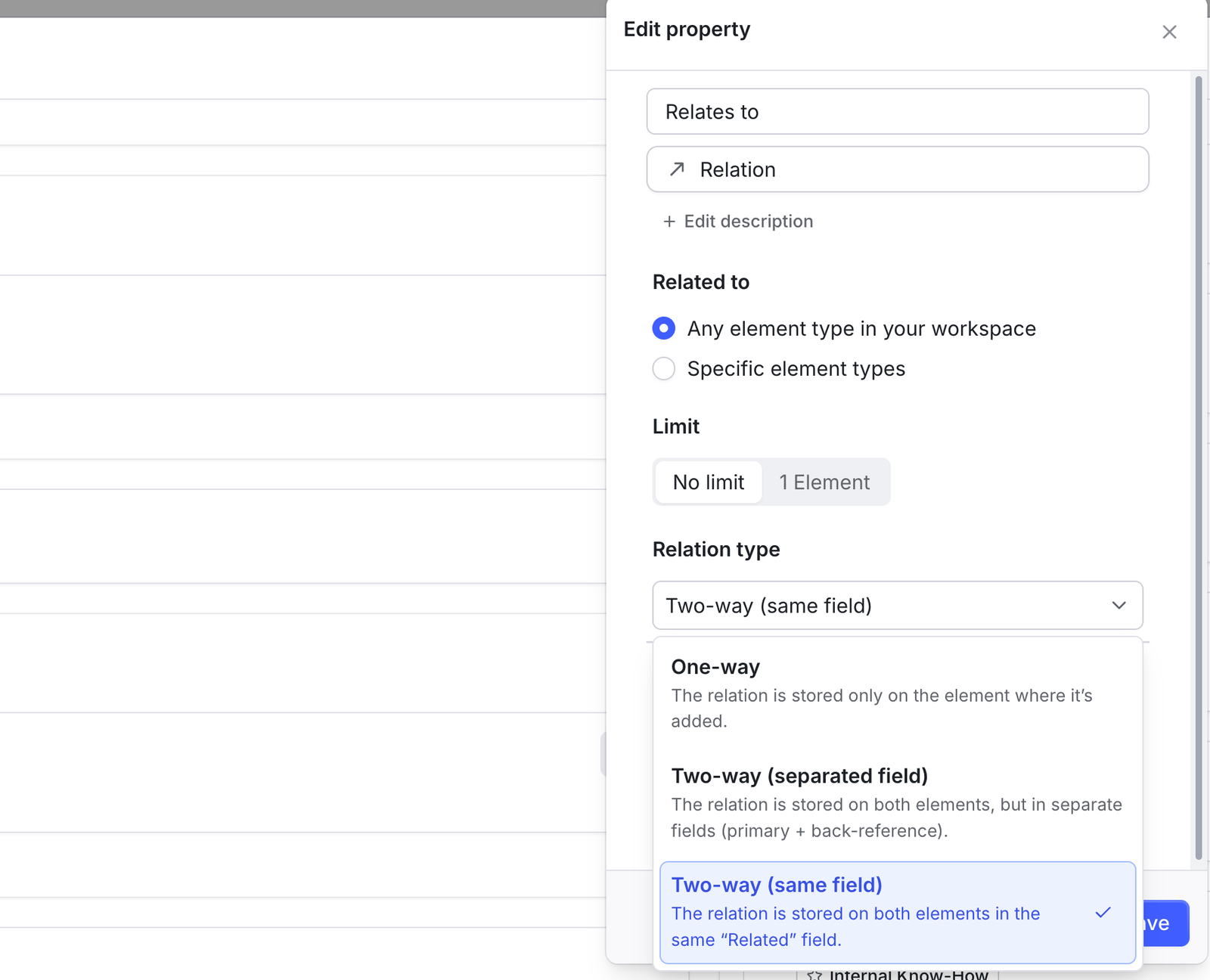
Relations in other features
- To link elements to each other, see Relate elements.
- Network graph views show the relations between elements. See Set up a network graph view.
- A rollup property collects values from the related elements, such as their latest end date or their number. See Rollup properties.
To create a relation property, see Create and manage properties.