
Change element values directly in a table view by editing cells, pasting a range, or moving rows between groups, and act on single rows. To set up the table, see Set up a table view.
Before you start
The property you want to edit must be a column in the table. If it doesn't exist yet, click a column header, select Insert column left or Insert column right, then Create new property. Select a type, enter a Field name, and click Create property. For property settings, see Create and manage properties.
Edit data in a table view
Edit a cell
Double-click the cell.
In a view with several element types, cells of properties the row's element type doesn't have are greyed out and can't be edited.
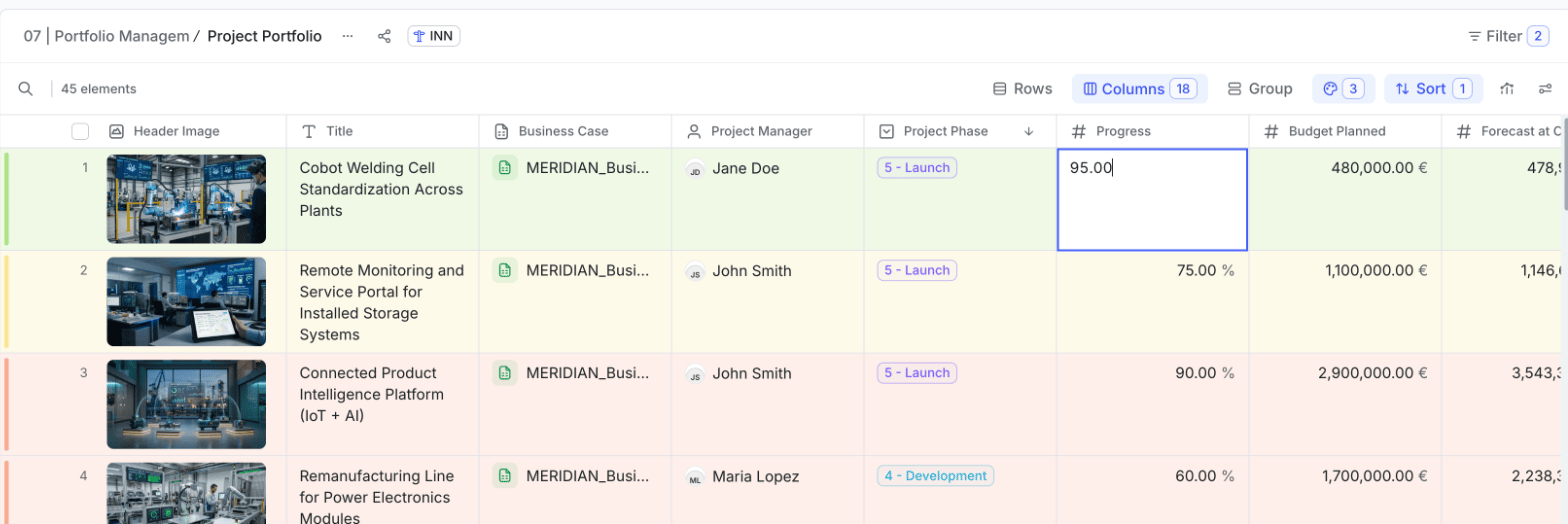
Enter or select the new value.
In a rating column, this is how you rate the element.
Paste a range from a spreadsheet
Copy a range of cells in Excel, Google Sheets, Numbers, or another ITONICS table.
In the table, click the cell where the range should start.
Press
Ctrl + V(⌘ + Von Mac).You can paste up to 500 cells. Text, rich text, number, date, dropdown, and hyperlink columns accept pasted values. Cells are skipped when the column is read-only, its property type doesn't accept pasted values, or the value doesn't fit, such as text in a number column. A message tells you how many cells were pasted and how many were skipped.
Move a row to another group
Click Group and select the property to change.
Drag a row into another group.
The element gets that group's value. If the property allows several values, the value is added to the ones the element already has. Groups whose value you aren't allowed to set don't accept the row.
Act on a single row
Point to the row and click the handle next to the row number.
Select Open in new tab, Copy link, Comment, Watch, Like, Add to collection, Smart copy, or Delete.
When the table shows related elements as rows, the menu also has Add a relation, which relates another element to this one, and rows with related elements can be expanded or collapsed. To comment, you can also click the comment icon next to the row number; the comments open in a side panel, which follows the row you click.
To read an element without leaving the table, click its title; see View content.
Result
The new values are saved to the elements right away and show in every view that includes them. To undo your last change, press Ctrl + Z (⌘ + Z on Mac), or Ctrl + Shift + Z (⌘ + Shift + Z) to redo; this covers your own cell edits, pasted values, and manual row reordering in this session, and cells someone else changed since are skipped.