
Give your rating for each criterion of an element, explain it in a note, and change or remove it later. To learn how ratings and their averages work, see Rating properties.
Before you start
The element type must have rating properties on its details page. Whether you can rate depends on the permissions of your role in the workspace. See Permission reference.
Rate an element
On the details page
Open the element in the stack view or on its details page.
Go to the Rating block.
Each criterion shows its options, the average of all ratings on a bar, and the number of ratings. Point to the info icon next to a criterion to read what it asks.
On the bar of a criterion, click the option that matches your opinion.
For a numerical rating, pick a number on the slider. Your rating is saved, and the number of ratings goes up.
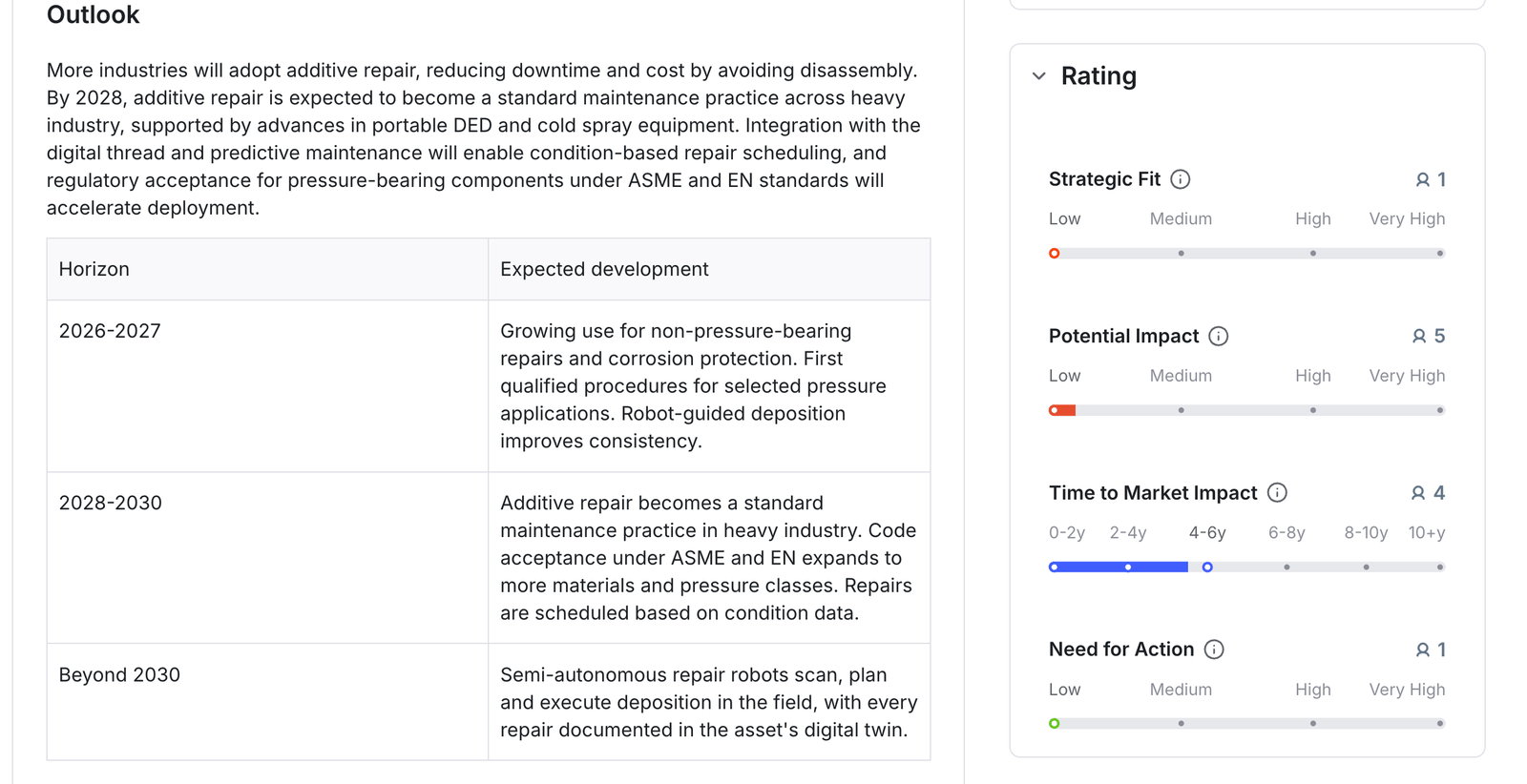
To explain your rating, click Add note, enter up to 500 characters, and click Save.
If the criterion requires an explanation, your rating is saved only once you add a note.
In a table view
Open a table view that has a column for the rating property.
Each rating cell shows the average of the element on a bar.
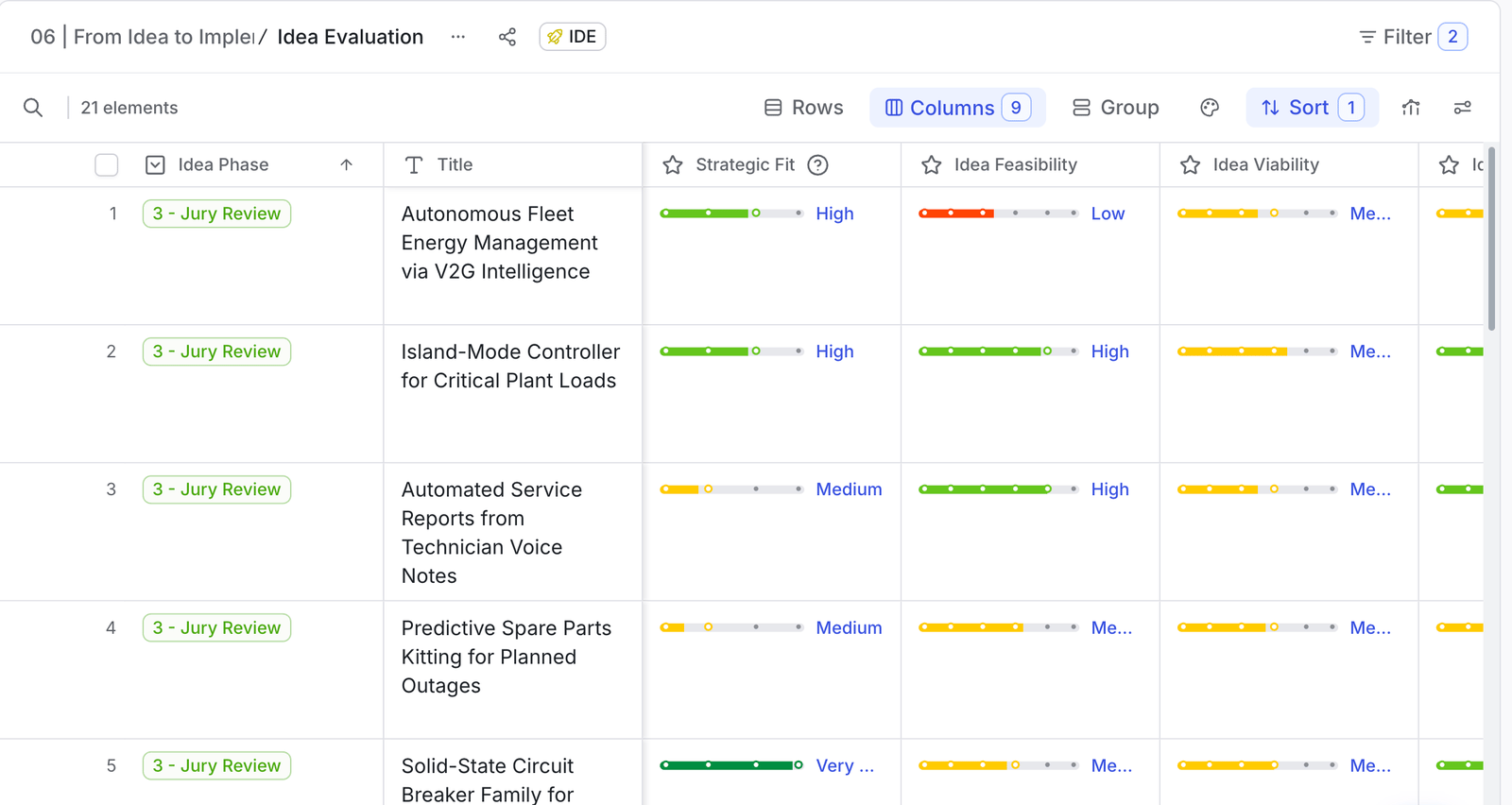
Double-click the cell of the element and select your rating.
Move on to the next cell to rate several elements in a row.
For more on editing in tables, see Edit data in table views. To open elements, see View content.
To change your rating, click another option on the bar. To remove it, click the × under your rating.
Some criteria are aggregated ratings: ITONICS calculates them from other criteria and their weights, so you don't rate them. They show an analysis icon instead of the number of ratings. Point to their bar to see the average and the criteria breakdown.
See Aggregated rating properties. To see everyone's ratings and notes, and to analyze aggregated ratings, see Analyze and manage ratings.
Note: If a criterion is read only, you see its ratings and average but can't rate it.
Result
The criterion shows your rating and the new average. On an element copied from another workspace, the copied average shows in gray until someone rates it; if you remove your rating, the copied average comes back.