
Open elements in the stack on the right of a view to read and work on them without losing your place. For how an element and its details page are laid out, see Element structure.
View content
In a view, click an element.
The element opens in the stack on the right, next to the view.
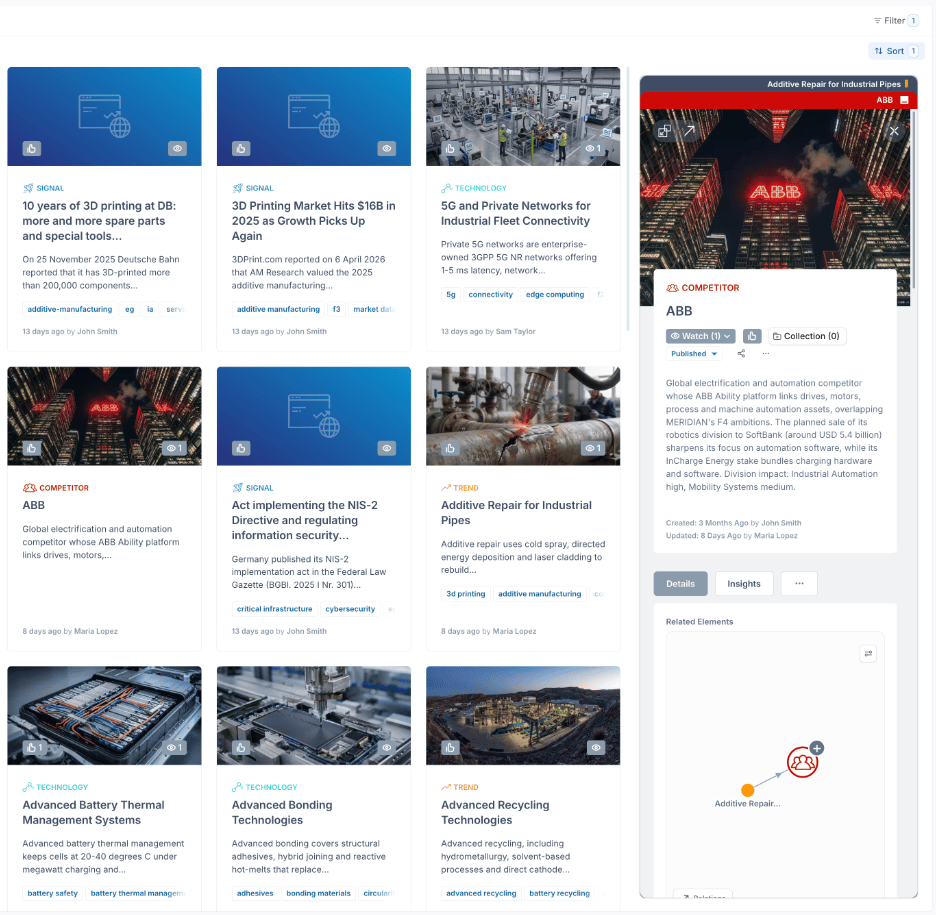
Optional: Click more elements to open them, too.
Each one opens in front. The others stay in the stack as bars above it; click a bar to bring that element to the front.
Optional: To see more of the element, click the expand icon at the top left of the stack. Click it again to make the stack narrow.
Optional: To get back to the view without closing anything, click the colored bar of the element in front.
The stack shrinks to a bar at the bottom right. Click that bar to open the stack again.
Optional: To open the element's details page in a new browser tab, click the arrow icon next to the expand icon.
To close the element in front, click the x at the top right of the stack. To close all of them, point to the x and click Close All.
To open several elements at once, select them in a grid or table view (the checkbox on a card or row), then click Open in stack in the bar at the bottom. You can open up to 50 elements this way.
The stack shows the same layout as the details page: the header, the tabs, and the sections below them.
If you have edit rights, you can change values, comment, and rate directly in the stack; see Edit an element.