
A formula property calculates its value from other properties of the element, the way a spreadsheet formula calculates a cell from other cells. Use it for a budget variance, a score, or a label that changes with a threshold. ITONICS calculates the value, so it's read-only wherever it appears.
How a formula works
You write the formula once, when you create or edit the property, and every element of the element type carries its result. A formula refers to other properties by name in curly braces, such as {Budget Planned}. It can calculate with them, compare them, and use functions such as IF.
Parentheses set the order of a calculation, and a function can be the argument of another function. The arguments of a function are separated by semicolons, and text is written in double quotes:
Formula
IF({Forecast at Completion} > {Budget Planned}; "Over budget"; "On track")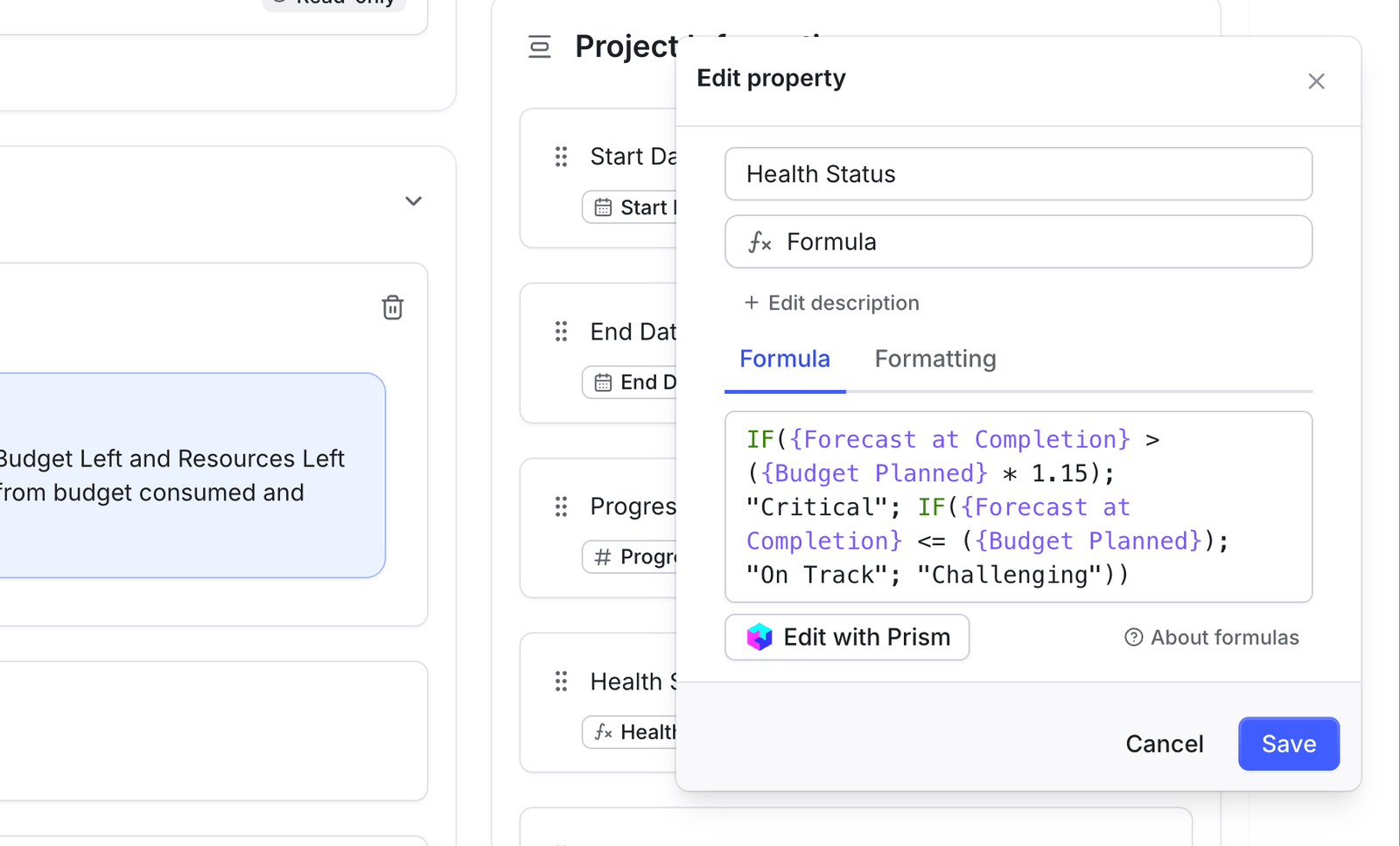
When you leave the editor, ITONICS checks the formula and explains any part it can't use. A formula can't refer to itself, not even through another formula.
Write formulas with Prism
If Prism is turned on, you can describe what the formula should calculate instead of writing it. Enter your request in the Ask Prism… field of the formula editor and click Create formula.
To change an existing formula, click Edit with Prism: Prism shows the Current formula next to the Suggested formula, and you click Accept or Reject. For a formula ITONICS can't use, Prism offers a Suggested fix. To type the formula yourself, click Or write from scratch.
While you type, the editor highlights property names. A valid formula is previewed with the values of a real element, and an invalid part is underlined.
Result types and formatting
A formula returns a number, a date, or text. The result type isn't a setting: it follows from what the formula calculates. Every branch of a formula must return the same type, so IF({Budget} > 100000; 1; "None") isn't valid.
Once the property is saved, its result type is fixed. To calculate something of another type, create another formula property.
For a number, the formatting settings decide whether it shows as a number, a currency, or a percentage, with its decimal places and thousands separator. Dates and text have no formatting options.
Properties a formula can use
A formula always uses the readable value of a property, such as an option label or a user's name. A property with several values becomes a list, which COUNT, ARRAYCONTAINS, and ARRAYELEMENT work with. In a text result, the values of a list are joined with commas.
| Property | Used as | Value |
|---|---|---|
| Title | Text | The element's title |
| Summary | Text | The summary as plain text |
| Status | Text | The status label |
| Tags | Text or list | The tag names |
| Site source | Text | The source label |
| Workflow Node | Text | The name of the node the element is in |
| Workflow Process | Text | The name of the process the element runs through |
| Date Created, Date Updated | Date | The date |
| Created By, Updated By | Text | The user's name |
| Text, rich text | Text | The text, without formatting |
| Number, rating | Number | The value |
| Aggregated rating | Number | The aggregated score shown on the element |
| Date | Date | The date |
| Hyperlink | Text | The URL |
| Dropdown | Text or list | The labels of the selected options |
| Hierarchical dropdown | Text or list | The labels of the selected options |
| User | Text or list | The names of the selected users |
Attachments, relations, and the header image can't be used in a formula. To bring in values from related elements, use a rollup property.
Operators
Operators calculate with numbers, join text, and compare values. A comparison returns true or false, for example as the condition of IF.
| Operator | For | What it does | Example |
|---|---|---|---|
& | Text | Joins text values, like CONCAT. | {Title} & " (draft)" |
+ | Number | Adds two numbers. | {Budget} + 200 |
- | Number | Subtracts one number from another. | {Budget} - 200 |
* | Number | Multiplies two numbers. | {Budget} * 2 |
/ | Number | Divides one number by another. | {Budget} / 2 |
> | Comparison | Greater than | {Progress} > 50 |
< | Comparison | Less than | {Progress} < 50 |
>= | Comparison | Greater than or equal to | {Progress} >= 50 |
<= | Comparison | Less than or equal to | {Progress} <= 50 |
= | Comparison | Equal to | {Status} = "Approved" |
<> | Comparison | Not equal to | {Status} <> "Approved" |
Functions
Optional arguments are shown in square brackets.
| Function | Returns | Syntax |
|---|---|---|
| ABS | The absolute value of a number. | ABS(value), for example ABS(-12), which returns 12. |
| AND | True if all arguments are true. | AND(logical1; [logical2; ...]), for example AND({Budget} > 0; {Status} = "Approved"). |
| ARRAYCONTAINS | True if a list contains all the given values. | ARRAYCONTAINS(array; [...value]), for example ARRAYCONTAINS({Program}; "Incubator"). |
| ARRAYELEMENT | The value at a given position of a list. | ARRAYELEMENT(array; index), for example ARRAYELEMENT({Program}; 1), which returns the first value. |
| AVERAGE | The average of a set of numbers. | AVERAGE(number1; [number2; ...]) |
| CEILING | A number rounded up to the next whole number. | CEILING(value) |
| CONCAT | All arguments joined into one text value. | CONCAT(value; [value2; ...]), for example CONCAT({Title}; " - "; {Status}). |
| CONTAINS | True if the first value contains the second. | CONTAINS(value; value2) |
| COUNT | The number of values in a list. | COUNT(value1; [value2; ...]), for example COUNT({Program}). |
| DATE | A date from a year, month, and day. | DATE(year; month; day) |
| DATEDIF | The number of days, months, or years between two dates. | DATEDIF(start_date; end_date; unit), for example DATEDIF({Date Created}; {Date Updated}; "D"), which returns the days in between. |
| EDATE | The date a number of months before or after a date. | EDATE(start_date; months) |
| EOMONTH | The last day of the month a number of months before or after a date. | EOMONTH(start_date; months) |
| EVEN | A number rounded up to the next even whole number. | EVEN(value) |
| FLOOR | A number rounded down to the next whole number. | FLOOR(value) |
| IF | The second argument if the condition is true, otherwise the third. | IF(logical_expression; value_if_true; value_if_false), for example IF({Budget} > 50000; "Major"; "Minor"). |
| LEN | The length of a text value. | LEN(text) |
| LOWER | A text value in lowercase. | LOWER(text) |
| MAX | The largest number of a list. | MAX(value1; [value2; ...]) |
| MEDIAN | The median of a list of numbers. | MEDIAN(value1; [value2; ...]) |
| MIN | The smallest number of a list. | MIN(value1; [value2; ...]) |
| MOD | The remainder of a division. | MOD(dividend; divisor) |
| MONTH | The month of a date, as a number. | MONTH(date) |
| NETWORKDAYS | The number of working days between two dates. | NETWORKDAYS(start_date; end_date) |
| NOT | The opposite of a logical value. | NOT(logical_expression), for example NOT(4 <> 4), which returns true. |
| ODD | A number rounded up to the next odd whole number. | ODD(value) |
| OR | True if one or more arguments are true. | OR(logical1; [logical2; ...]) |
| POWER | A number raised to a power. | POWER(base; exponent) |
| REPLACE | A text value with part of it replaced. | REPLACE(text; stringToReplace; newString) |
| ROUND | A number rounded to the nearest whole number. | ROUND(value) |
| SQRT | The positive square root of a positive number. | SQRT(value) |
| TODAY | The current date. | TODAY(), for example DATEDIF(TODAY(); {End Date}; "D"), which returns the days left until the end date. |
| TRIM | A text value without leading, trailing, and repeated spaces. | TRIM(text) |
| TRUNC | A number shortened to the given places, without rounding. | TRUNC(value; [places]) |
| UPPER | A text value in uppercase. | UPPER(text) |
| WEEKDAY | The day of the week of a date, as a number. | WEEKDAY(date) |
| WEEKNUM | The week of the year of a date, as a number. | WEEKNUM(date) |
| WORKDAY | The date a number of working days after a date. | WORKDAY(start_date; num_days), for example WORKDAY({Date Created}; 2). |
| XOR | True if exactly one argument is true. | XOR(logical1; [logical2; ...]) |
| YEAR | The year of a date. | YEAR(date) |
Where formula values appear
Formula values show on the element's details page and in table views. You can use them to filter, sort, and aggregate, for row colors, widgets, board views, workflow criteria, and exports. They aren't available in radar, matrix, and network graph views, or in forms on sites.
When a formula can't be calculated
A valid formula can still fail for a single element, for example when a property it uses is empty or a division comes out as a division by zero. The element then shows an alert instead of the value, with the reason when you hover over it. All other elements keep their results.