
A Smart Excel property connects an Excel workbook to other properties of the element. Every element of the element type carries its own copy of the workbook, and ITONICS keeps the linked cells and properties in sync. That way, your team keeps the calculations it already maintains in Excel, such as business cases or scoring models, and the results show up as regular properties.
Template and bindings
A Smart Excel property has two parts. The template is an Excel workbook that every new element starts with. The bindings link single cells of the template, such as B2 on a given sheet, to properties of the element.
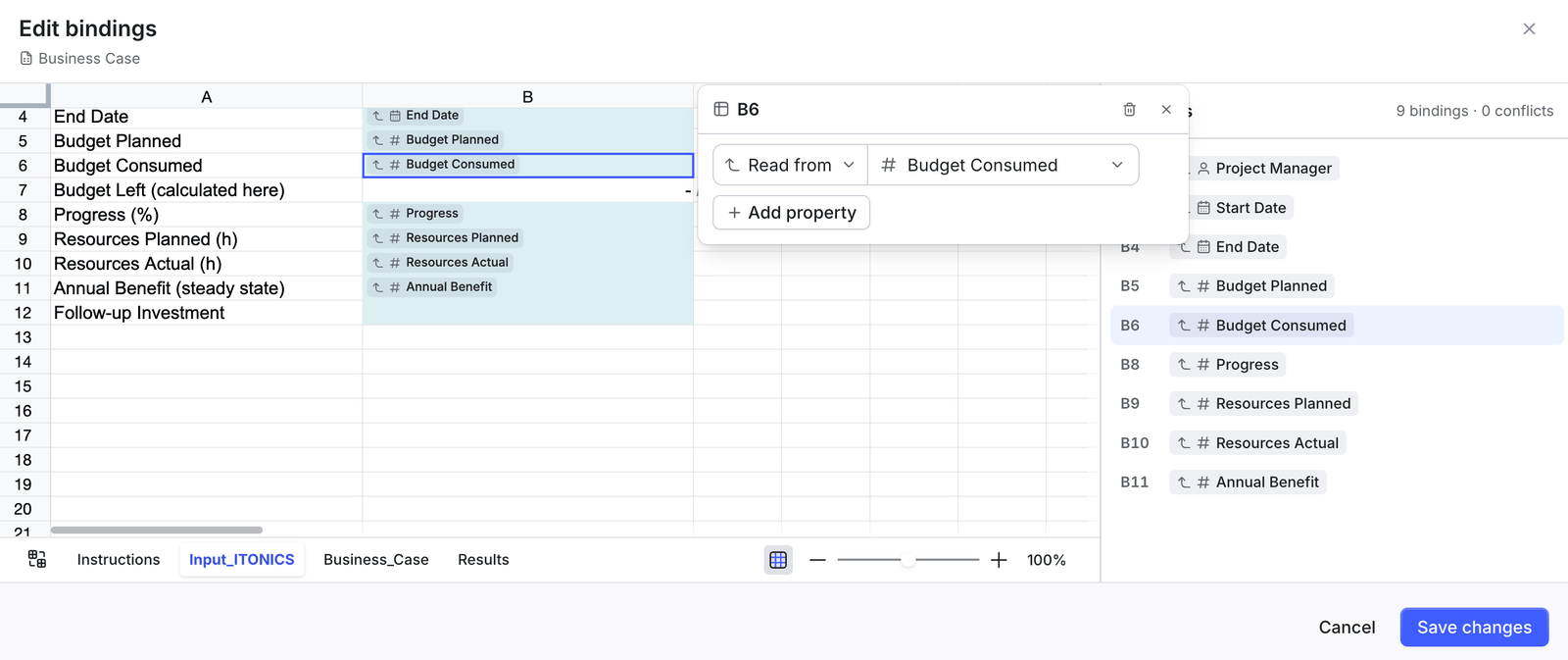
You set up the bindings in the binding editor, which shows the template as a spreadsheet. Click a cell, then select a direction and a property.
Each bound cell shows the property it's linked to, and the list next to the sheet shows all bindings of the sheet and any conflicts. Merged cells can't be bound. If a template is too large to display, its bindings are edited as a list instead. New bindings are only stored when you save the Smart Excel property itself. A conflict, such as a binding to a property that no longer exists, shows in red, and Save changes stays disabled until you resolve it.
The template must be an .xlsx file of up to 20 MB (see Supported file formats and sizes). The properties you bind must exist on the element type, so create them first, for example a number property for a budget or a date property for a launch date. Only .xlsx files work: an .xls file is rejected, so open it in Excel and save it as .xlsx first.
Note: Changing the template or the bindings later resets the workbook in all elements, and changes people made in their copies are overwritten.
When an element is created, cells bound with Write into or Sync fill the bound properties with the template's values, so the template can set default values. A Smart Excel property can be used by several element types; a binding to a property that an element type doesn't have is skipped for that type.
Binding directions
Each binding has a direction that decides which side fills the other. In the binding editor, the direction describes what the cell does.
| Direction | What happens | Good for |
|---|---|---|
| Write into | The cell writes its value into the property, for example when someone uploads an updated workbook. | Results calculated in Excel, such as a net present value. |
| Read from | The cell reads its value from the property whenever the property changes in ITONICS. | Information kept in ITONICS that the workbook needs, such as a start date. |
| Sync | Both directions. The latest change wins. | Values people edit in either place. |
Read-only properties, such as formula properties, can only be used with Read from. Fill each property from one Smart Excel property only. If two Smart Excel properties of an element type write into the same property, the property shows the warning "Conflicting imports from these Smart Excel properties". Remove one of the bindings.
Calculating in Excel
Because the workbook keeps its formulas, you can combine directions: a cell that reads from a property feeds a formula, Excel recalculates, and a cell that writes into another property returns the result. For example, B2 reads a budget, the formula =B2*1.1 in C2 adds a 10% reserve, and C2 writes the result into a second property. For calculations that only use properties of the element, a formula property is often simpler. Use Smart Excel when the calculation already lives in a workbook, spans many cells, or people need to work with the workbook itself.
The workbook on an element
On the element's details page and in table views, the property shows the element's current workbook. Click it to open a preview with all sheets of the workbook and its version history.
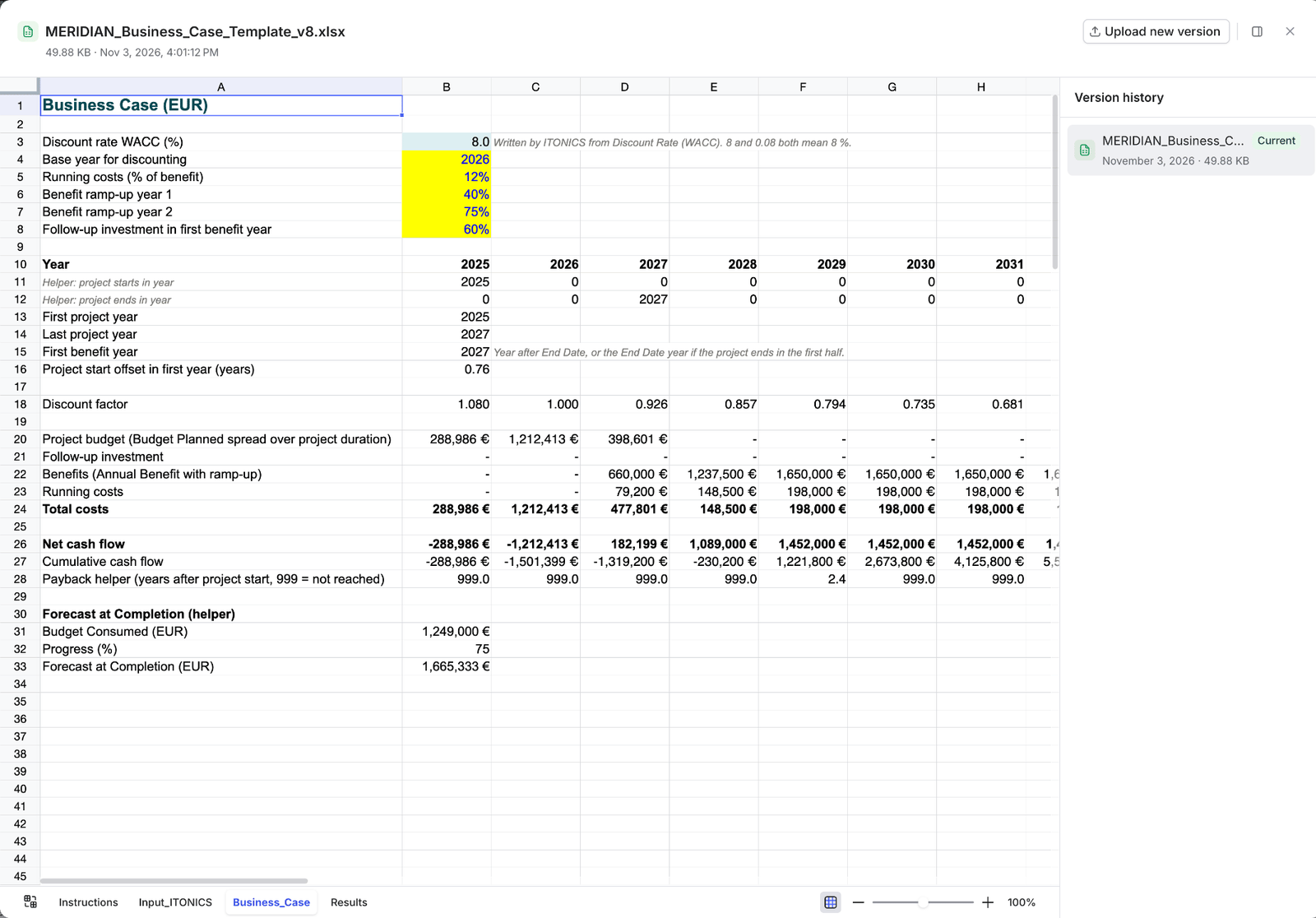
To change the workbook, download it from the version history, edit it in Excel, and upload it with Upload new version. ITONICS keeps the earlier files in the version history, and the properties bound with Write into or Sync update after each upload, which takes a few seconds. People who watch the element get an email after each upload.
When a cell fills a property, the cell's value has to fit the property:
| Property | The cell must contain |
|---|---|
| Text | Any text. |
| Number | A number within the property's minimum and maximum. Excel number formats, such as thousands separators or currencies, are fine. |
| Date | A date in any Excel date format. |
| User | The email address of a user of the workspace. Case doesn't matter. |
| Hyperlink | A valid web address. |
When a property fills a cell, ITONICS writes its readable value, such as a label, a name, a date, or a number.
If a cell holds a value the property can't take, such as text in a number cell or an email address that doesn't belong to a workspace user, that property keeps its old value. Its Smart Excel badge shows a warning such as "Out of sync with these Smart Excel properties: Business Case (B5)" until a corrected version is uploaded.
The same happens when a bound sheet or cell is missing in the upload, for example because a sheet was renamed. A problem with one binding never blocks the others, and the workbook can always be uploaded and downloaded.
Properties filled by a workbook show a lightning icon. Hover over it to see which Smart Excel property and cell fill it.
Smart Excel in forms
A form can ask for the workbook at the point where a process needs it, for example a business case before a review. In a workflow, add the Smart Excel property to a manual form like any other property. To learn how forms fit into a workflow, see Manual nodes.
In the form, the user opens the element's current workbook, or the template if the element has no workbook yet, downloads it, fills it in, and uploads it with Upload new version. The upload is marked as pending and stays in the form until the form is submitted, also when the user closes the form and comes back. Until then, the user can discard it with the × next to the file, which brings back the current workbook. On submit, the upload becomes the element's current workbook, the bound properties update, and every change shows on the element's Activities tab.
For the change history, see View an element's change history.
If the uploaded workbook doesn't match the template, for example because a bound sheet is missing, the form isn't submitted and the property shows "File must match the template." Upload a workbook based on the current template and submit again.
Forms on sites can ask for the workbook too, so colleagues or external partners can send a filled template with their submission. To set up a site form, see Create and configure site forms.
Limits
- A Smart Excel property can't be used to filter, group, or build charts. The properties it fills can.