
Manual nodes are the steps of a workflow where a person has to act, for example fill in a form or approve a submission. The workflow waits at a manual node until the step is complete. To learn how nodes fit into a workflow, see Overview of workflows.
Types of manual nodes
| Node | What the person does |
|---|---|
| Manual form | Fills in a form to add data to the element. The form is built from the same blocks as an element's details page: properties, sections, ratings, columns, and information blocks with explanatory text. Submitting writes the values to the element right away. A Smart Excel property in the form asks for a filled workbook, and its bound properties are updated on submit. |
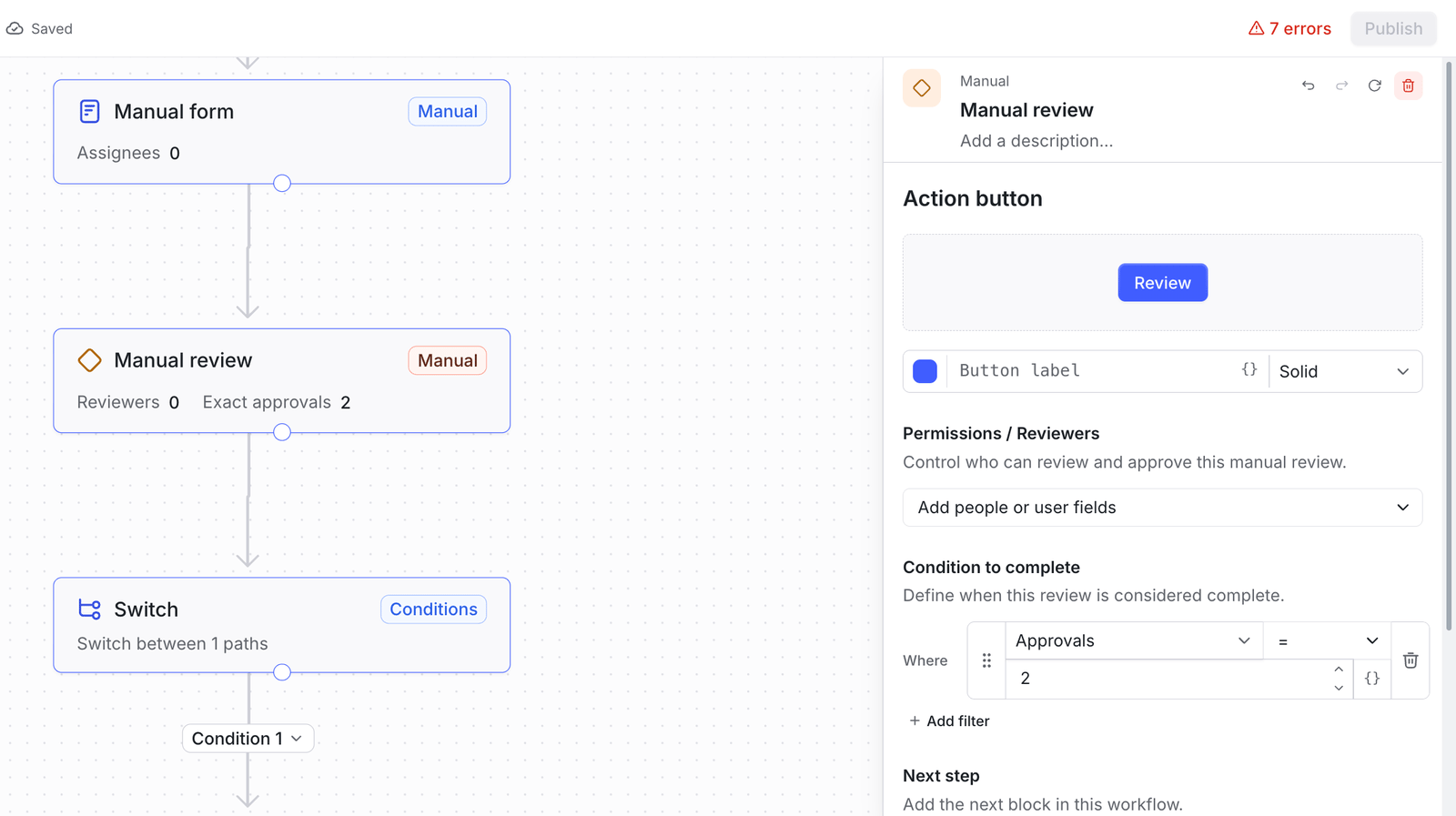
| Manual review | Reviews the element and approves it, requests changes, or validates the decision. The review shows who has approved, who is still pending, and any open change requests. Reviewers can also correct a small error in the submitted values. |
| Manual trigger | Clicks a button to confirm a checkpoint where no data is needed, for example "Budget is locked" before the next steps run. |
| Manual URL | Clicks a button that opens a link in a new browser tab, for example a Jira ticket or a financial spreadsheet that's part of the workflow. The link can include values from the workflow context, such as a value of the element. See Workflow context. |
A workflow can't start with a manual review: the first node after the start trigger is never a review. A manual review also can't follow directly after another manual review. On the element, each manual node shows as an action button. For how people work with these buttons, see Apply a workflow to an element.
What every manual node has
| Setting | What it does |
|---|---|
| Action button | The button that shows on the element. You set its label, its color, and its appearance: Solid, Subtle, or Ghost. With {}, the label can include values from the workflow context, such as the element's title. |
| Permissions | Who can act on the step: assignees for forms, triggers, and URLs, and reviewers for reviews. See "Assignees and reviewers" below. |
| Condition to complete | When the step counts as done, defined with filters on the element's properties. The value a filter compares against can also come from the workflow context. A review can also require a number of approvals, as an exact number or a minimum, combined with property conditions, for example 2 approvals and a budget over 1 million. To require approval from all reviewers, set the exact number to the number of reviewers. Submitting saves the input, but the step is only completed once the condition is met. On a review, the dialog that opens from Validate lists every condition and how far it's met, such as missing approvals. On a manual URL, this setting is called Auto-complete condition: the step completes on its own as soon as the condition is met. |
| Auto continue | Shows once the node has a condition to complete. It moves the element to the next node as soon as the condition is met, without anyone having to act. A review can only continue automatically when it has a single next step. With 2 or more, the reviewer chooses the path when the workflow runs. |
| Next step | The node that follows. A review can have several next steps, for example continue, hold, or stop. |
Assignees and reviewers
Assignees and reviewers can be named users or user properties of the element type, including the Created by and Updated by system properties. Only assigned people see the action button. To add users to a workspace, see Manage workspace users.
User properties are resolved on each element. When the value of the property changes, access moves to the new users right away, without publishing the workflow again.
If the property is empty, nobody can act on the step. An Update element node can change or clear the property during the workflow, which moves or removes access. See Automation nodes. An admin can still move the element to another step with Change action in the element's menu.
A manual trigger or manual URL without assignees can be completed by everyone with access to the element. A user property can't be deleted while a workflow uses it as an assignee.