
Do your part in a workflow from the element itself: fill in a form, review a submission, open a link, or confirm a checkpoint. To learn what an element is, see Understanding elements.
Before you start
You only see the action button of a step if you're one of its assignees or reviewers. To learn who can act on which step, see Manual nodes.
Complete a workflow step
Open the element.
This works on the details page and in the stack view next to a view.
Under Workflow Actions, click the button of the step you want to do.
The buttons of all workflows that run on the element sit together in this section.
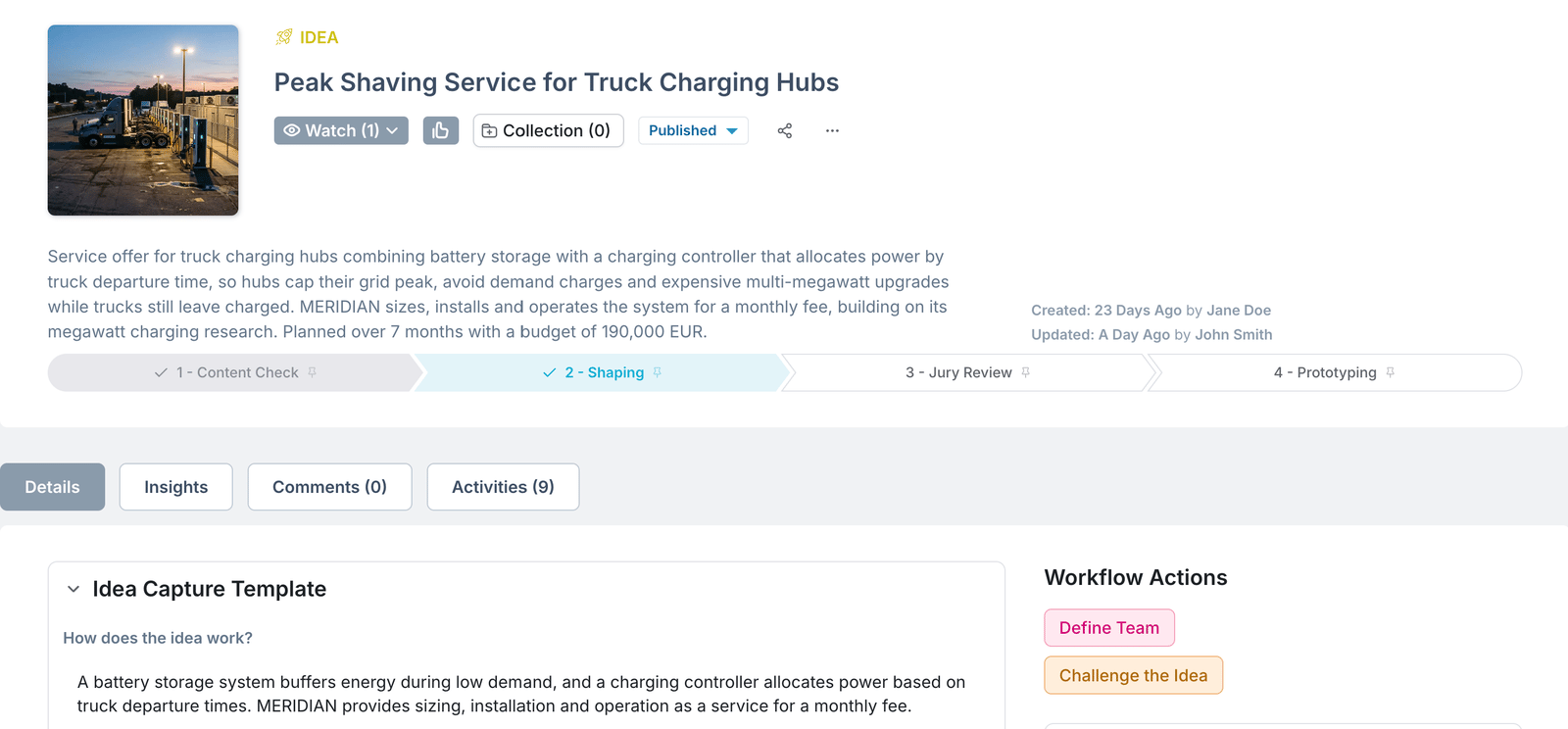
For a form, fill in the fields in the panel that opens and click Submit.
Your entries are saved as you type. Fill in all required fields first. Submitting writes the values to the element and moves the workflow on.
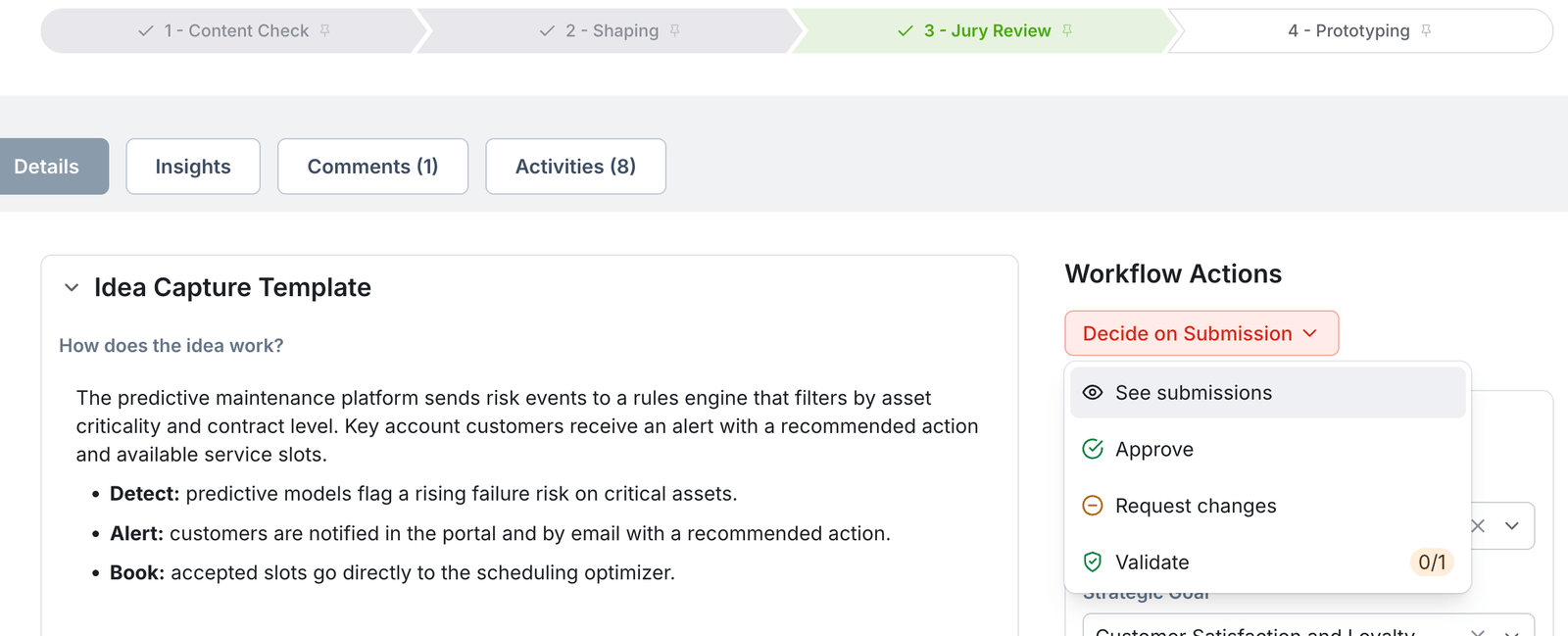
For a review, click the arrow on the button and select See submissions, Approve, Request changes, or Validate.
The menu shows how many approvals the review has and how many it needs.
For a link or a checkpoint, click the button.
A link opens in a new browser tab.
A review works like this:
- See submissions opens a panel with the values that were submitted, the review status, for example Open or Changes requested, and who has approved so far. A reviewer can correct a small error in the submitted values there.
- Request changes asks for the submitted values to be corrected and sends a notification about the change request. Open change requests must be resolved before the review can be validated.
- Validate completes the review once its condition is met, for example enough approvals. If the review leads to several paths, you select the path when you validate. It opens a dialog that lists each condition to complete and how far it's met, for example "Current: 0 of 1 approved". Until all conditions are met, you can't move the workflow on.
If the element type has a lifecycle, the step bar in the element's header shows which phase the element is in and which phases come next. A workflow can move the element to the next phase when a step is done, so the bar shows the progress at a glance. See Overview of lifecycles.
To move an element to another step by hand, admins open the element's menu, select Change action, and pick a manual step of the workflow. To show the workflow actions block in another place on the details page, add it to the element type's layout. See Configure the layout of an element type.
Result
The step is done, and the workflow moves on to its next node. The element's Activities tab logs what you did. See View an element's change history.