
A lifecycle is a sequence of phases an element moves through, for example from idea to implementation. It shows as a step bar in the element's header, so everyone sees at a glance where the element stands and what comes next.
How a lifecycle shows on an element
The step bar sits in the header of the element's details page. The phases up to the current one show a check mark, the current phase is highlighted, and the phases still ahead stay plain. Point to a phase to see its name, whether it's the current one, and the properties pinned to it, for example the person responsible in that phase.
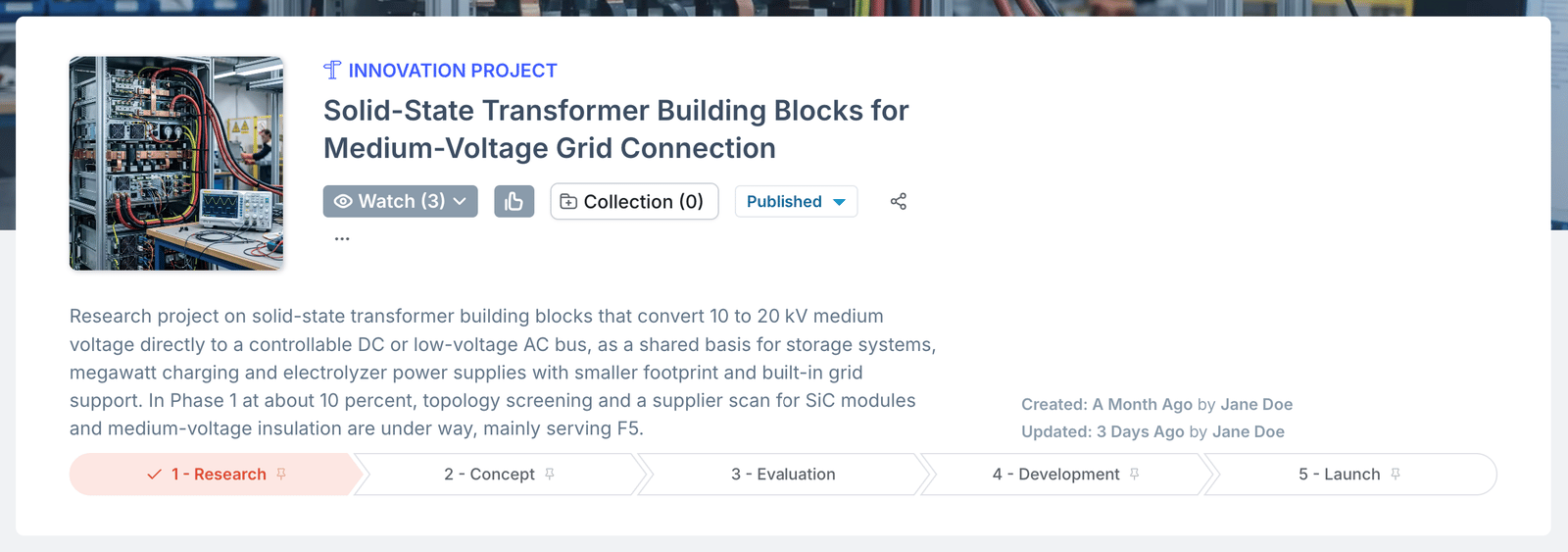
A lifecycle is the only way to show a step bar in the header. A dropdown property added to the header shows as a tag instead.
Phases come from a dropdown property
Each lifecycle is built on one single-select dropdown property of the element type. The options of the dropdown become the phases, and the value an element has in that property is its current phase. So whatever changes the value moves the element to another phase: editing the property on the details page, dragging a card to another column of a board view, or a workflow.
A lifecycle can show the phases in its own order and hide some of them, without changing the dropdown itself. If an element's value is a hidden phase, the bar marks the phases before it as done and highlights none.
Which elements show a lifecycle
An element type can have several lifecycles. The activation criteria of a lifecycle decide which elements show it. They work like the criteria of a workflow's start trigger: a property, an operator, and one or more values, for example Business Unit is BU 1. A lifecycle without criteria shows on all elements of the element type.
If several lifecycles match the same element, a lifecycle menu appears above the step bar, where users switch between them.
For example, to give each business unit its own phases, create one lifecycle per business unit on the same element type, each with its own dropdown property and the criteria Business Unit is BU 1, Business Unit is BU 2, and so on. Each element then shows the lifecycle of its own business unit.
Lifecycles and workflows
A lifecycle and a workflow are separate. The lifecycle shows where an element stands, and a workflow decides what happens next.
A workflow moves the element to another phase with an Update element node that sets the lifecycle's dropdown property. This can happen at any point in the workflow, not only after a manual step. See Overview of workflows and Automation nodes.
Lifecycles in views and filters
Views and filters can use the Lifecycles field, which lists the phases of all lifecycles in the workspace. To show phases as columns, group a board view by the lifecycle's dropdown property. See Set up a board view.
To set up a lifecycle, see Create and manage lifecycles. To follow an element through its phases, see Move an element through its lifecycle.