
A workflow models how elements of one type move through a defined flow, and automates parts of it. It starts from a trigger and runs a sequence of manual, routing, and automation nodes. Workflows guide people through clearly defined actions and paths, so your innovation work stays consistent, governed, and transparent.
What you use workflows for
Typical uses:
- Make sure every submitted idea is validated and evaluated before it moves on, for example ideas submitted through a site.
- Run innovation projects so that tasks are done in the right order and milestones are met.
- Select and prioritize initiatives for a portfolio, so they're aligned with your strategic goals.
- Make it visible on the element who acts next, so everyone involved knows what's expected of them.
How a workflow is built
Each workflow belongs to one element type, for example Idea or Innovation Project. An element type can have several workflows. All workflows of a workspace are listed under Workflows in the sidebar, with their element type, status, and the number of elements that use them. Only Workspace Admins can create, edit, and publish workflows.
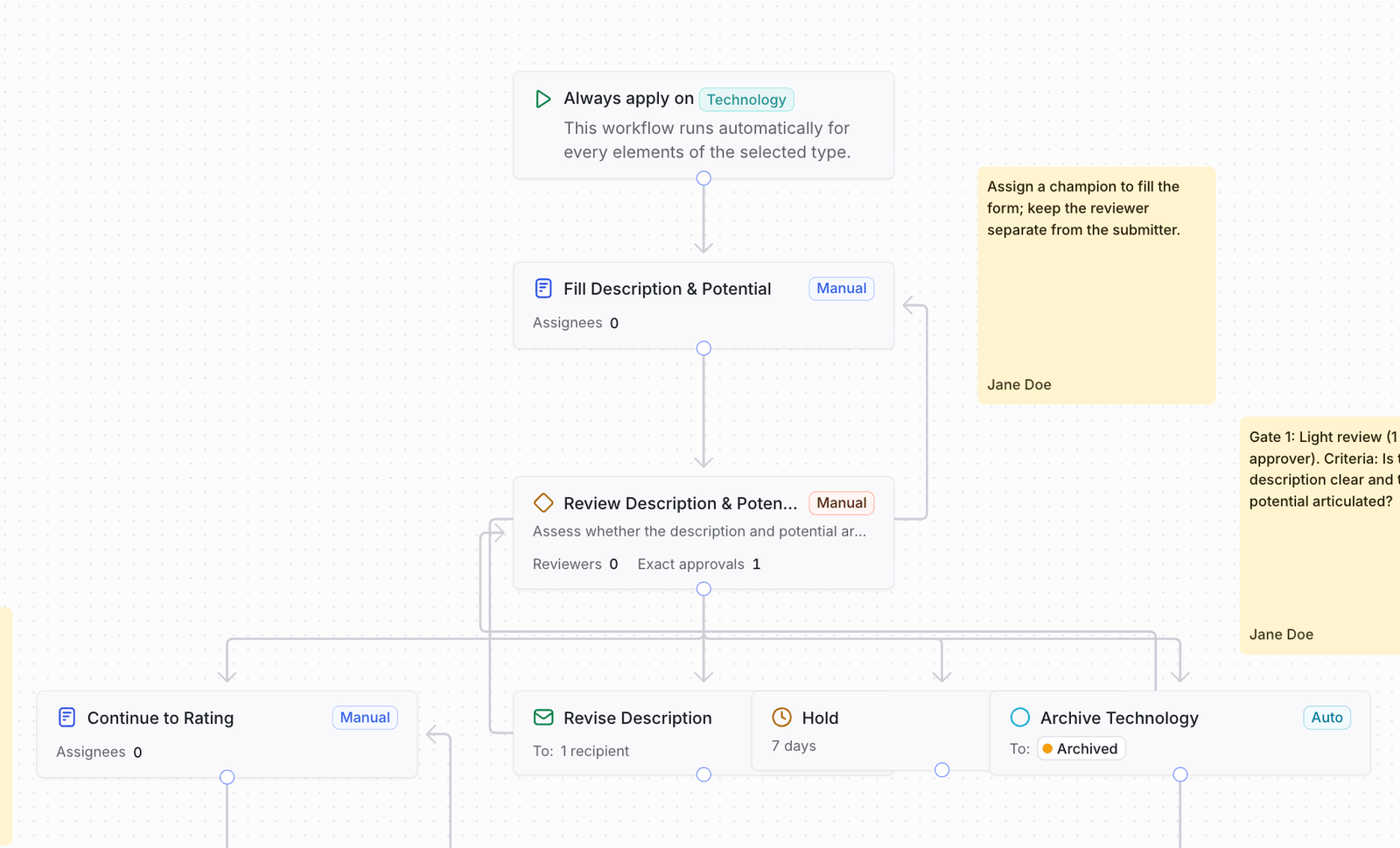
You build a workflow on a canvas in the workflow builder (formerly Workflow Configuration). Start from scratch, or describe the workflow to Prism and let it build a first version for you. See Create a workflow.
A start trigger is the event that starts a workflow for an element. Every workflow has one. See Start triggers.
A node is one step in a workflow. Manual nodes wait for a person, routing nodes decide which path to take, and automation nodes run an action. On the canvas, the nodes follow the trigger and are connected in the order the work should follow. When a node's work is done, the element moves on to the next node.
Types of nodes
Nodes come in three groups.
| Group | What the nodes do | Nodes |
|---|---|---|
| Manual | Wait for a person to act, for example to fill in a form or approve. See Manual nodes. | Manual form, Manual review, Manual trigger, Manual URL |
| Routing | Decide which path or paths an element takes. See Routing nodes. | Switch, Parallel run, Conditional run, Filter |
| Automation | Run an action without anyone having to act, for example change a property value, send an email, or call another system. See Automation nodes. | Convert element, Update element, Create element, Change status, Send email, HTTP request, Execute code, Delay |
Nodes can use workflow context: the values of the element and the results of earlier nodes. See Workflow context.
Draft and published versions
The workflow builder saves your changes automatically. Your changes reach elements only when you publish the workflow. Until then, elements keep running the version that was published last.
A workflow that was never published has the status Draft. A published workflow with changes that aren't published yet shows a clock icon next to its status, with the tooltip "Version not published".
Publishing applies your changes to the steps that are still ahead of each element. Steps an element has already completed don't change. You can't publish while the workflow has errors. To publish, restore an earlier version, or rename, duplicate, or delete a workflow, see Manage workflows.
How elements run through a workflow
An element enters a workflow when its start trigger fires. From there, it moves from node to node. Each node is checked at the moment the element reaches it, with the values the element has at that moment. The node isn't checked again later.
Note: A condition that reads an empty property can't match, and the workflow doesn't go back to that node when someone fills in the property afterward.
This matters most when a workflow starts as soon as an element is created, because most properties are still empty then. For ways to make sure a value exists before a node checks it, see Workflow best practices.
Where people work with workflows
- People act on a workflow through action buttons on the element, for example to submit a form or review a submission. See Apply a workflow to an element.
- Manual and automatic workflow actions are logged in the element's Activities tab. See View an element's change history.
- A lifecycle shows the phase an element is in as a step bar in its header, and a workflow can move it to the next phase. See Overview of lifecycles.