
A start trigger is the event that starts a workflow for an element. It decides which elements of the element type enter the workflow, and when. Every workflow has exactly one start trigger: the first node on the canvas.
Types of start triggers
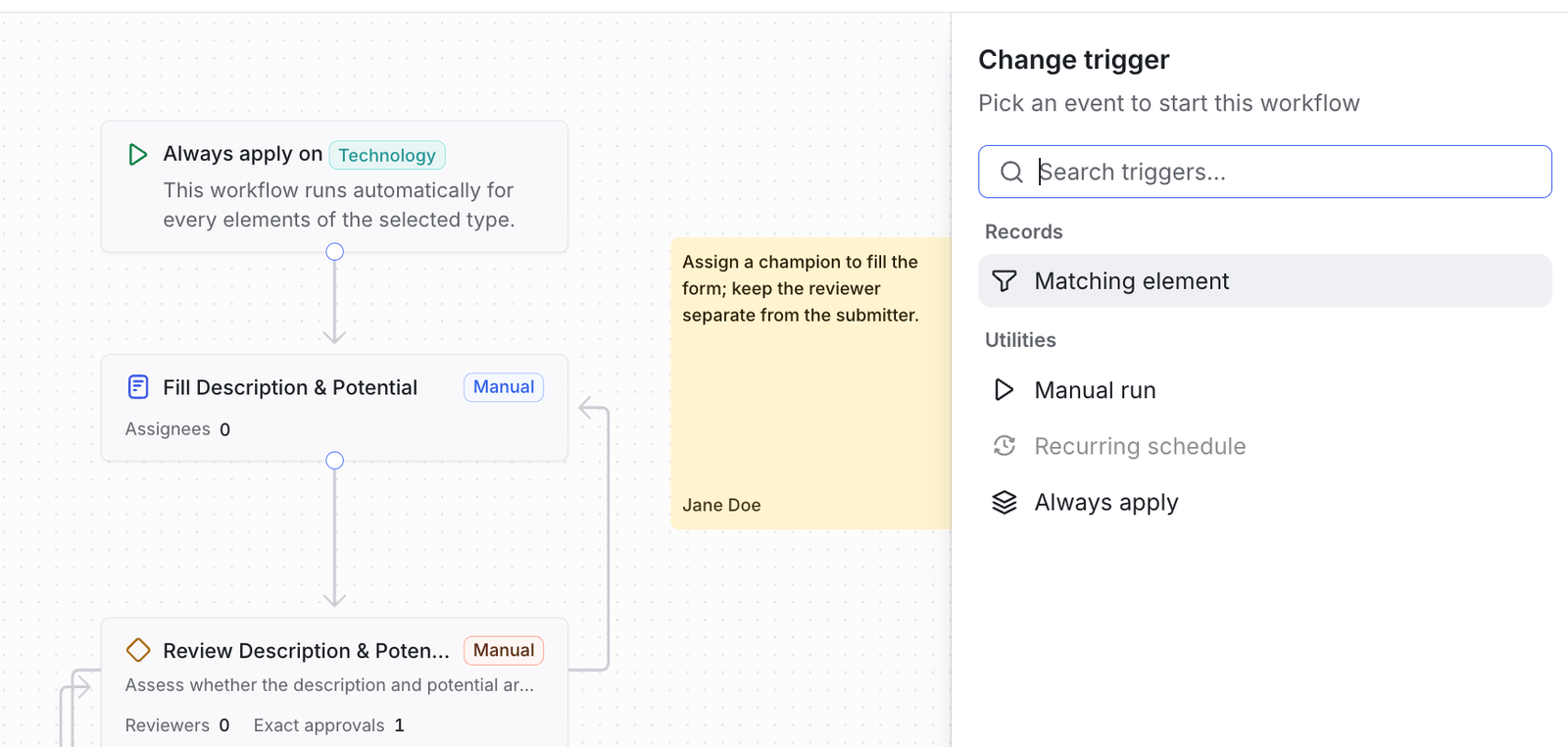
You pick the trigger on the start node of the workflow, in the panel that opens when you select it. The panel lists Matching element under Records, and the other triggers under Utilities. To switch to another trigger later, click Change trigger in that panel. For the full setup of a new workflow, see Create a workflow.
| Trigger | When the workflow starts |
|---|---|
| Always apply | For every element of the element type, as soon as the element is created. |
| Matching element | Automatically, but only for elements that match the criteria you set, for example only AI-related trends or only projects with a high budget. Elements of the same type that don't match aren't affected. |
| Manual run | When someone starts it manually with a button. |
| Recurring schedule | Automatically, on a repeating schedule: daily, weekly on the days you pick, or monthly, at a set time and time zone. A scheduled workflow runs unattended, so it can't contain manual nodes: remove them before you switch to this trigger. |
Matching element criteria
With Matching element, you decide exactly which elements follow the workflow. Each criterion has a property, such as a category or region dropdown, an operator, such as "is", "is not", "is empty", or "is not empty", and one or more values.
You can add more criteria and combine them with And or Or. You pick the combination once, and it applies to all criteria. With And, an element must match all criteria. With Or, one matching criterion is enough.
Matching criteria let you give one element type several workflows that apply under different conditions. For example, high-budget projects can follow a workflow with an extra review, while all other projects follow a shorter one.
Start triggers and empty properties
With Always apply, the workflow starts the moment an element is created, when most of its properties are still empty. A condition early in the workflow then reads an empty value and can't match. See Routing nodes.
To make sure an element only enters the workflow once a value exists, use Matching element with a criterion such as "Budget is not empty". For other ways to handle empty values, see Workflow best practices.
Start triggers and created elements
A Create element node can create elements of the type the workflow runs on. If the start trigger matches those new elements too, for example with Always apply, each new element starts the workflow again and creates another one. Keep the criteria of a Matching element trigger narrow enough that new elements don't match, or put a Filter before the Create element node. See Automation nodes.