
These practices help you build workflows that run reliably and need little upkeep. Most of them come down to one point: a workflow acts on the values an element has at the moment a node is reached. To learn how to build a workflow, see Create a workflow.
Make sure a value exists before it's checked
A node checks an element's values once, when the element reaches it, and doesn't come back later. A condition that reads an empty property can't match. This matters most when a workflow starts as soon as an element is created. To learn how elements run through a workflow, see Overview of workflows.
Use one or more of these options to make sure a value exists before a node checks it:
- Make the property required in the element type, so people fill it in when they create the element.
- Give the property a default value, so there's always a value to check.
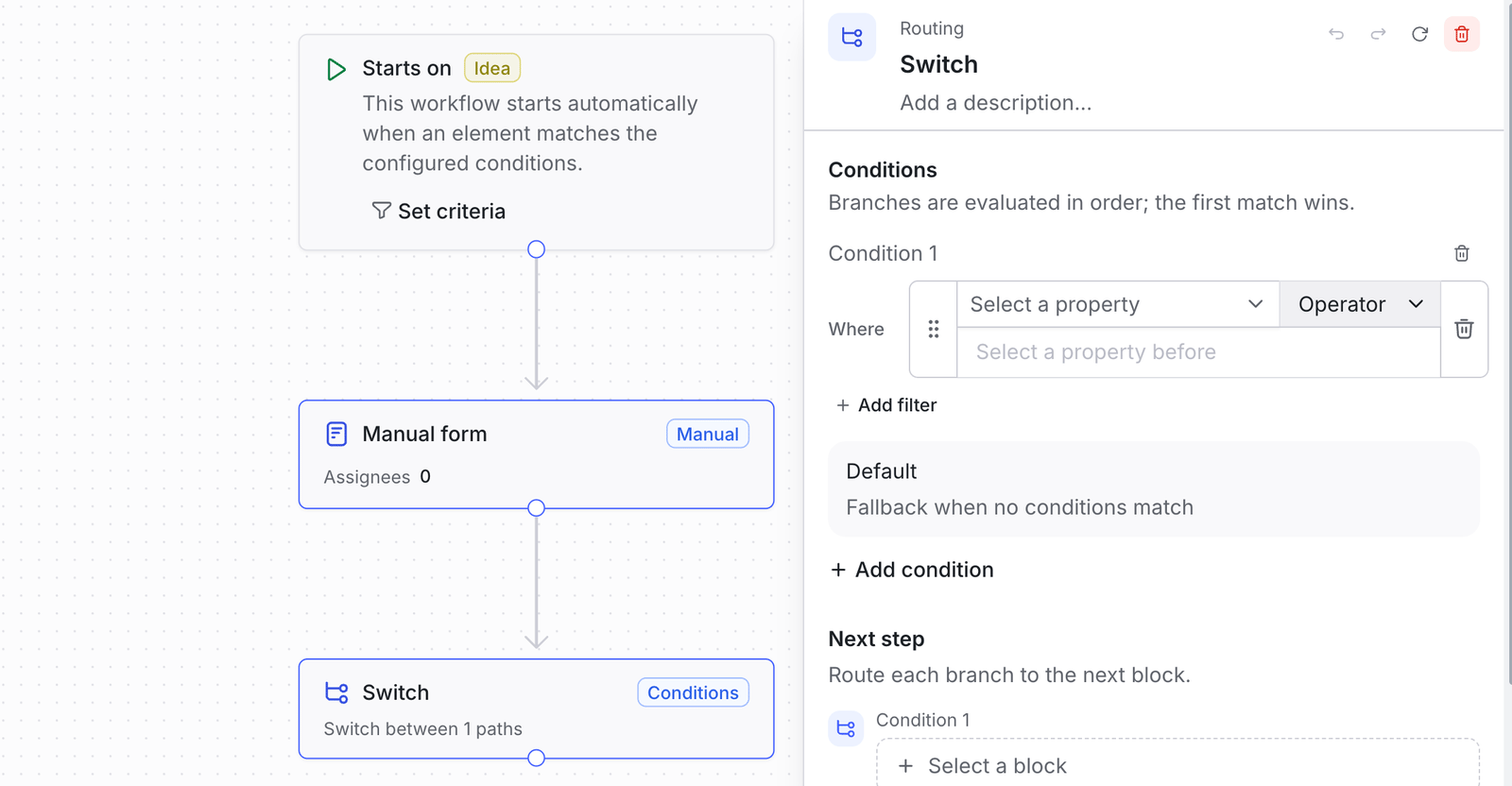
- Put a Manual form node before the condition that asks for exactly the property the condition reads.
- Put an Update element node before the condition that writes a fixed value.
- Start the workflow later: use the Matching element trigger with a criterion such as "Budget is not empty", so the element only enters once the value exists.
- Put a Delay node before the condition, so people have time to complete the element first.
Prevent a workflow from restarting itself
A Create element node can create elements of the type the workflow runs on. If the start trigger also matches those new elements, each one starts the same workflow and creates another one. The builder doesn't warn you about this. See Automation nodes.
To prevent it, put a Filter before the Create element node, or use the Matching element trigger with criteria that new elements don't meet. See Start triggers.
Test HTTP requests and code before you publish
HTTP request and Execute code nodes have a test run: pick an element and run the node on its own. You see the response or the returned value, or a readable error. Nothing is saved to the element, and the workflow isn't published.
Pick an element whose values look like real data. A test with an empty element can pass where a filled-in one fails, and the other way around. See Automation nodes.
Build one workflow instead of several
Routing nodes read the element's properties, so one workflow can cover cases that would otherwise each need their own. For example, a switch on a Department property gives each department its own path. You then maintain one workflow instead of one per department. See Routing nodes.
Start with a first version from Prism
Describe the workflow to Prism to get a first version on the canvas, then refine the nodes by hand. A prompt works best when it names the trigger, each step, and how the workflow ends, for example:
Build a workflow for [element type]. Start it [automatically when an element is created / when [property] changes to [value] / manually from a button].
Steps: 1. [Who does what: a form with its properties, a review, or an automatic action]; 2. …
For each review, say who reviews, how many approvals are needed, and what the possible outcomes are.
For each automatic step, say what it changes, who gets notified, or how long it waits.
End the workflow by [converting / archiving / setting a status], and notify [whom].
Prism can't assign specific people or send emails to a specific address. Leave names out of the prompt and assign people in the builder afterward.
Assign people through user properties
Think about who acts at each point: assignees on forms, reviewers on reviews, and the approvals a review needs. Instead of naming people, assign user properties of the element type, such as an owner, a team, or Created by. One workflow then sends each element to its own people, and access follows the property when its value changes. See Manual nodes.
Keep it simple
Keep workflows short enough that everyone involved can follow them. Add a node only where people need to decide or give input, or where an automation saves them work.
Let automations keep the state current
Use Change status and Update element nodes to keep an element's status, phase, and other values up to date, so nobody has to maintain them by hand. See Automation nodes.
Track progress on a board
A board view grouped by status or by a dropdown property, such as a phase, shows at a glance where your elements stand. See Set up a board view.
Experiment on a copy
Duplicate a workflow before you try out bigger changes, and use the version history to go back if an edit doesn't work out. See Manage workflows.