
Publish changes to a workflow, and sort, restore, rename, duplicate, or delete workflows. To learn how drafts and published versions work, see Overview of workflows.
Before you start
Only Workspace Admins can edit, publish, and delete workflows. To build a new workflow, see Create a workflow.
Publish a workflow
In the sidebar, select Workflows, then click the name of the workflow.
The list shows each workflow's element type, status, number of elements, creator, and the date it was last published.
Make your changes on the canvas.
The builder saves them automatically. The header shows that they're saved.
Click Publish at the top right.
The button isn't available while the workflow has errors, or when there are no changes to publish.
If elements are still on nodes that you deleted, map each deleted node to a node that the workflow still has.
This way, no element is left without a node.
Confirm with Publish.
Publishing applies your changes to the nodes still ahead of each element. Nodes that elements have already completed don't change, so their progress is kept.
To manage workflows in other ways, use the menus. The ••• menu next to the workflow name in the builder holds Version history, Rename, Duplicate, and Delete. In the Workflows list, the More options menu of each row holds Duplicate and Delete.
| To | Do this |
|---|---|
| Sort the list | Click Sort by above the list and select Creation date, Last published, Name, or Number of elements, and Ascending or Descending. |
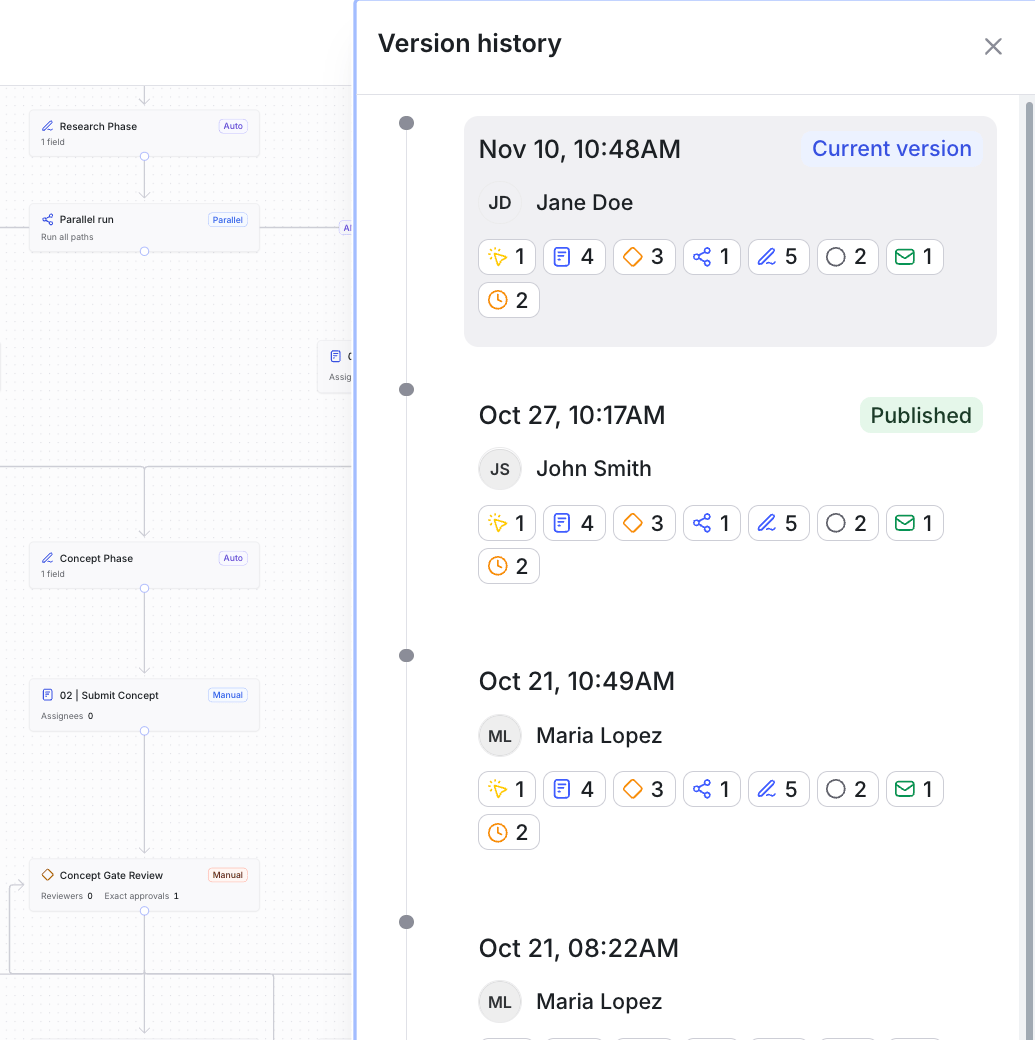
| See earlier versions | In the builder, select Version history. Once a workflow is published, each save creates a version. Each version shows when it was saved, who saved it, and how many nodes of each kind it has. Labels mark the current and the published version. Click a version to view it read-only. |
| Restore a version | Open the version from the version history and click Restore this version. It becomes the current version, but elements only get it once you publish again. To leave without restoring, click Back to current version. |
| Rename a workflow | In the builder, select Rename, change the name, and click the check icon. |
| Duplicate a workflow | Select Duplicate. The copy is named "Copy of" plus the original name, has the status Draft, and opens in the builder. |
| Delete a workflow | Select Delete, type "DELETE", and click Delete. Elements that use the workflow are no longer connected to it. You can't undo this. |
Result
Elements follow the published version of the workflow. The Workflows list shows the date it was last published.