
A board view, also called a Kanban board, is for following elements through stages, for example in a project portfolio. Select the properties that set its columns and swimlanes, the fields on each card, and the card color; columns and swimlanes work best with dropdown properties.
Before you start
You need a board view. To create one, see Create and manage views.
Set up a board view
In the sidebar, open the board view.
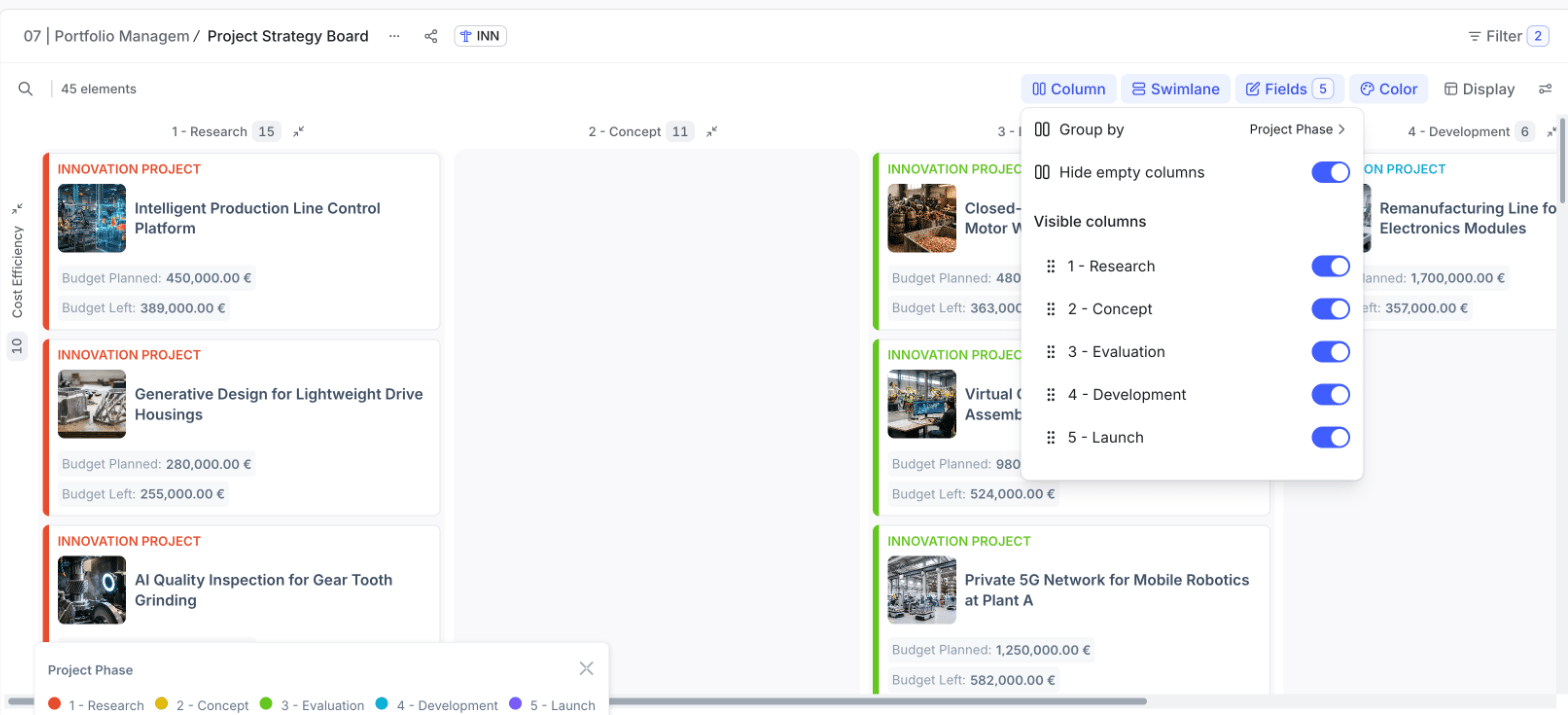
Click Column, then click Group by and select a property.
Each option becomes a column. Multi-select dropdowns, ratings, user properties, and the element type work too; an element with several values shows in each of its columns. On a board with several element types, use a property they share. Under Visible columns, turn off columns to hide them, and drag them to change their order. Each column header shows how many elements the column holds.
Optional: Click Swimlane, then click Group by and select a property to split the board into rows.
Each swimlane header shows how many elements it holds.
Click Fields and turn on the properties to show on the cards.
Cards can show up to 3 related elements.
Optional: Click Color and select a property.
Each card gets a colored line in the color of its option.
Optional: Click Display to turn Show unassigned, Show empty Swimlanes, Legend, Compact image, or Zone mode on or off.
Show unassigned adds elements without a value for the column or swimlane property. Zone mode splits each cell into zones you can name.
Click Save changes at the top right.
To change a value, drag a card to another column or swimlane. The element then gets that column's or swimlane's option. While you drag, the cell turns blue for a valid move and red for an invalid one. Dragging can't change the element type, and cards can't be dragged when the columns come from a property that allows several values.
To open an element, click its card; see View content. To show lifecycle phases as columns, group by the lifecycle's dropdown property; see Overview of lifecycles. If no property fits, create one; see Create and manage properties.
Result
The board shows the elements of the view as cards in the columns and swimlanes you chose.