
Email notifications tell people when something they care about happens in ITONICS, so they can react to new ideas, comments, and decisions without having to look for them. This article explains who gets notified about what and which features you can use to involve your team.
Why engaged teams matter
Innovation grows when many perspectives, skills, and ideas come together and are developed in line with your strategic goals. Engaged teams bring a steady flow of ideas, discussion, and expert input, but engagement fades when the process is unclear or the tools are hard to use. When ITONICS is the one place where your team works, notifications keep everyone aligned, speed up decisions, and raise participation.
Who gets notified about what
ITONICS sends notifications as emails. Each email goes to the people an event concerns:
| Event | Who gets an email |
|---|---|
| An element is published, archived, rated, liked, commented on, related to another element, or a property changes | The person who created or owns the element, and everyone who watches it |
| Someone mentions a person with @ in a comment | The person mentioned |
| Someone reacts to a comment | The person who wrote the comment |
| Someone adds a person to a user property | The person added |
| Someone shares an element or view | The people it's shared with |
| A workflow sends an email or a manual review changes | The recipients set in the workflow, and the people involved in the review |
| A site submission is assigned, or someone requests access to a site | The reviewer, or the owner of the site |
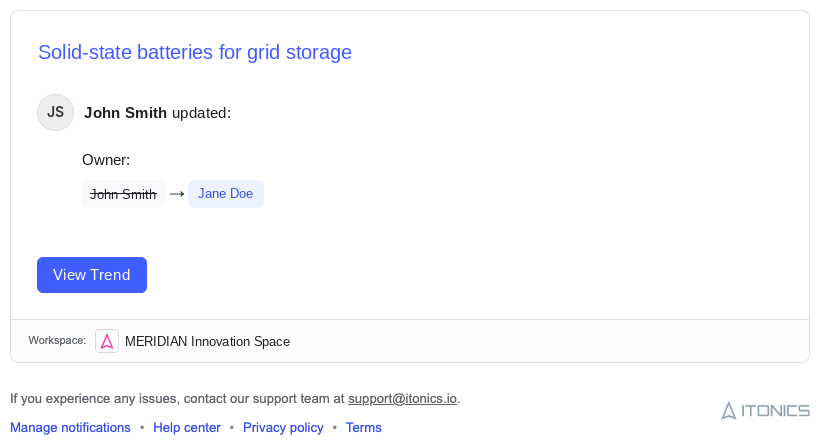
Each email says what changed and who changed it, links to the element, and has a Manage notifications link at the bottom.
Ways to involve your team
Besides notifications, several features bring people into the work. Each of them also triggers notifications:
Watch: ask colleagues to watch the elements they're responsible for, so they hear about every change. See Like and watch elements.
Comments: mention colleagues with @ to draw their attention to something specific or include them in a discussion. Replies and reactions keep the conversation in one place. See Comment and mention.
Ratings: invite your internal experts to rate elements. Their ratings show what to focus on in the short, medium, and long term, and taking part raises their interest in innovation work. See Rate elements.
Shared views (formerly presets): share a view so that your team sees the same elements and works with the same information. See Share elements, views and pages.
User properties: name the people responsible for an element in a user property. See User properties.
Workflows: notify the right people when an element reaches a step, with a Send email node or a manual review. See Automation nodes and Manual nodes.
Everyone controls their own emails
Each person decides which notifications they get, by category or one by one, or turns all of them off. Before you rely on notifications to reach your team, let them know which ones matter for your process. Some emails, such as invitations and sign-in emails, are always sent. To change your own preferences, see Adjust your notification preferences.