
Send colleagues a link to an element, a view, or a page by email, with a personal message, or copy the link to share it anywhere. To learn how views work, see Understanding views and folders.
Before you start
Anyone who can open an element, view, or page can share it. You can send the link only to users of the workspace. To add people to the workspace, see Manage workspace users.
Share an element, view, or page
Open what you want to share and click Share.
For an element, Share is under the title in the stack view or on the details page. For a view or a page, it's next to the name at the top. If you changed the view, save it first.
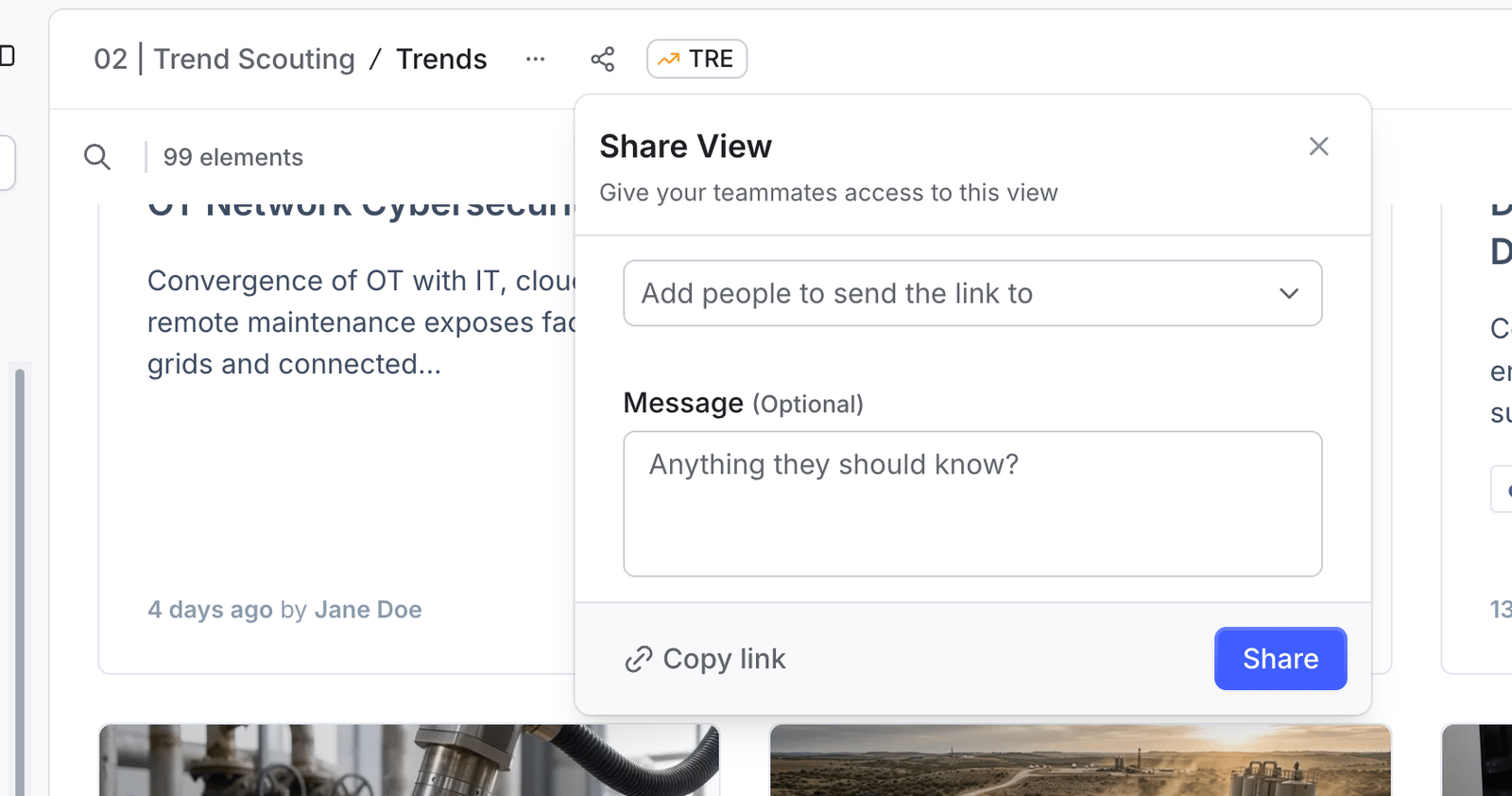
In Add people to send the link to, select the colleagues you want to inform.
Optional: In Message, enter what they should know, up to 500 characters.
Click Share.
To share the link yourself, for example in a chat, click Copy link instead.
To copy the link of an element from a grid view, click the link icon next to its element type on the card.
You can also share a private view or page. Until you share it, only you can see it, and the share dialog tells you that it's private.
Note: People you share a private view or page with can only view it. To let them edit a view, turn off Make private in its view settings (see Create and manage views).
Result
The selected colleagues get an email with the link and your message. Whether the email reaches them depends on their notification preferences. See Adjust your notification preferences.